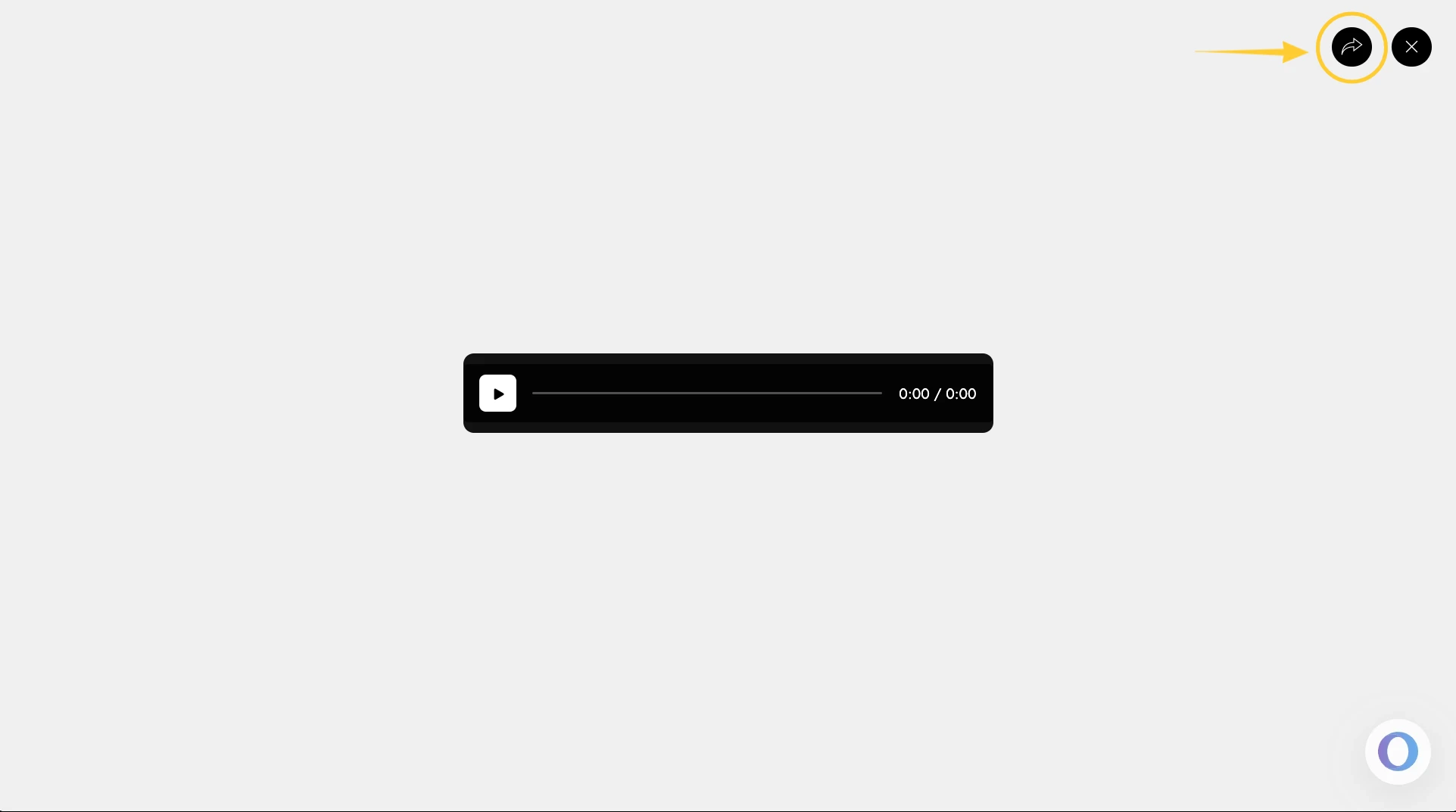
The Audio Player component in IdeaBoard allows you to add and play audio directly within your whiteboard. Instead of switching between external apps, you can listen to recordings, voice notes, music clips, or presentations right where you're brainstorming. The audio appears as a compact player with playback controls, making discussions more interactive and keeping all content organized in one place.
How to add an Audio Player Component?
1In the IdeaBoard editor, click on the 'Add' icon in the top left corner.
2This will open the components modal. Look for the Audio Player Component and add it to the canvas by dragging and dropping it.
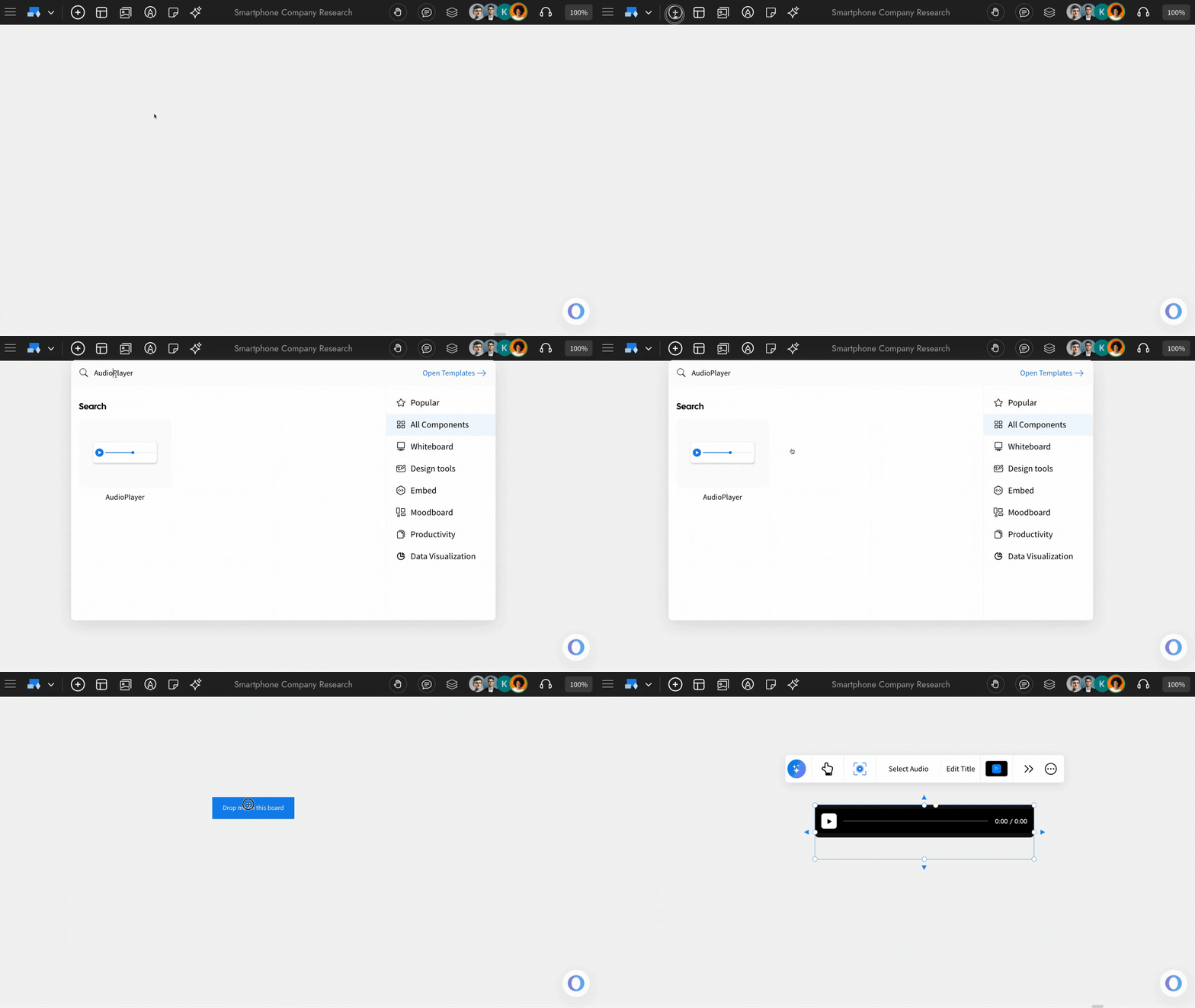
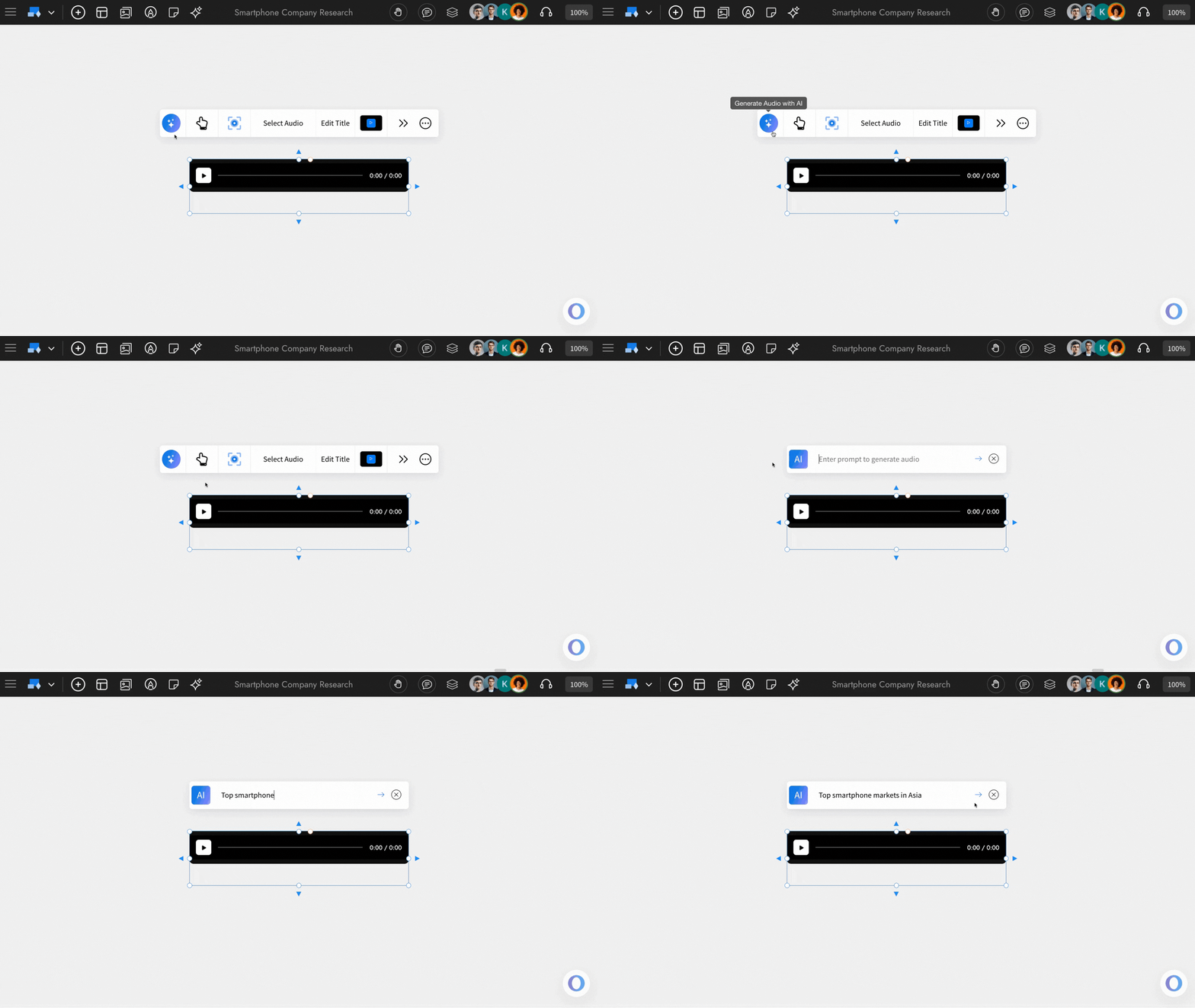
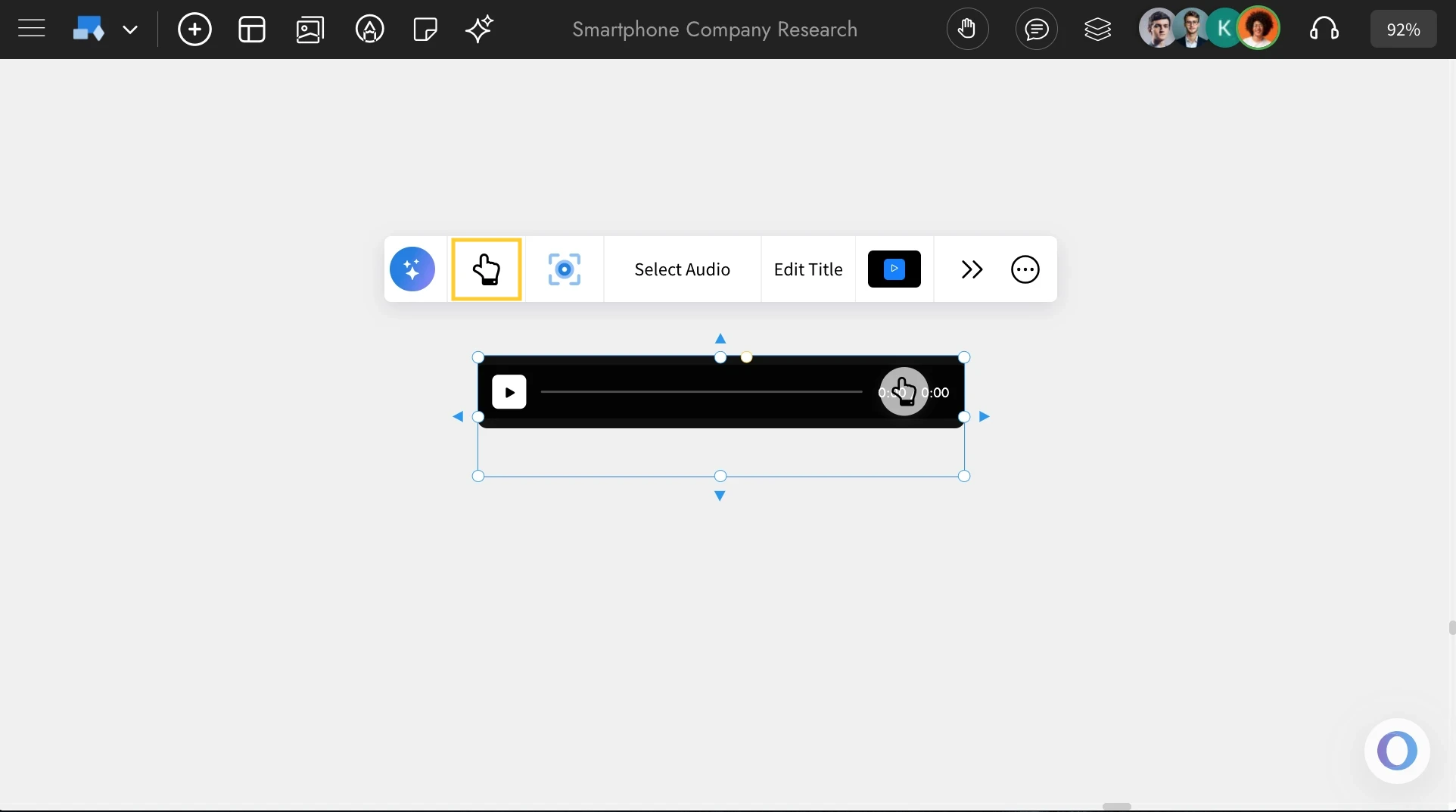
Generate Audio with AI: By using ‘Generate with AI’, you can create audio simply by entering a prompt.
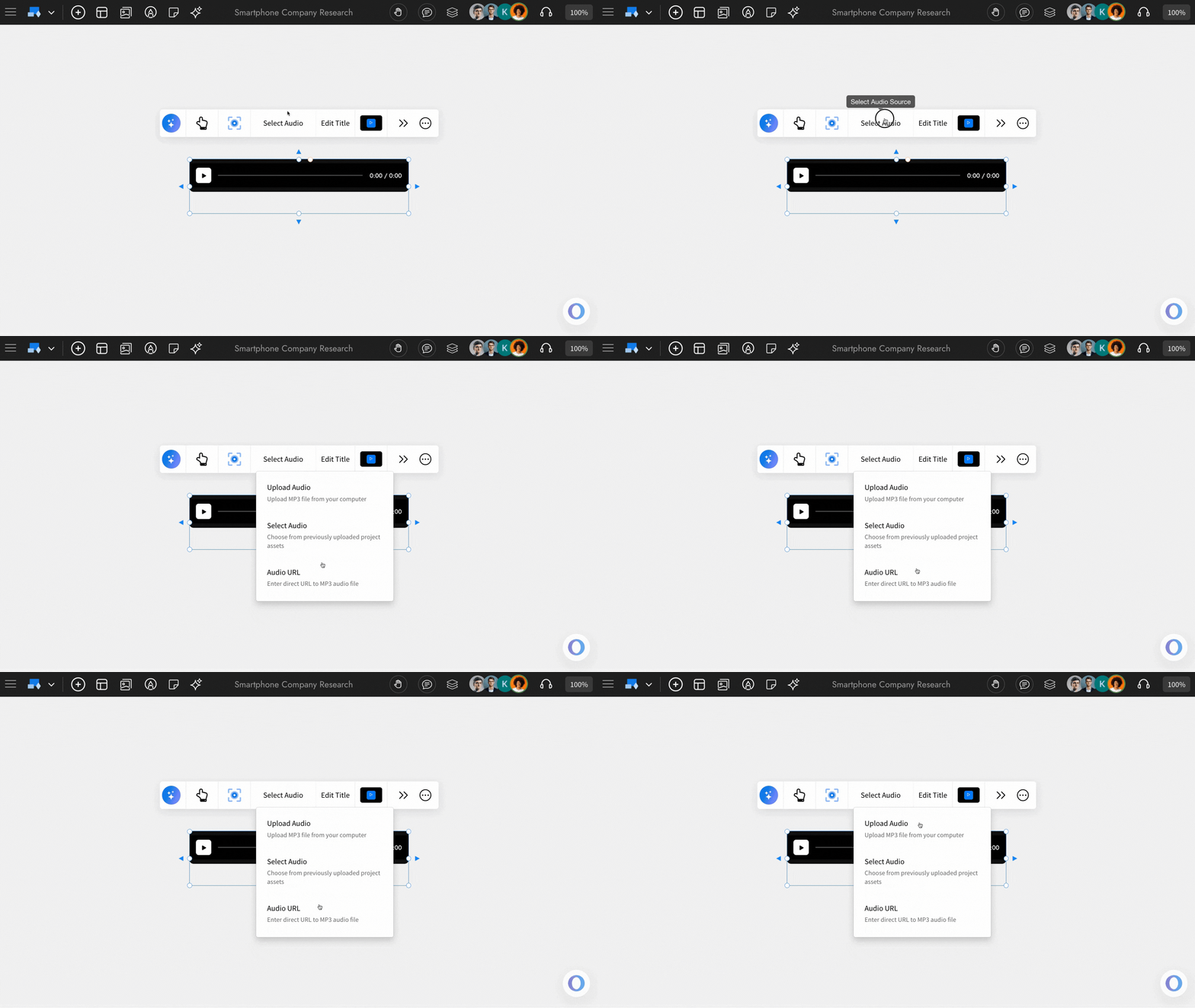
Multiple options to import the audio: The Audio Player component allows you to import audio in three ways. Click ‘Select Audio’ and choose from the dropdown: Upload Audio, Select Audio, and Audio URL.
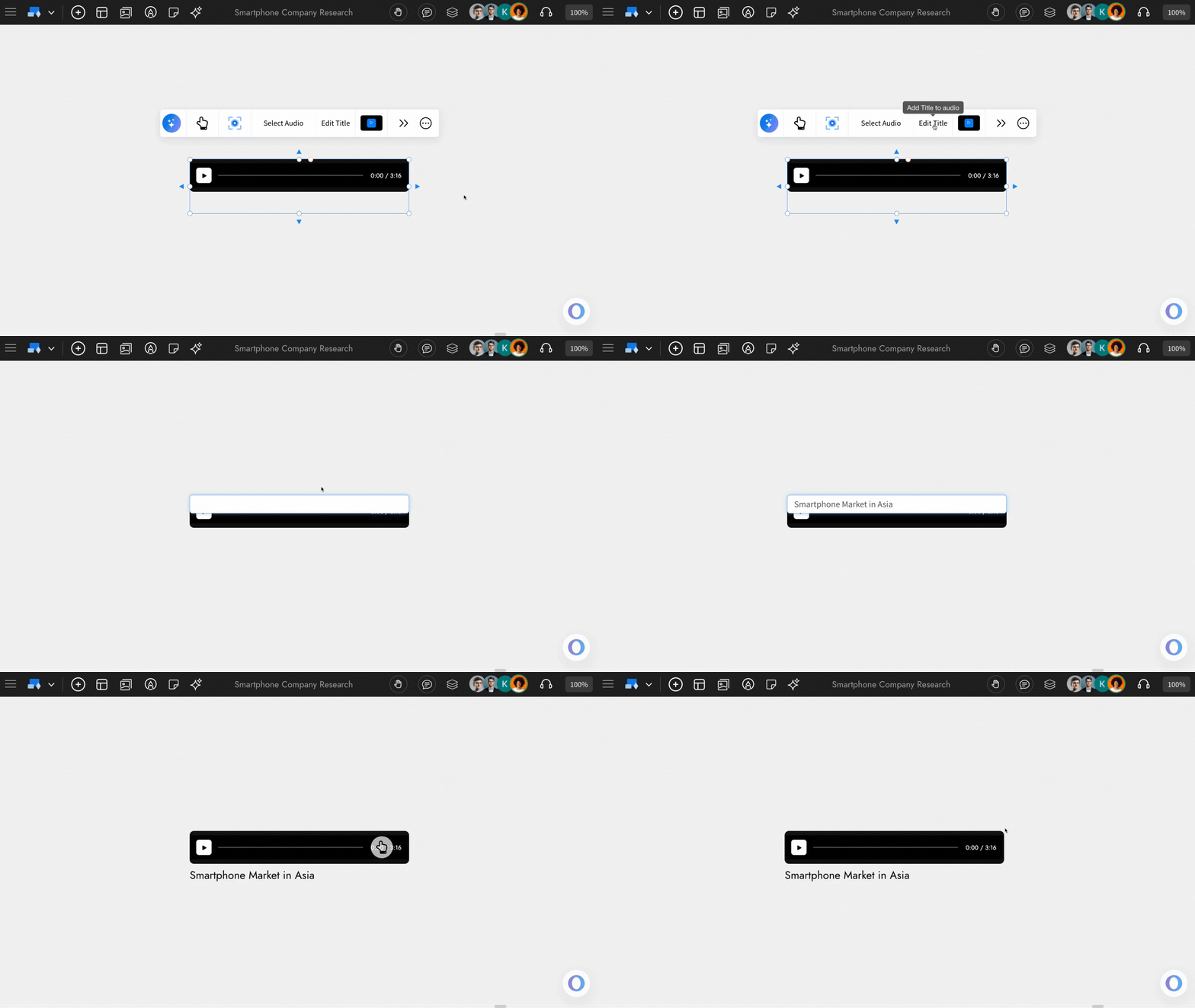
Adding a title to the Audio Player component: By using the ‘Edit Title’ option from the quick toolbar, you will be able to add or modify the title of the Audio Player component.
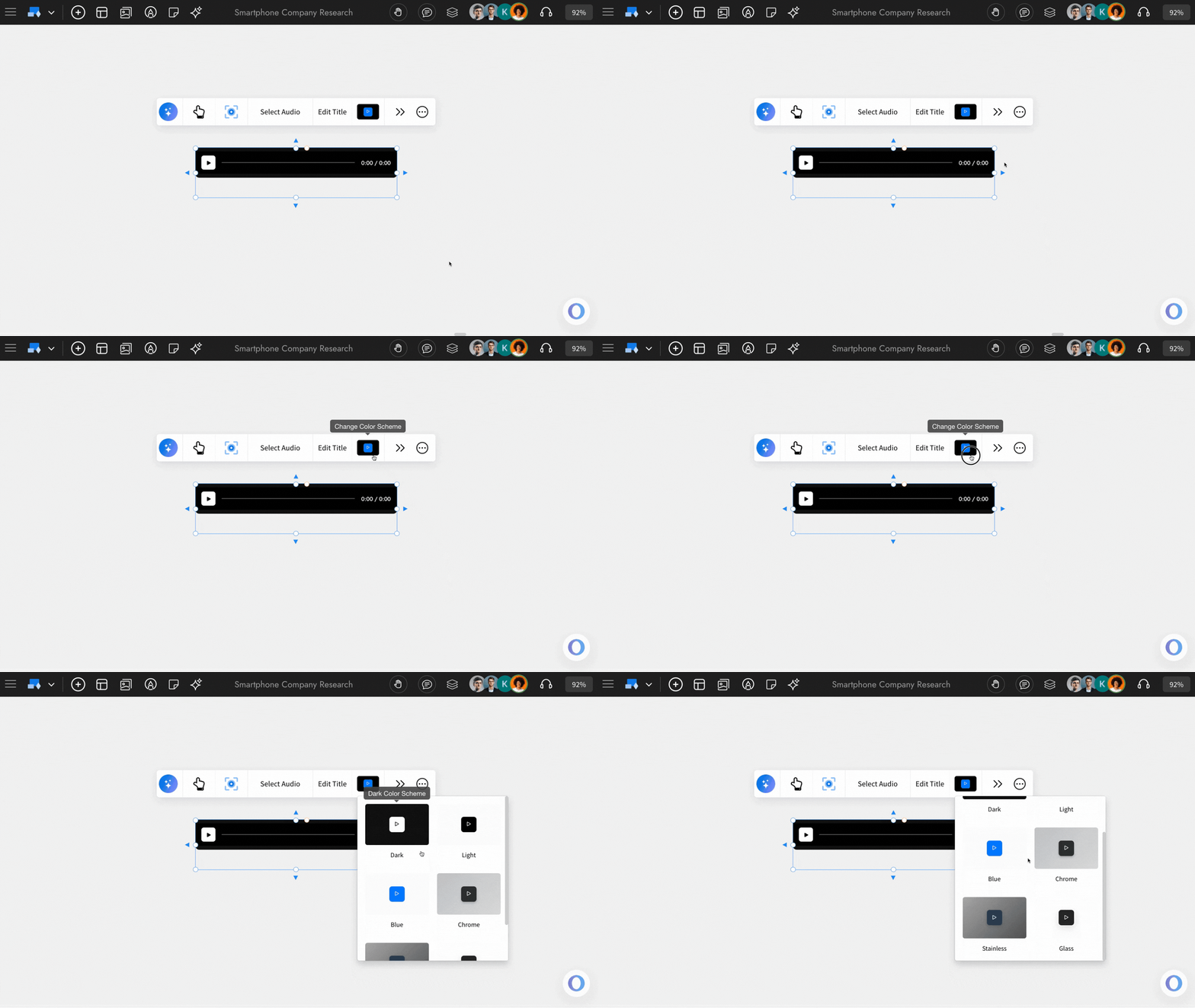
Changing the theme of the Audio component: You can customize the theme of the Audio Player component using the 'Change Color Scheme' from the quick toolbar.
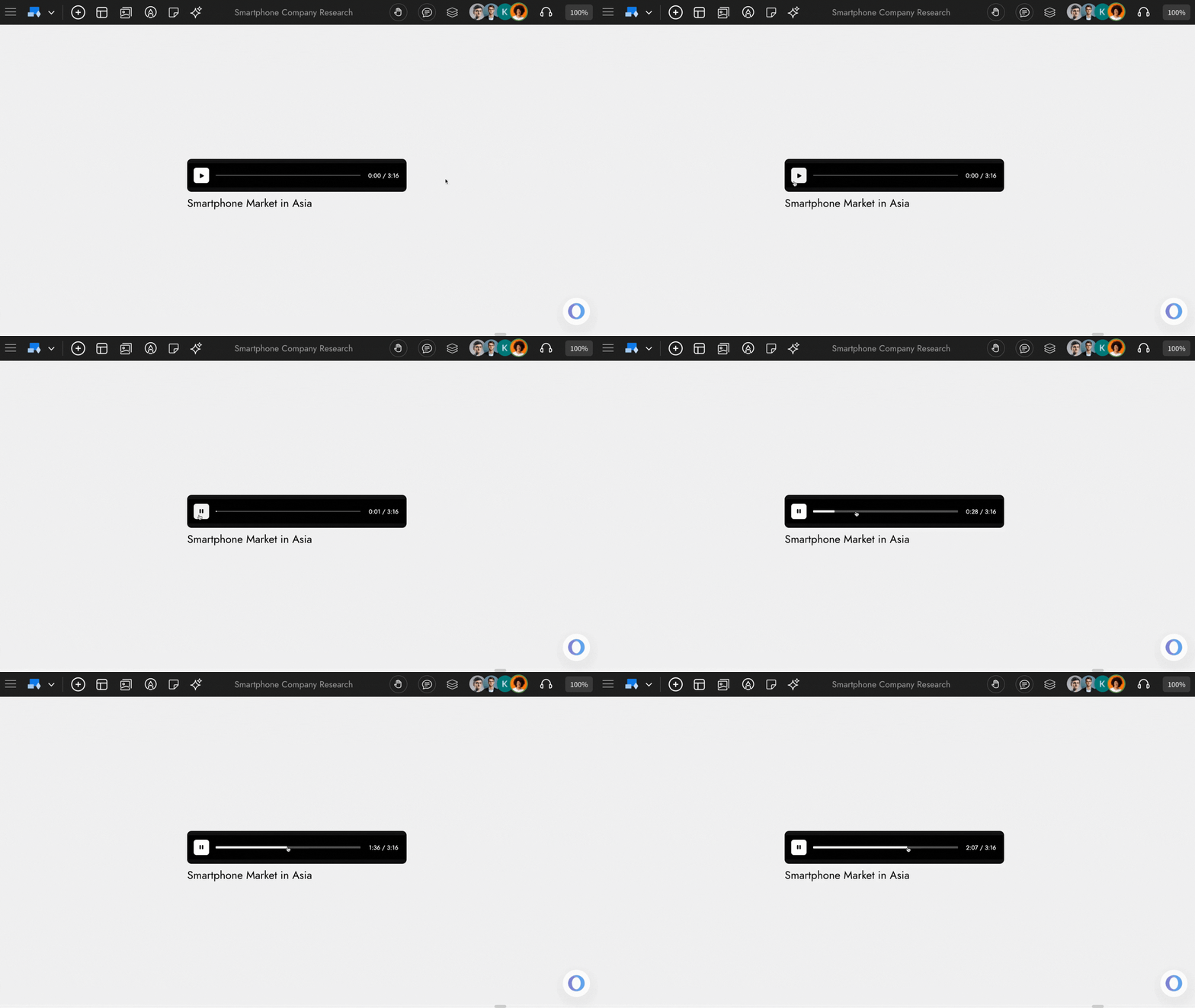
Interacting with the Audio Player Component: You can use the ‘Interact with Component’ option to enable playback controls for the Audio Player Component. Once enabled, you’ll be able to play the audio and adjust the progress using the play bar.
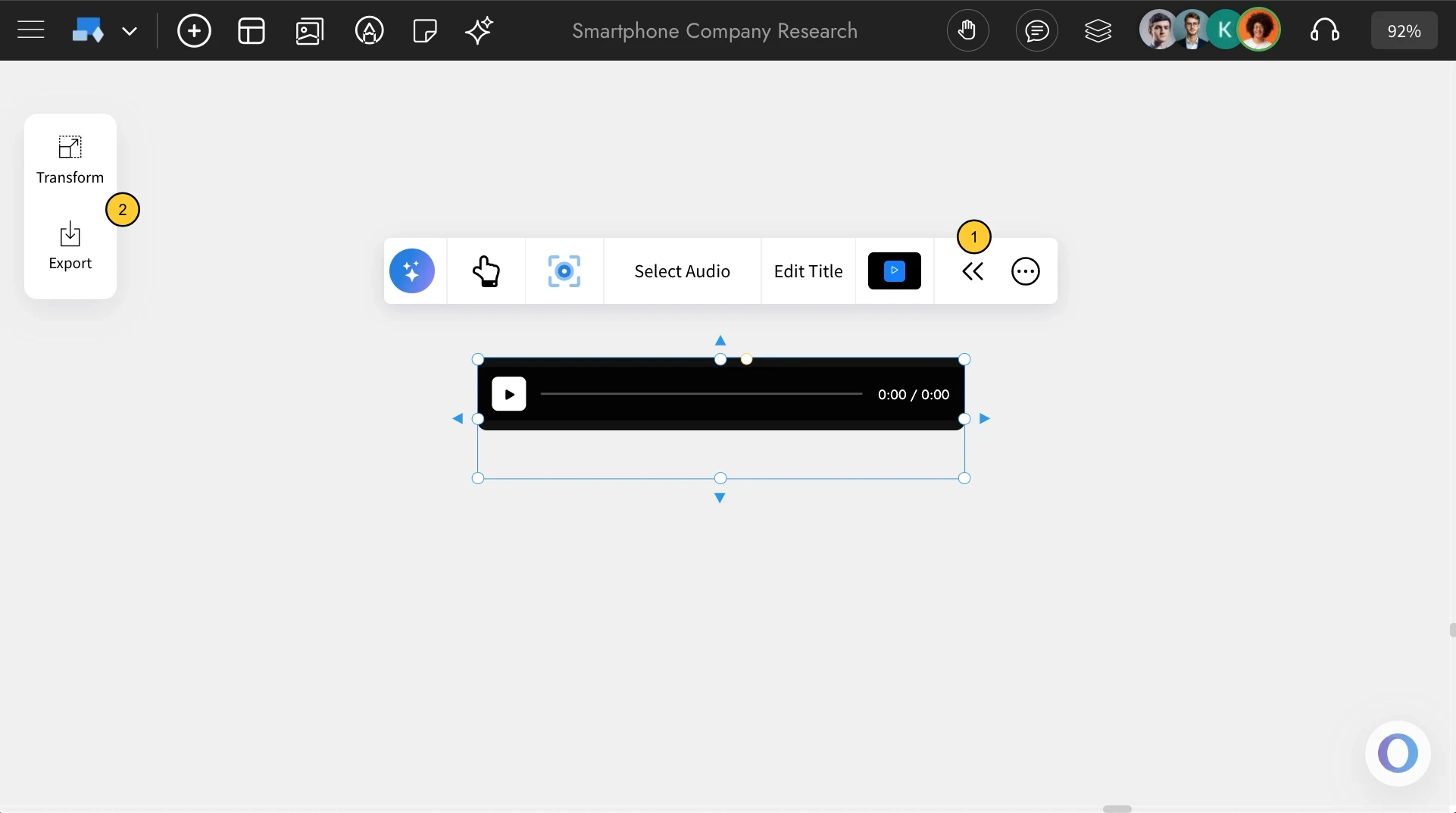
Enabling the advanced Settings for Audio component: To access the advanced settings toolbar, click on the 'Toggle Advanced Settings' option from the quick toolbar. You can find advanced options like move and export.
Using the Focus mode: There’s a Focus Mode that hides all other components and highlights only the Audio component. To enable it, click the 'Focus' icon in the quick toolbar to enable it, and click the Close icon at the top-right to exit.
Share component link with team: In Focus Mode, you’ll find a Share icon at the top-right corner next to the Close button. Click it to copy a unique link to the audio component view, which you can share directly with your team.
If you want to add a voice recording like a comment, you can use the audio comment option for the same.