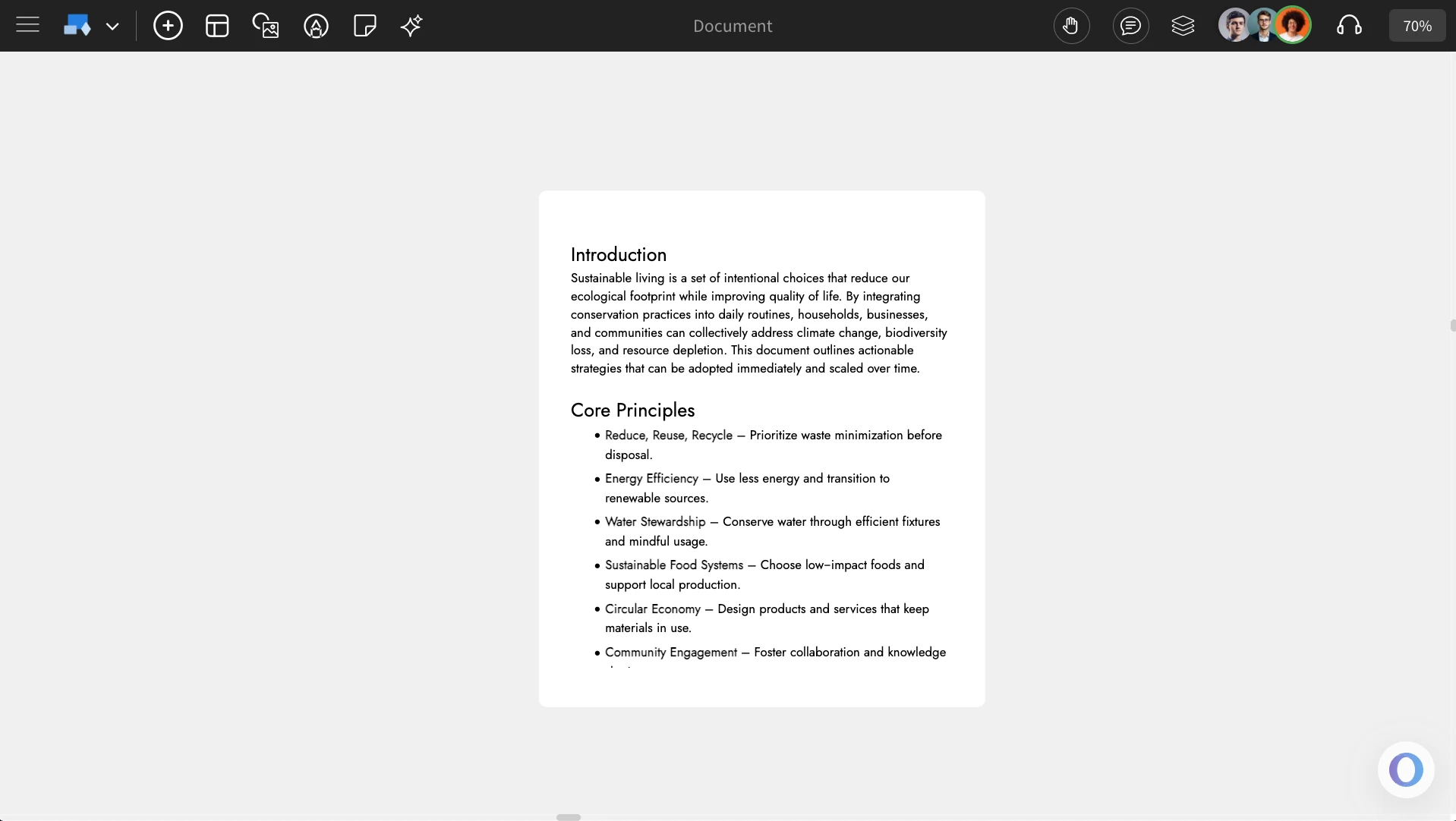
Documents in MockFlow IdeaBoard allow you to add and organize text content visually within your whiteboard. You can create multiple docs side-by-side, connect them with flows, and enrich them using stickies, images, and to-dos.
How to add a Document?
Click on the 'Add' icon on the board, locate 'Document,' and drag it onto the canvas.
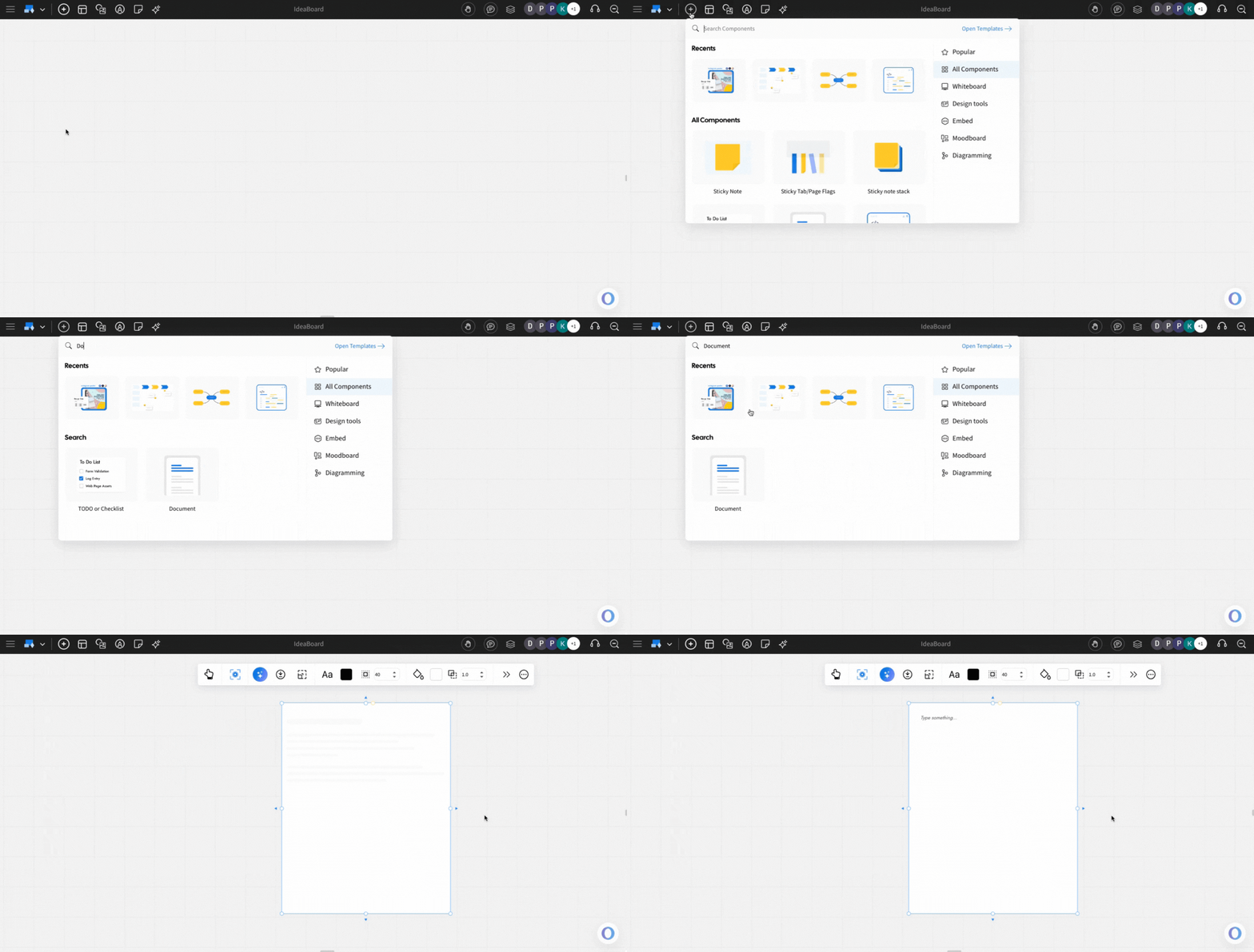
Double-click on the component and you can add and edit the content.
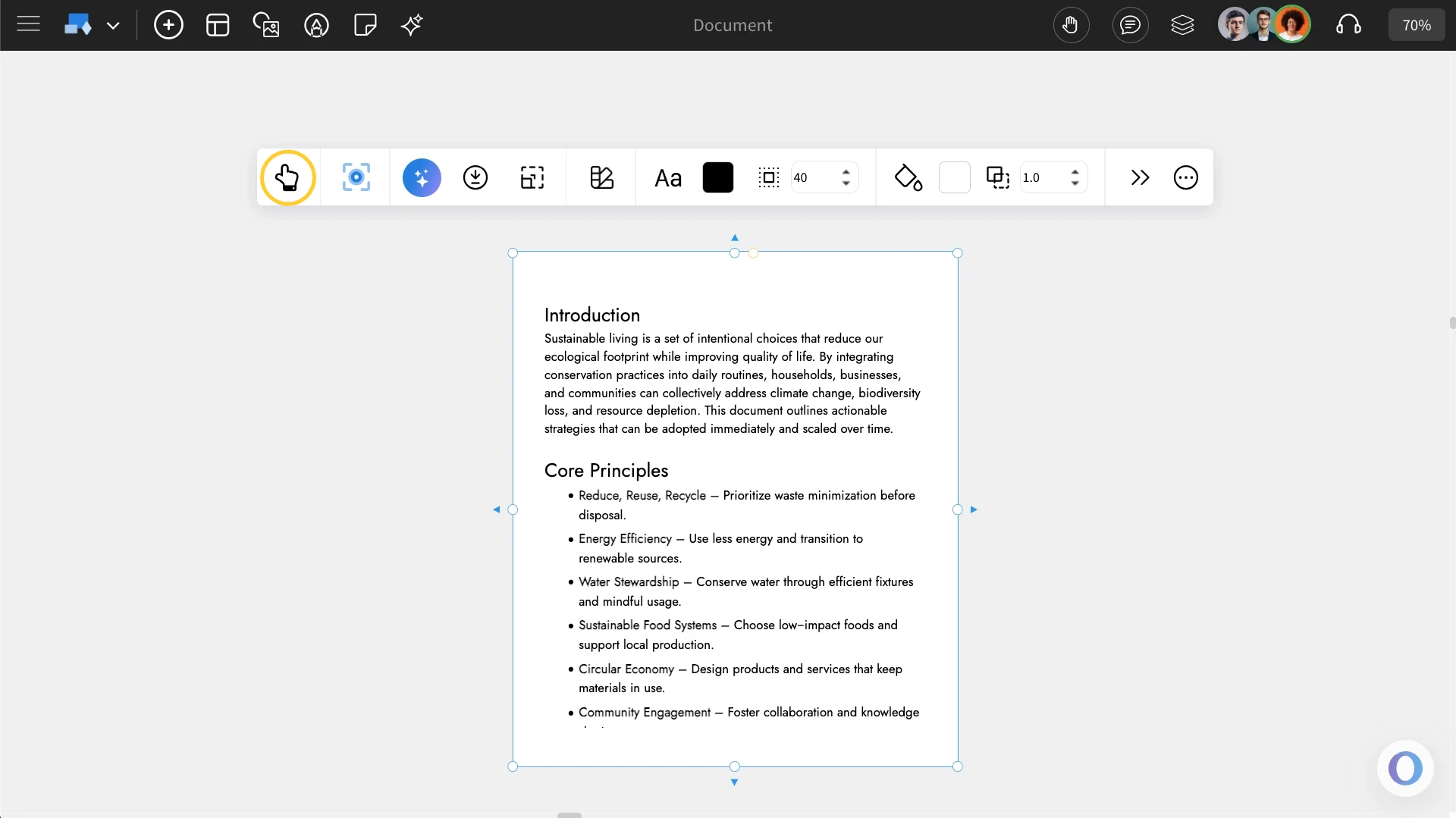
The Document can be customized using the quick toolbar that appears when you click on it.
Customizing the Document: You can customize the document’s font family, color, size, background, and padding directly from the quick toolbar.
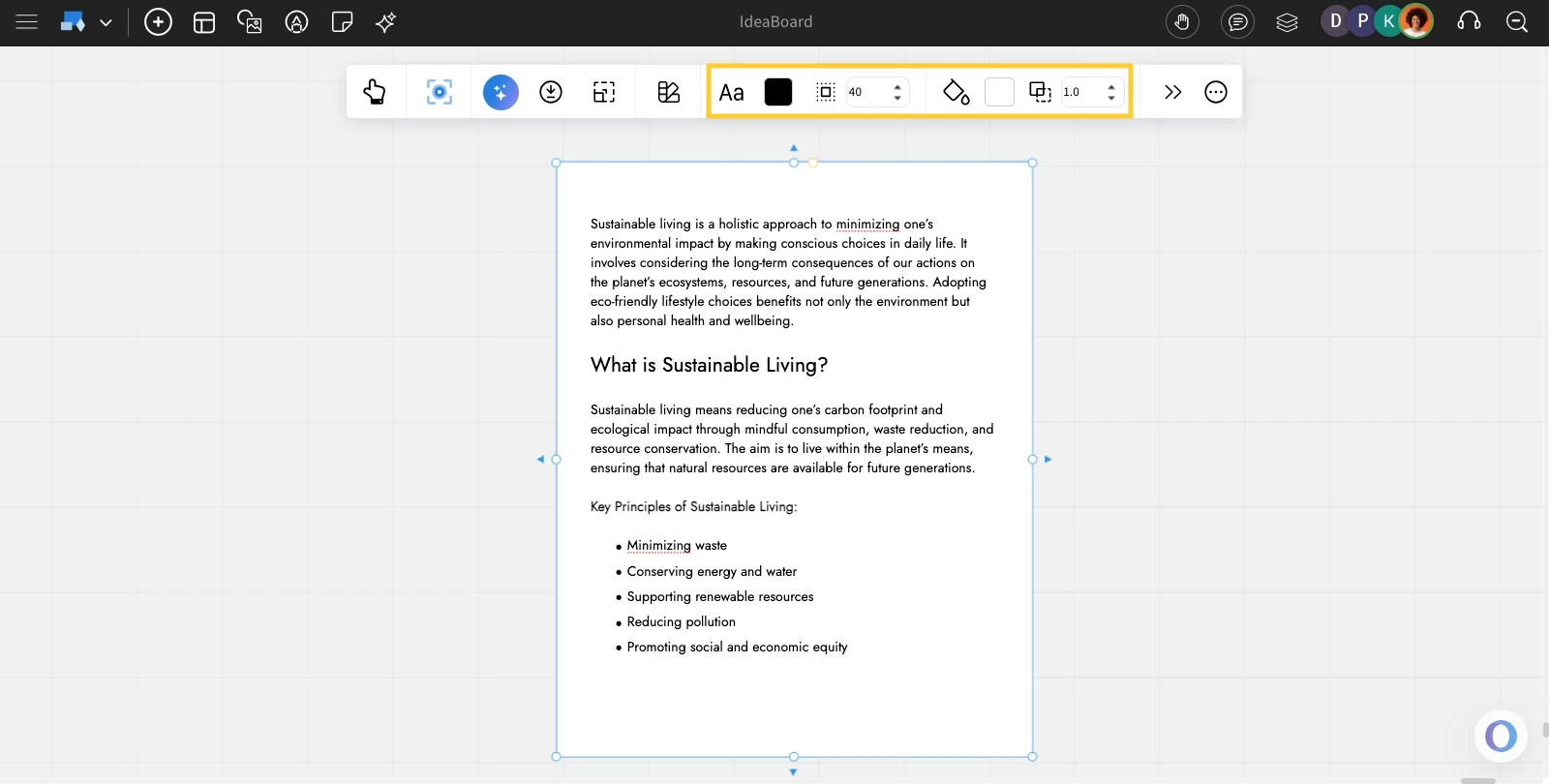
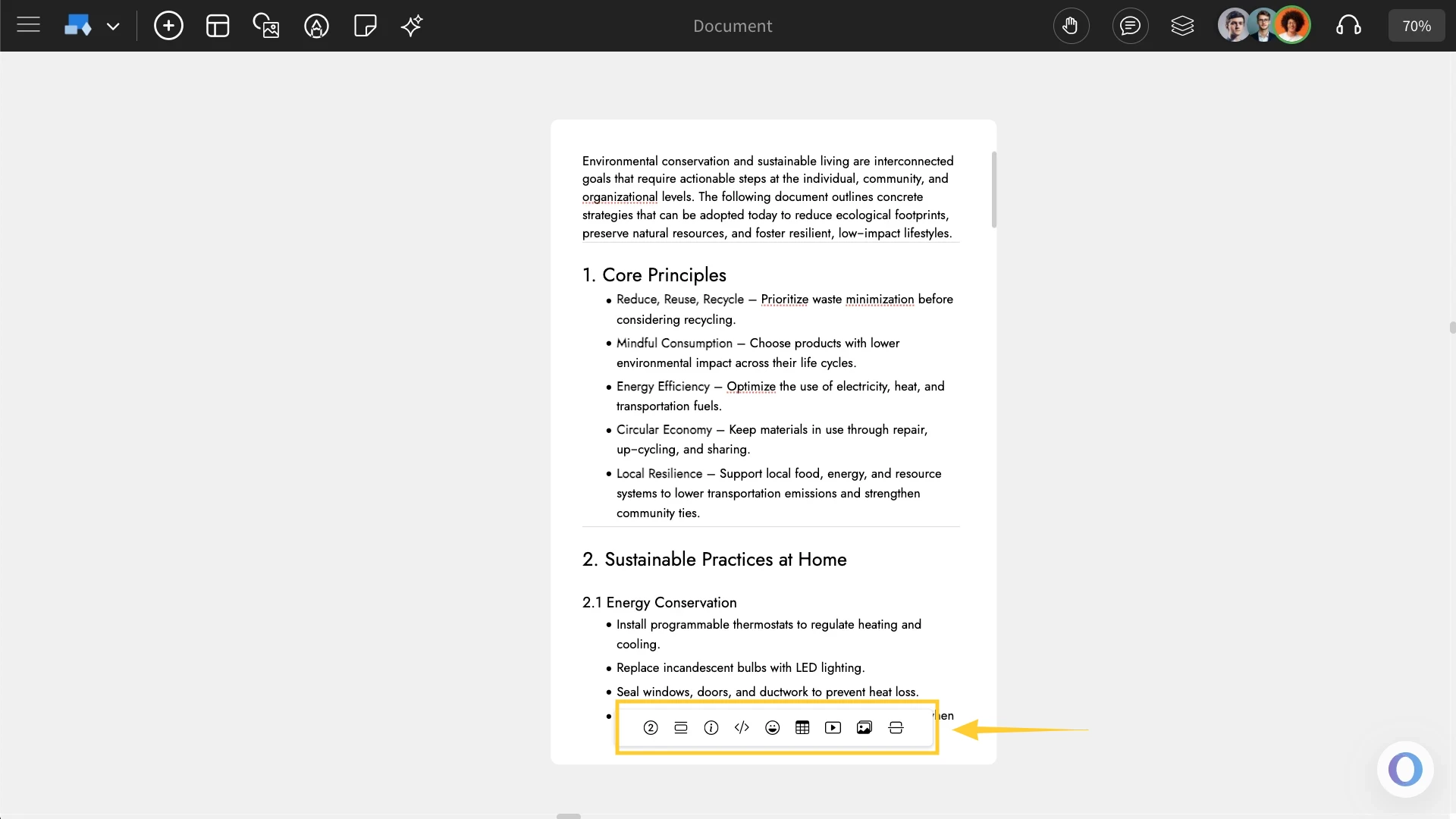
Formatting options: You can access additional formatting options within the Document component, such as adding bullet points, images, videos, and more.
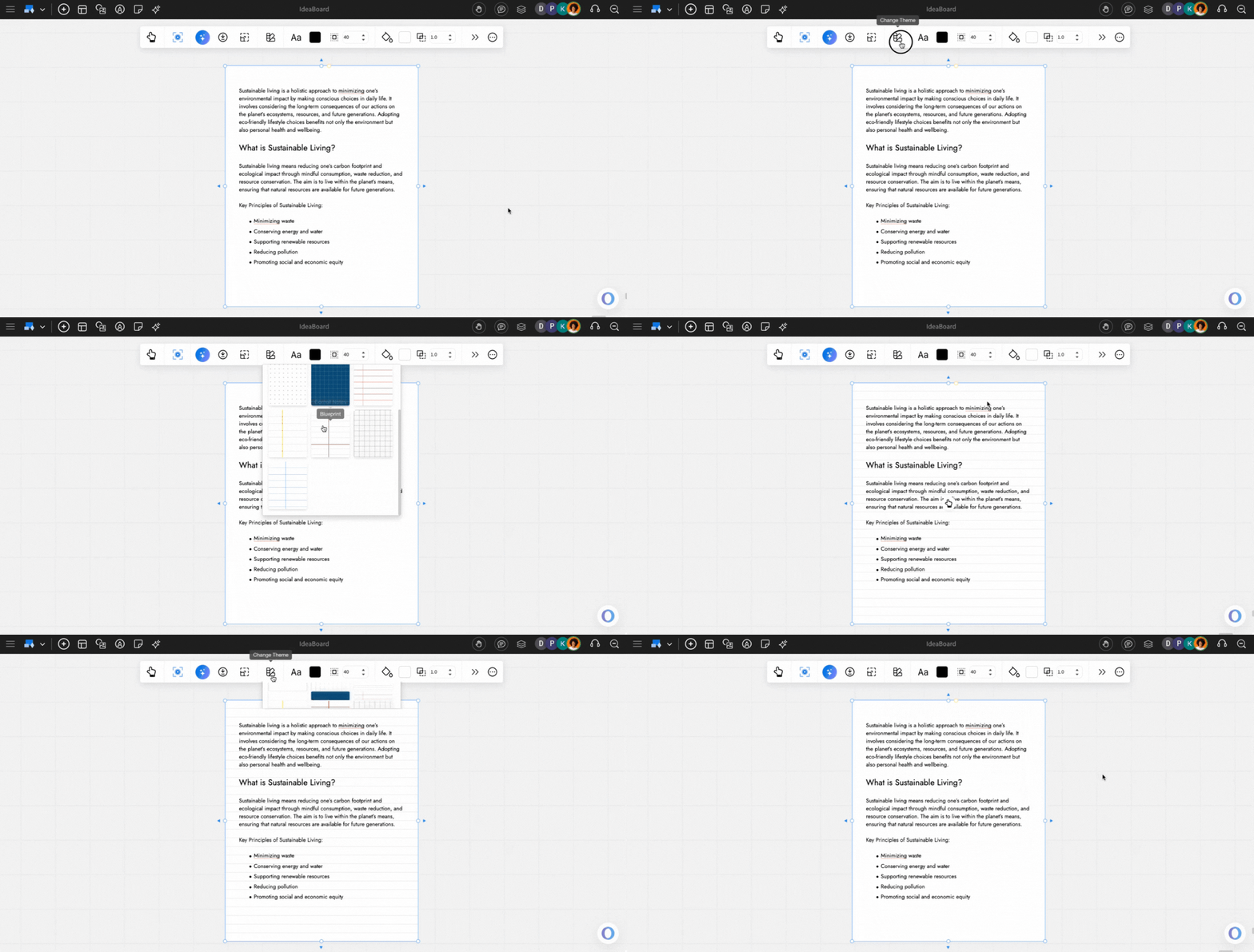
Change background: You can change the background of the Document component by clicking ‘Change Theme’ icon and selecting a theme from the list.
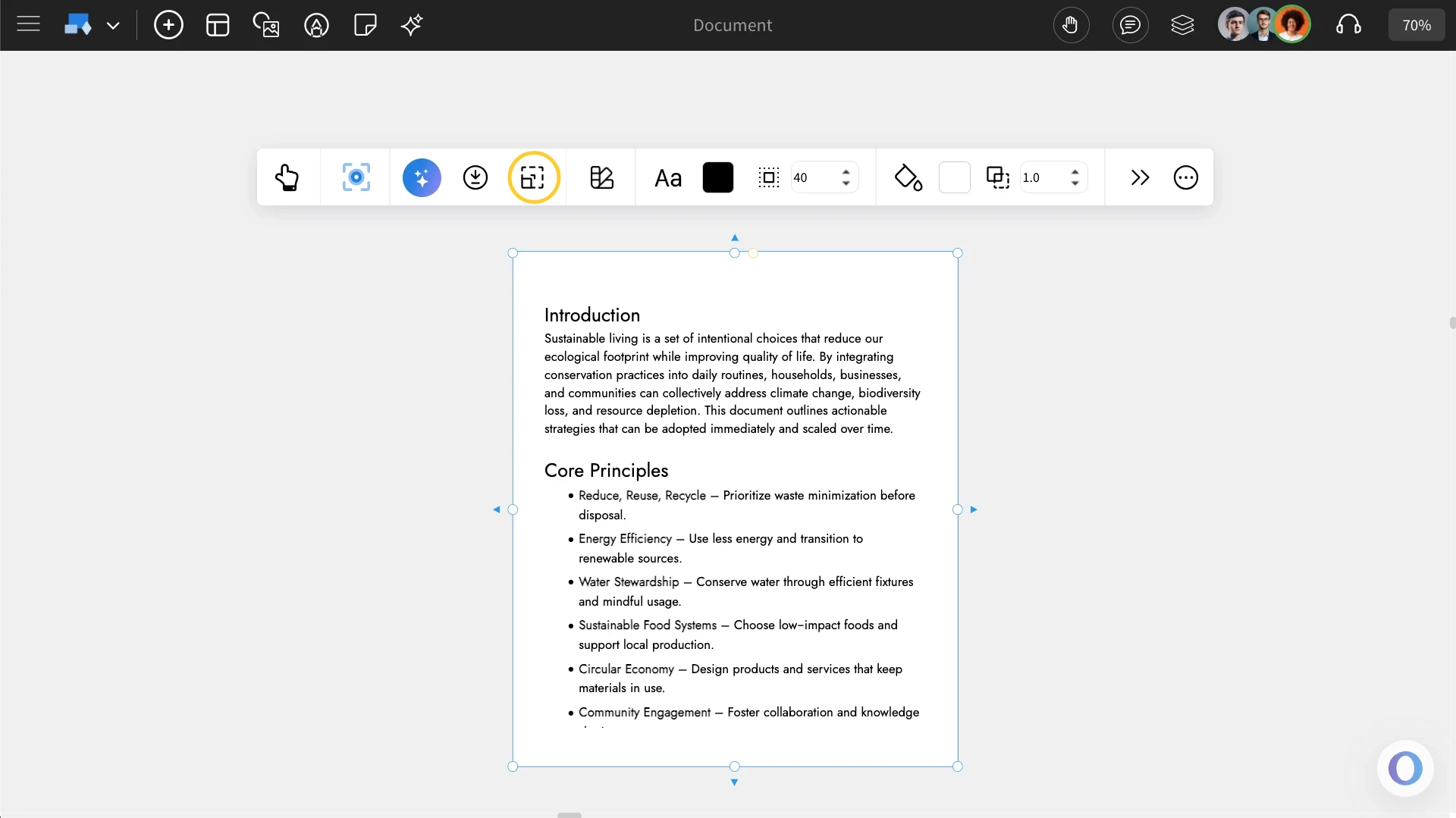
Auto height Document: You can use 'Toggle Auto Height' to display/hide the full view of the document.
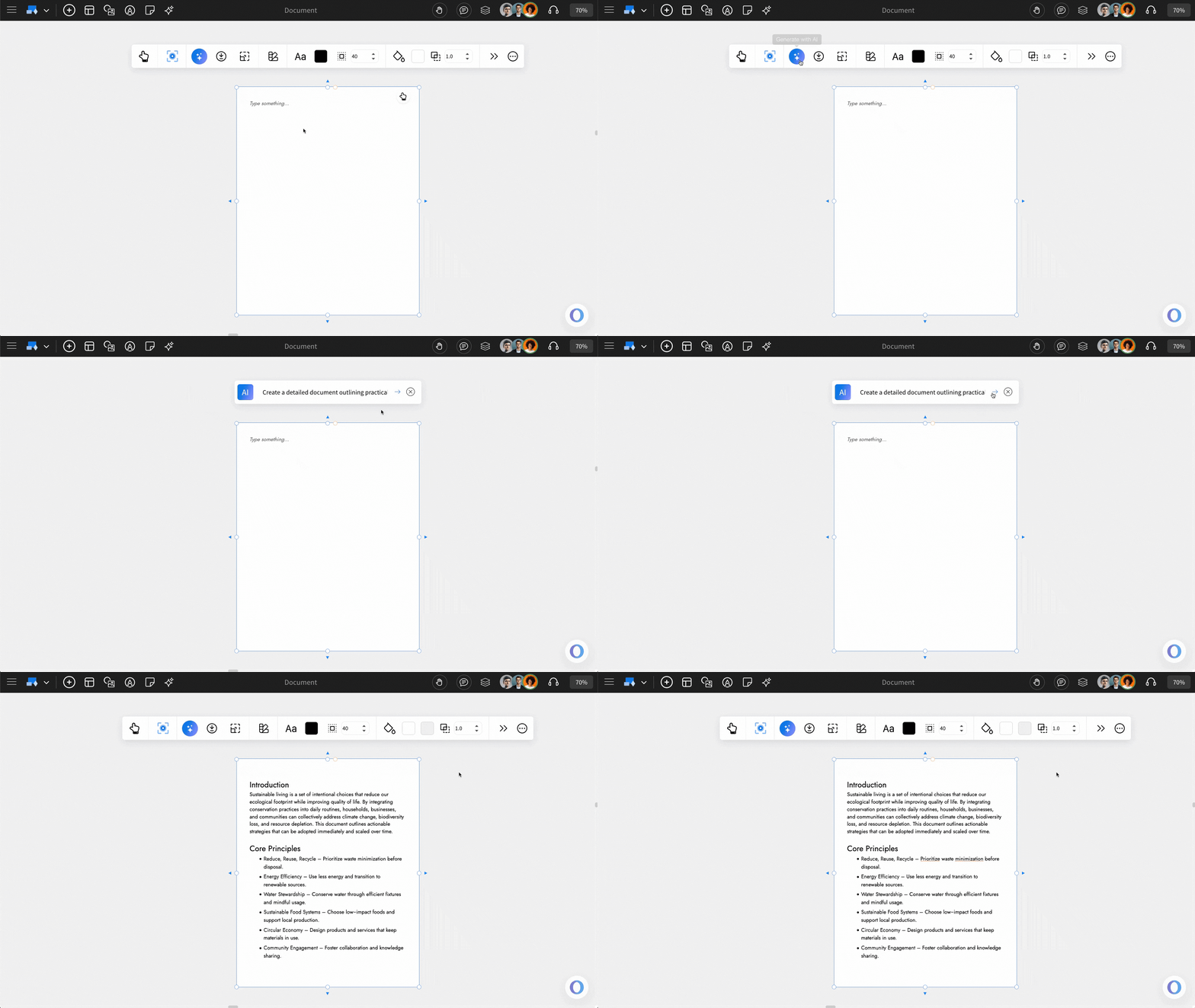
Generate Document with AI: You can quickly create document content using the 'generate with AI' option. From the quick toolbar, click the AI icon and enter your prompt to generate.
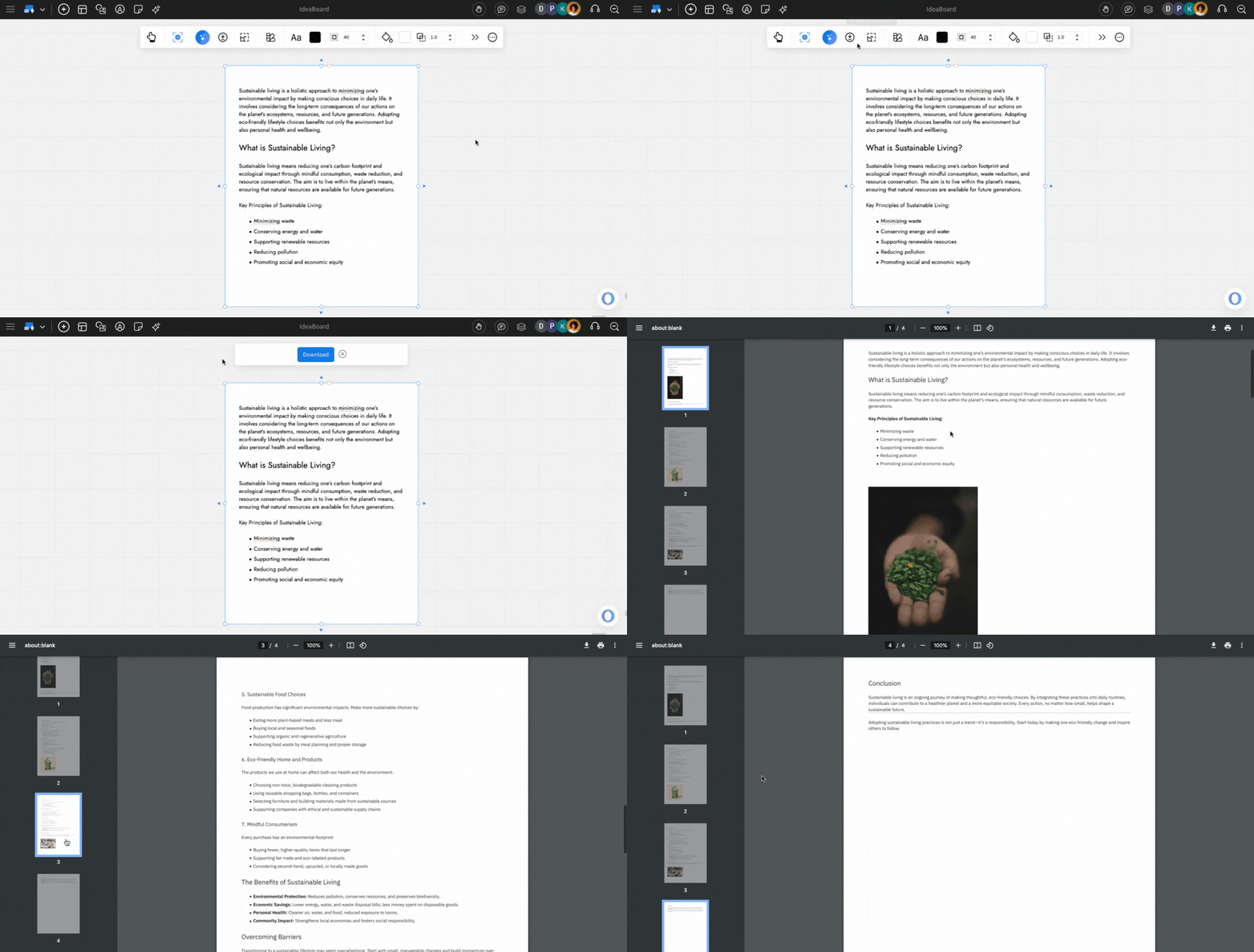
Exporting Document: You can export the document by clicking ‘Download Document’ and then selecting the ‘Download’ button. The file will be saved as a PDF.
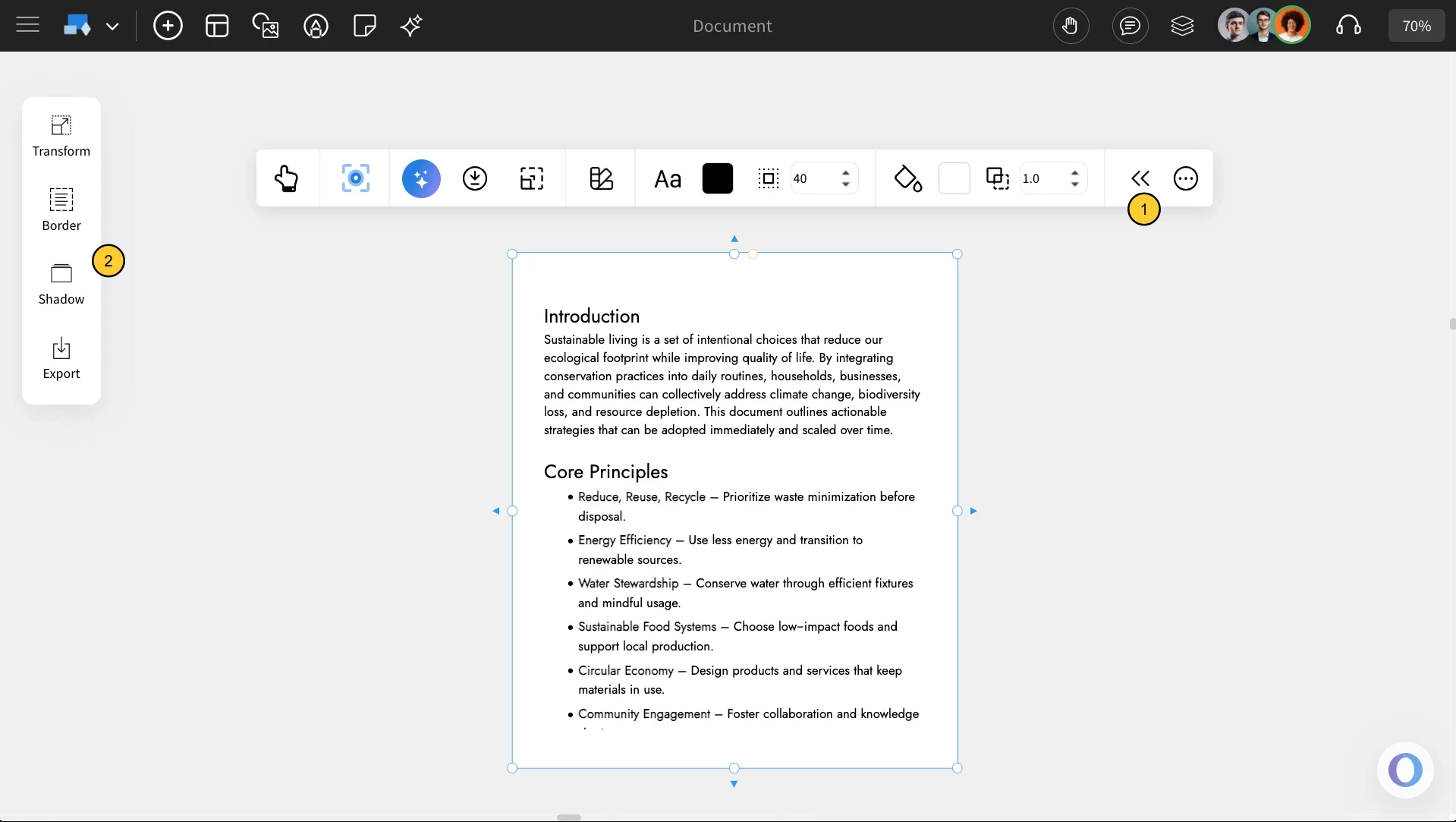
Advanced Settings for Document: To access the advanced settings toolbar, click on the 'Toggle Advanced Settings' option from the quick toolbar.
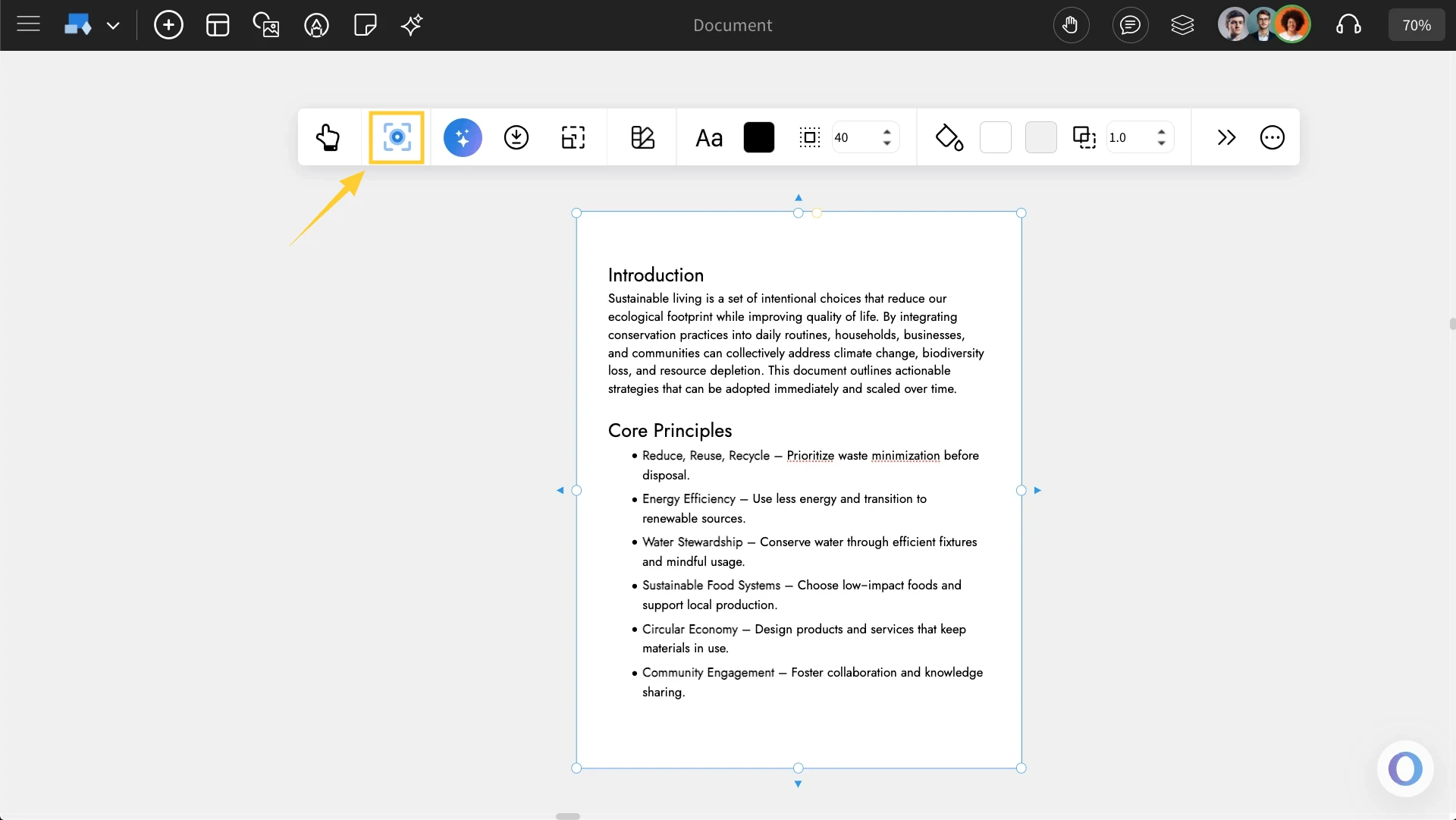
Using the Focus mode: There is an option to edit the Document in a 'focus mode' where all other components of the board are hidden, and only the Document component being edited is visible. To turn on this focus mode, click on the focus icon  in the quick toolbar (as shown below). To exit from the focus mode, click on the close icon at the top right.
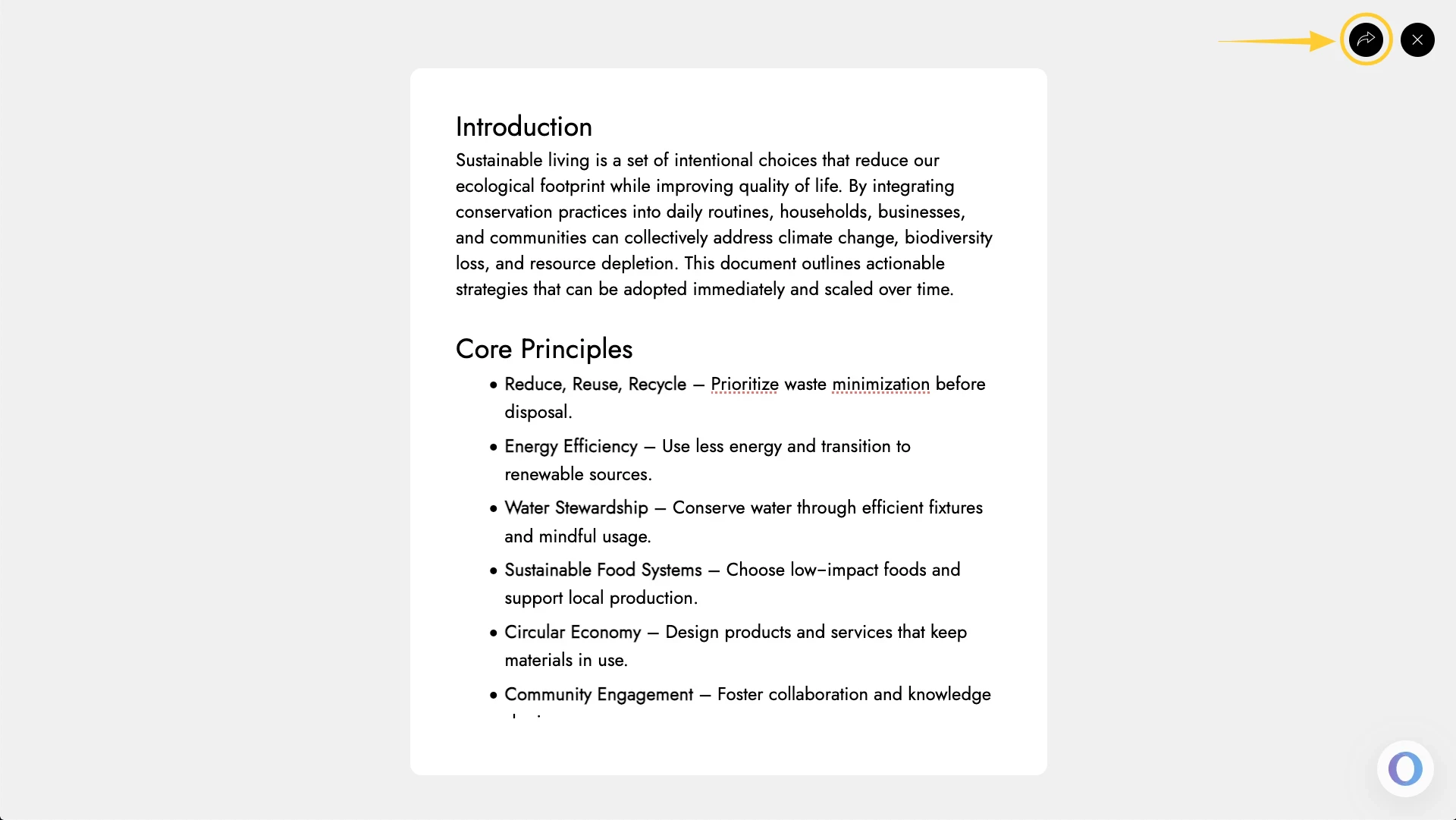
Share component link with team: In focus mode, at the top right, there is a share icon next to the close icon. Click on this share icon to copy a unique link for the document component view to share directly within your team.
Document Interaction - Click on the hand icon to edit the document and to move around the doc on the board, you can just click and drag.