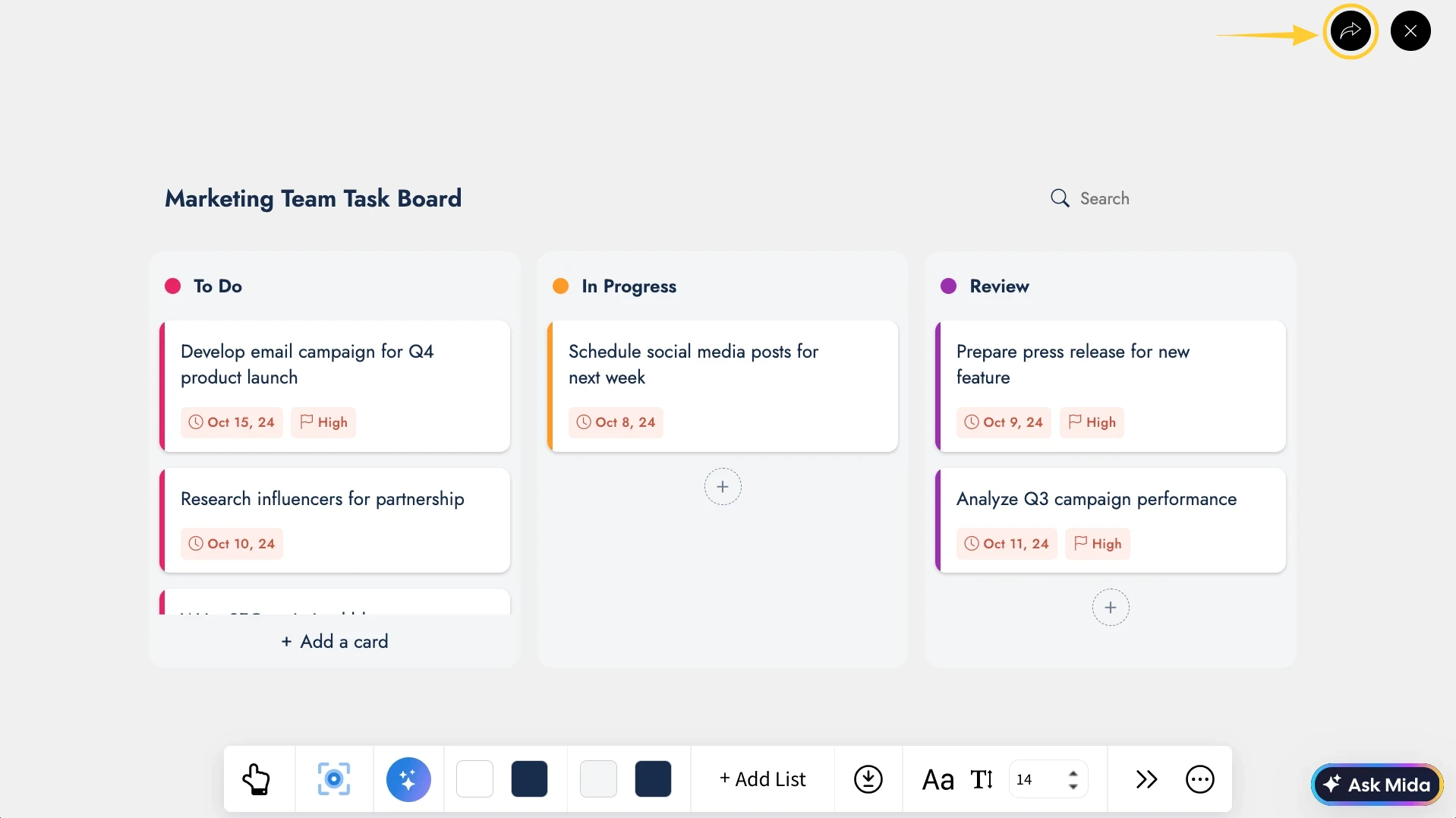
The Kanban Board Component in IdeaBoard is designed to help you manage tasks, workflows, and project progress visually on your board.
How to add the Kanban Board Component?
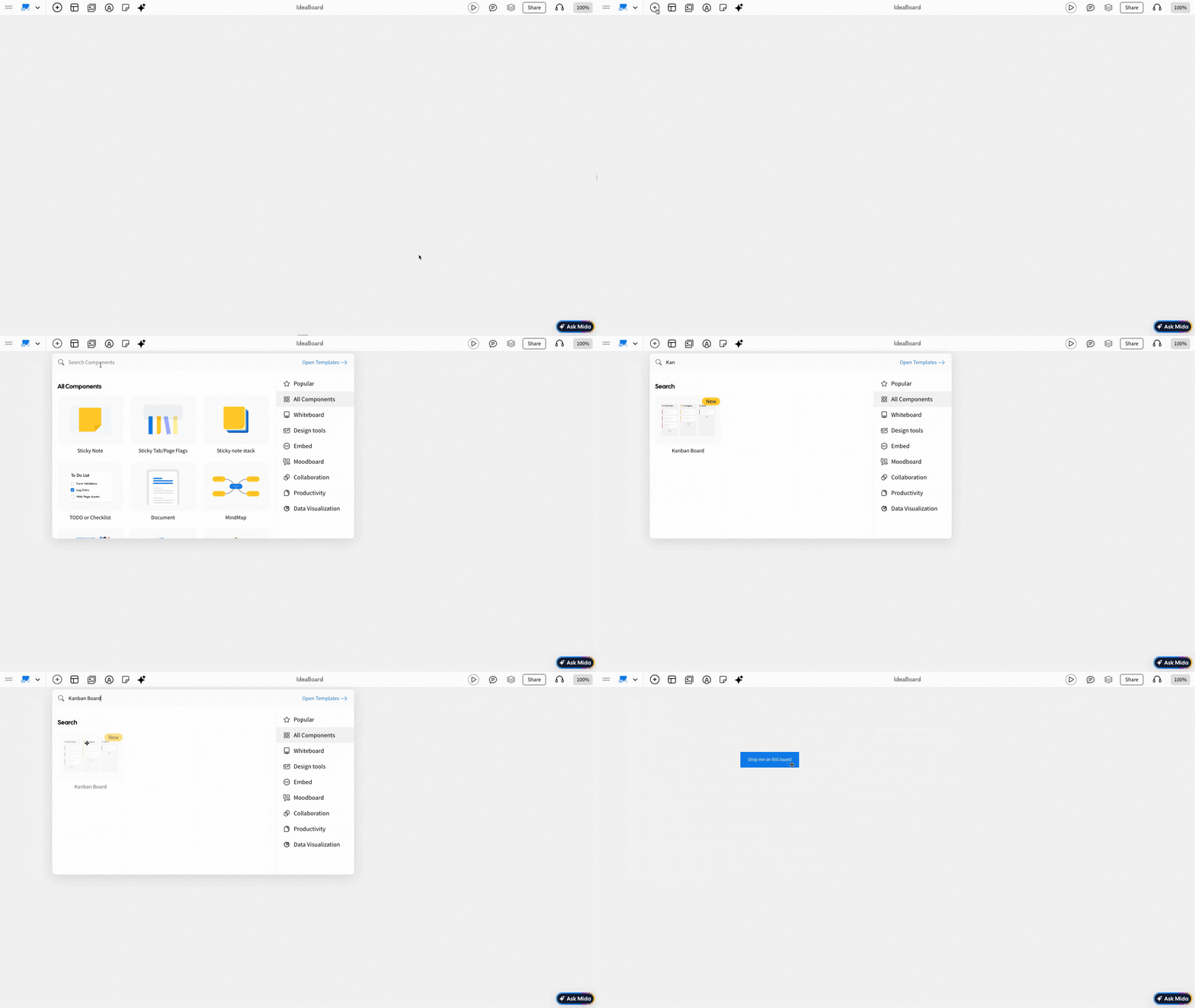
1In the IdeaBoard editor, click on the 'Add' icon in the top left corner. Look for the Kanban Board and add it to the canvas by dragging and dropping it.
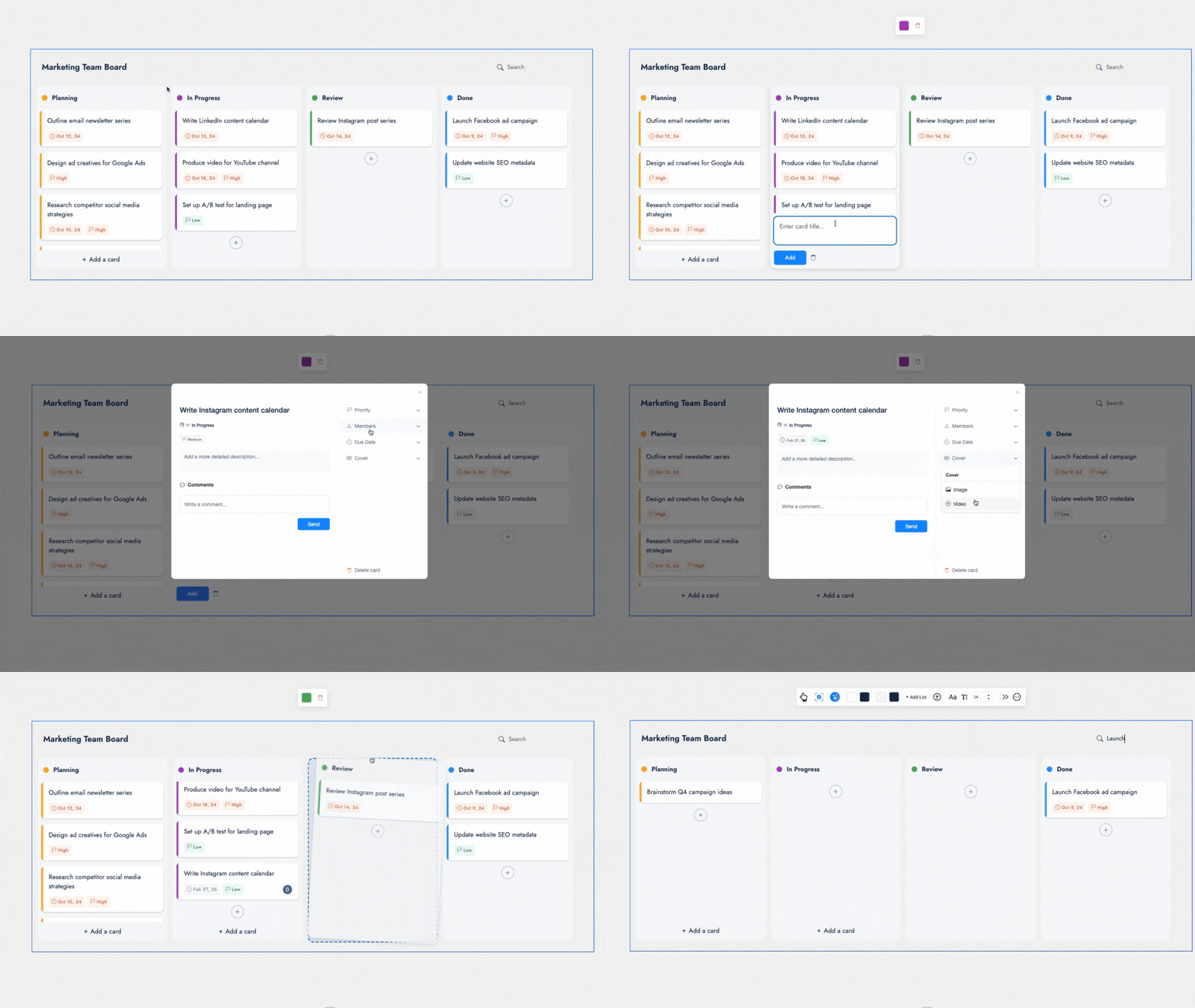
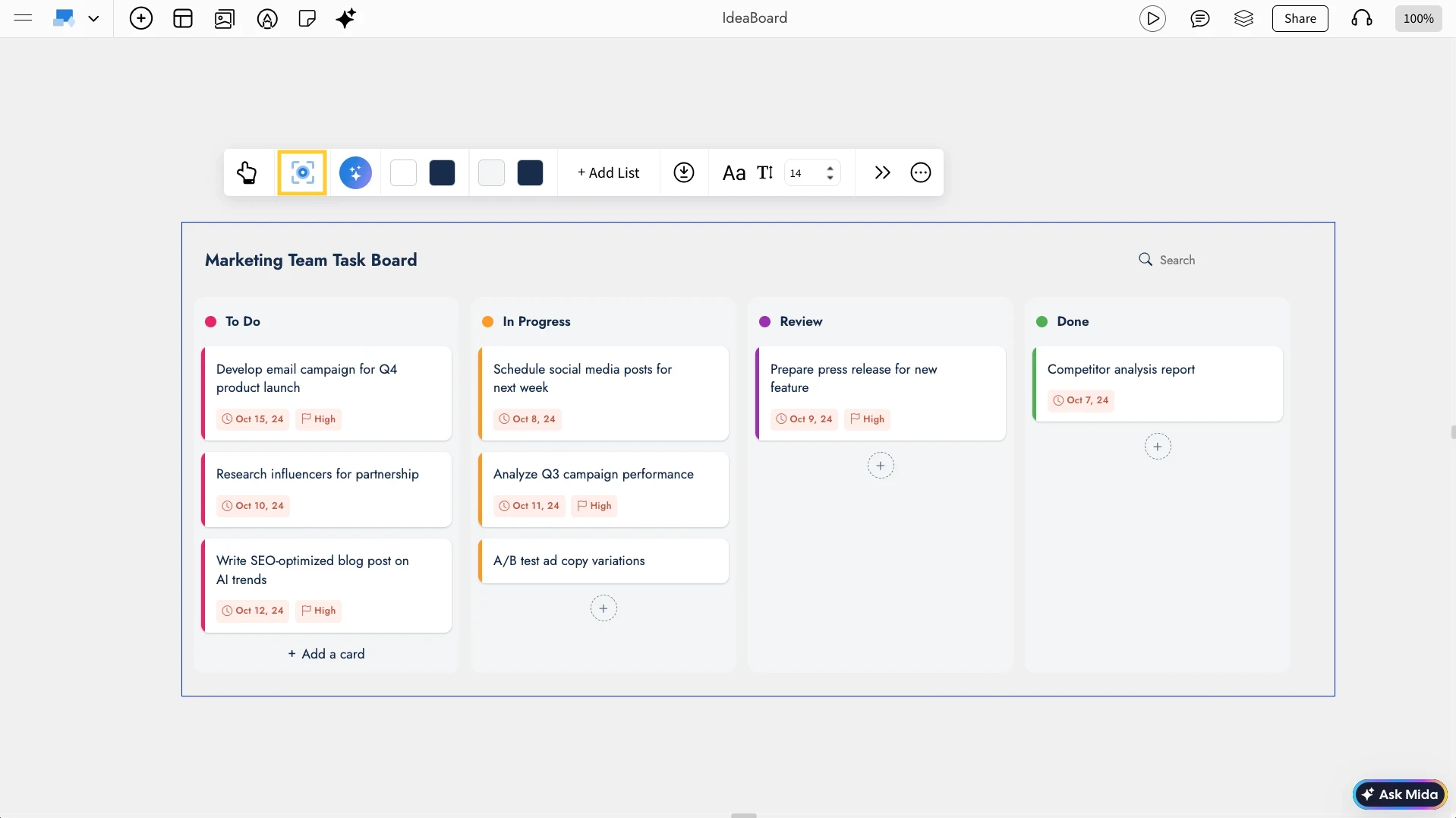
Editing the Kanban Board: Use the Interact with Component (the hand icon) option or just double-click to enable interaction with the Kanban Board.
Other options are detailed below in this order:
- Generate with AI
- Changing Styles of the Kanban Board
- Changing Font Styles of the Kanban Board
- Adding Boards to the Kanban Board
- Accessing the Advanced Settings
- Distraction-Free View with Focus Mode
- Sharing the Kanban Board component
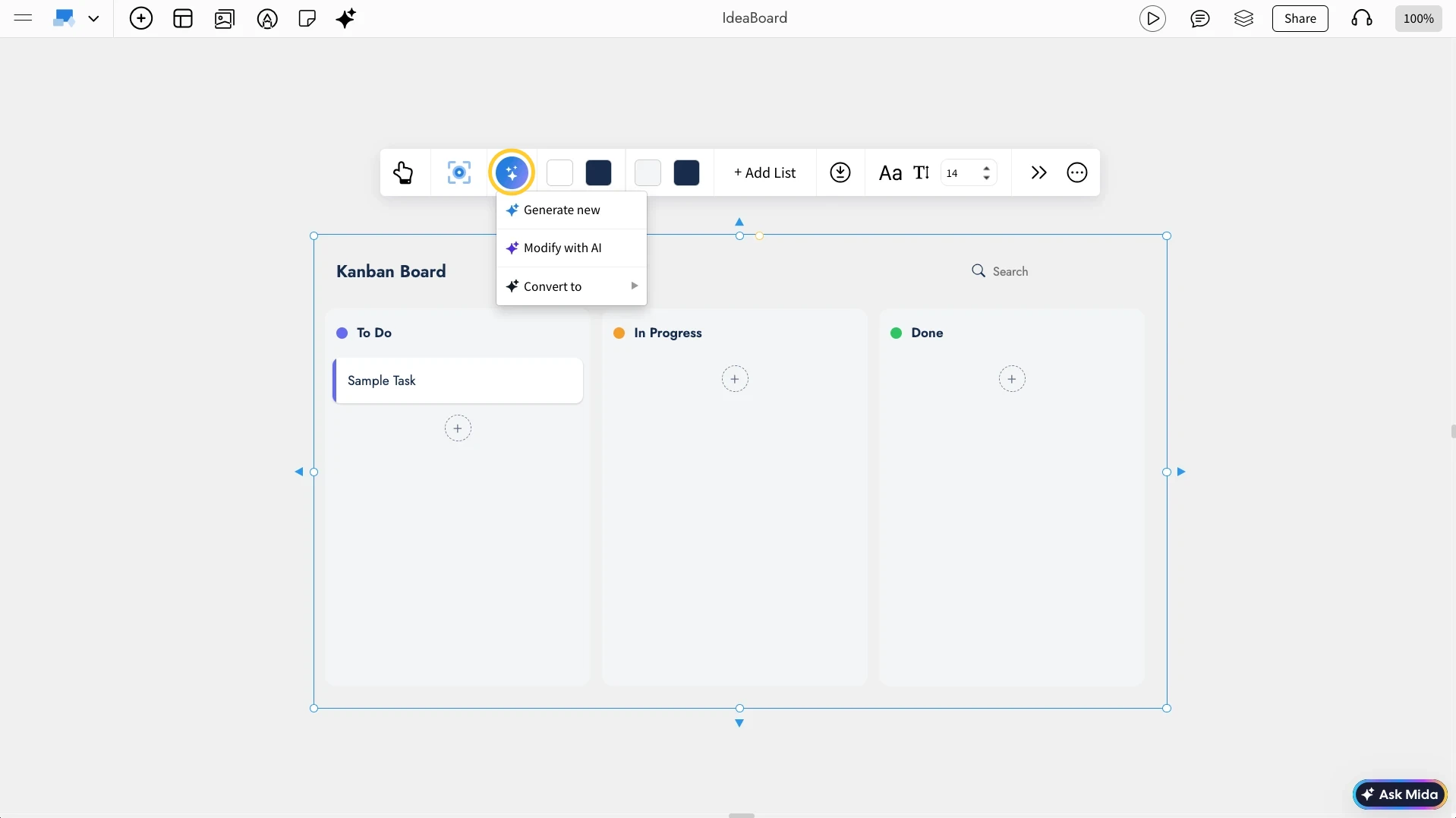
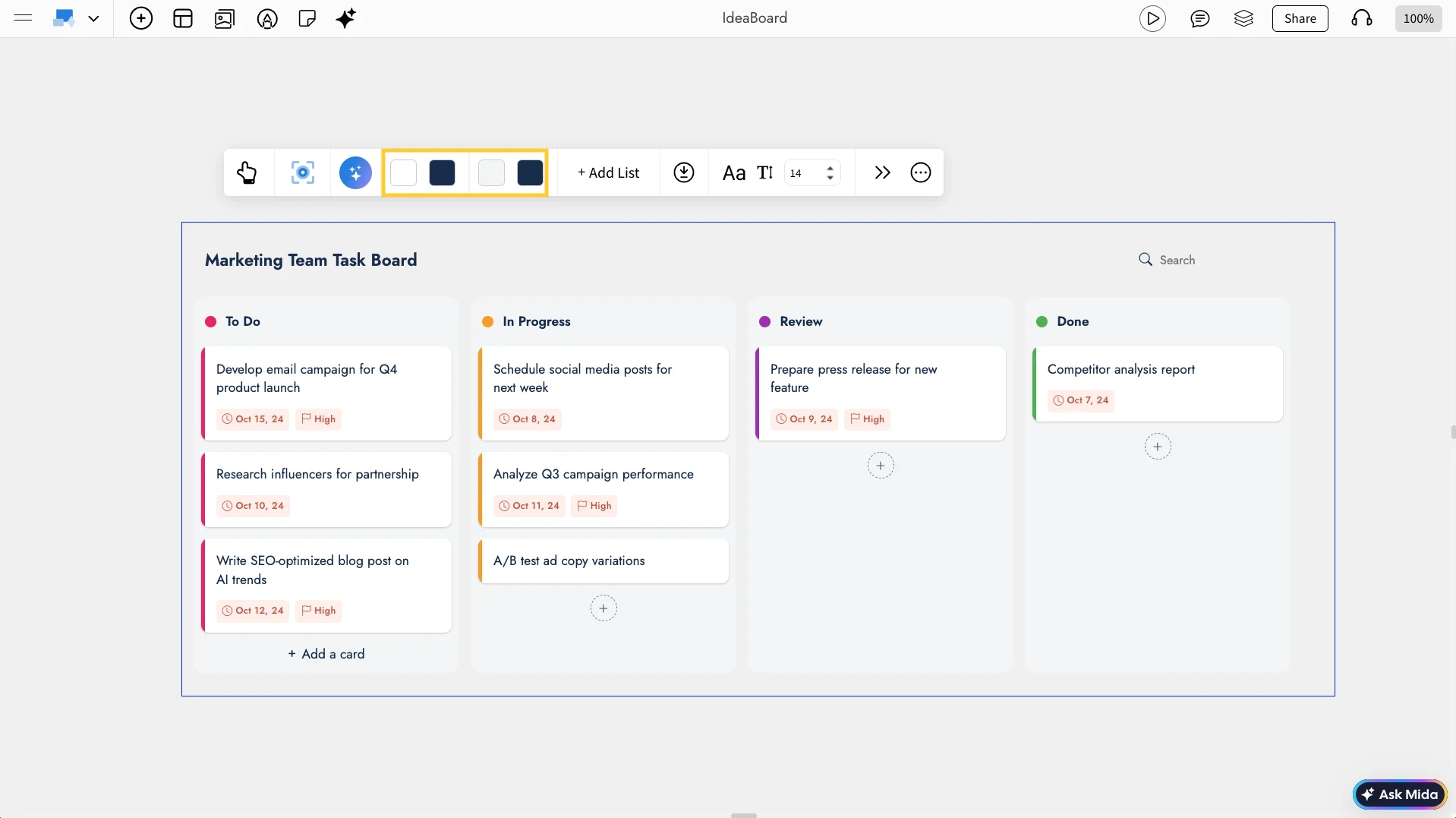
Changing Styles of the Kanban Board: You can change the color theme of the Kanban Board by using the colors option in the Kanban Board quick toolbar.
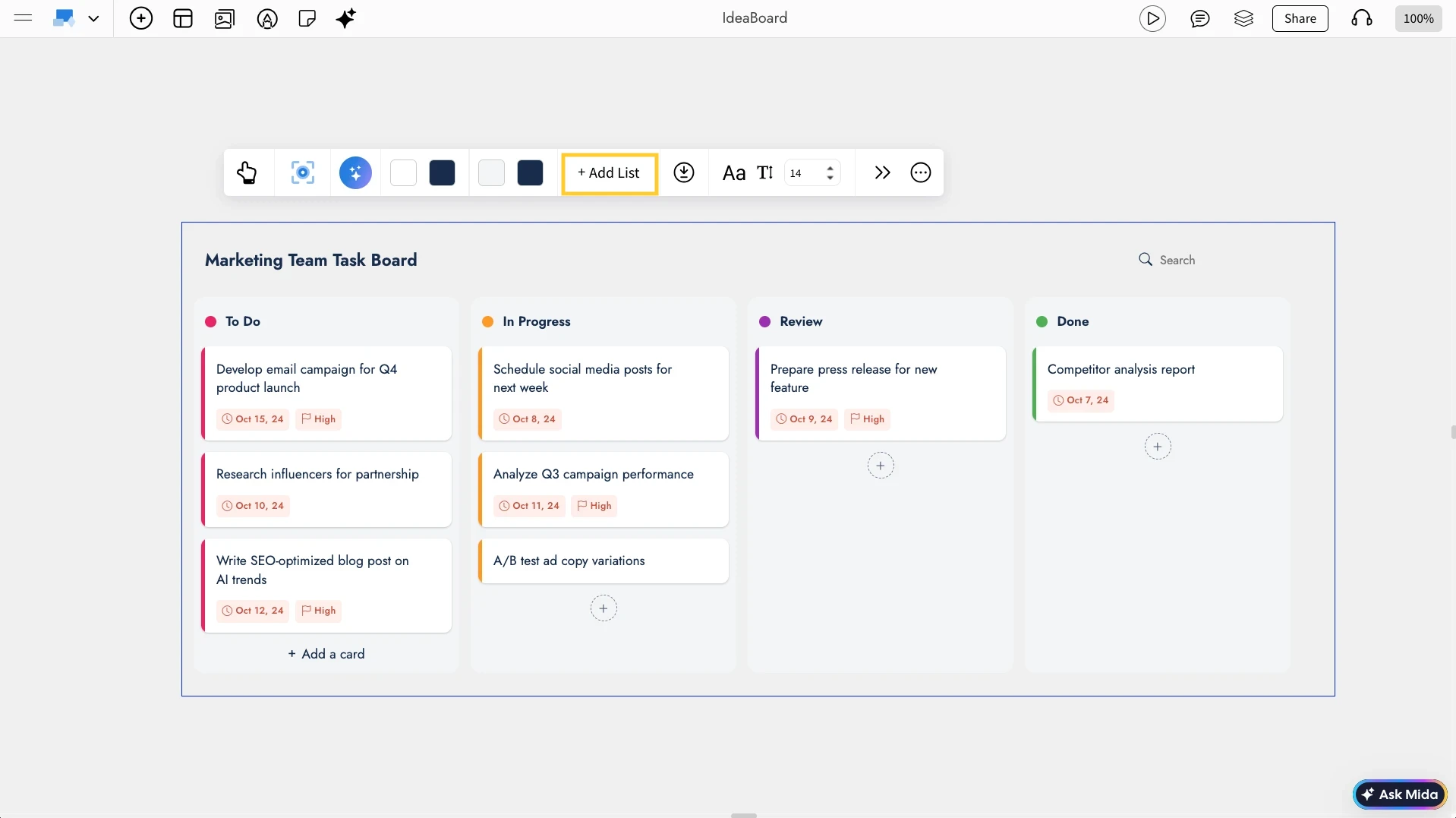
Adding Lists to the Kanban Board: You can add lists using the “Add List” from the quick toolbar.
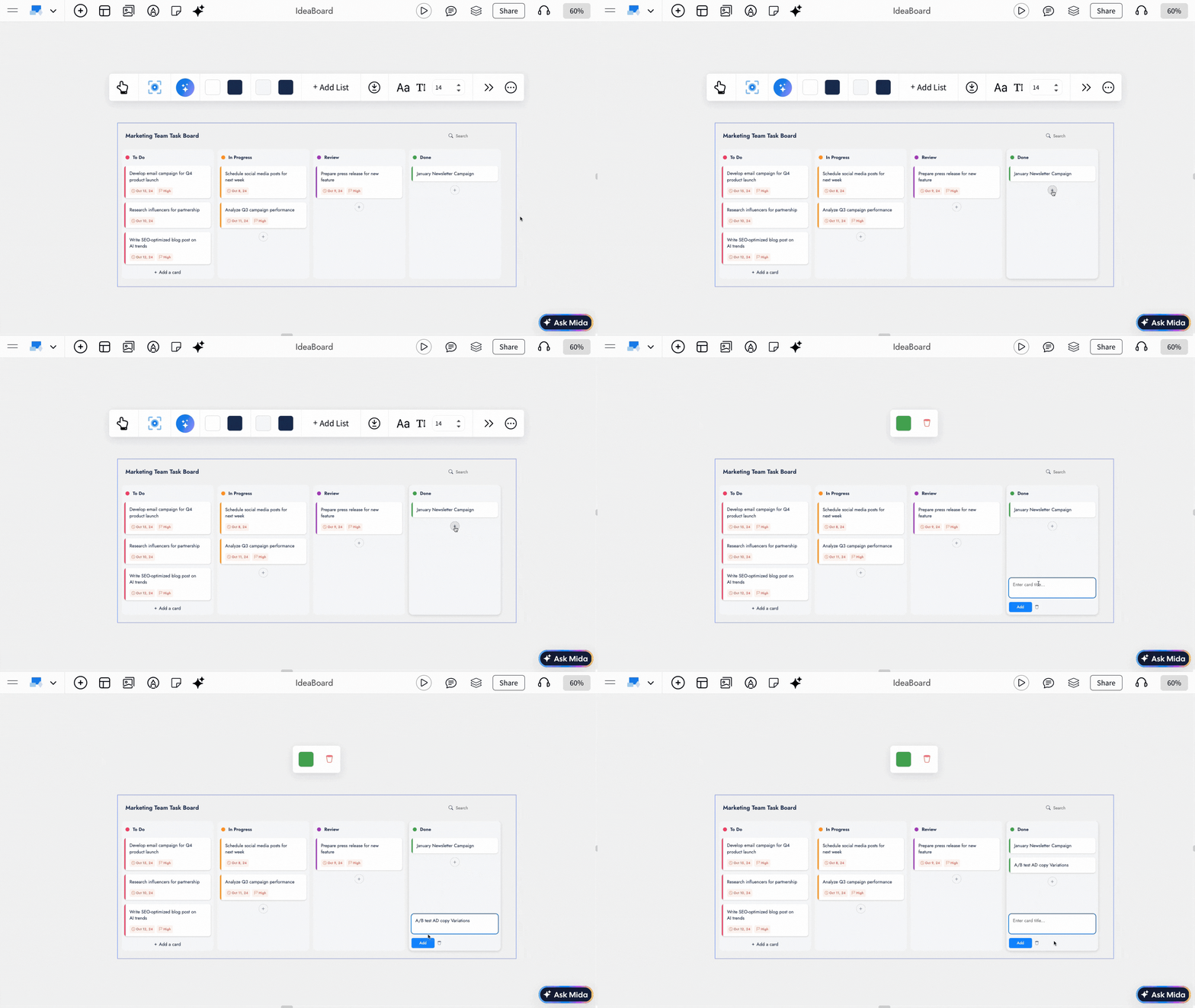
By clicking on the Plus icon under each list, you can add task cards. You can then click on any card to move it between lists or delete it as needed.
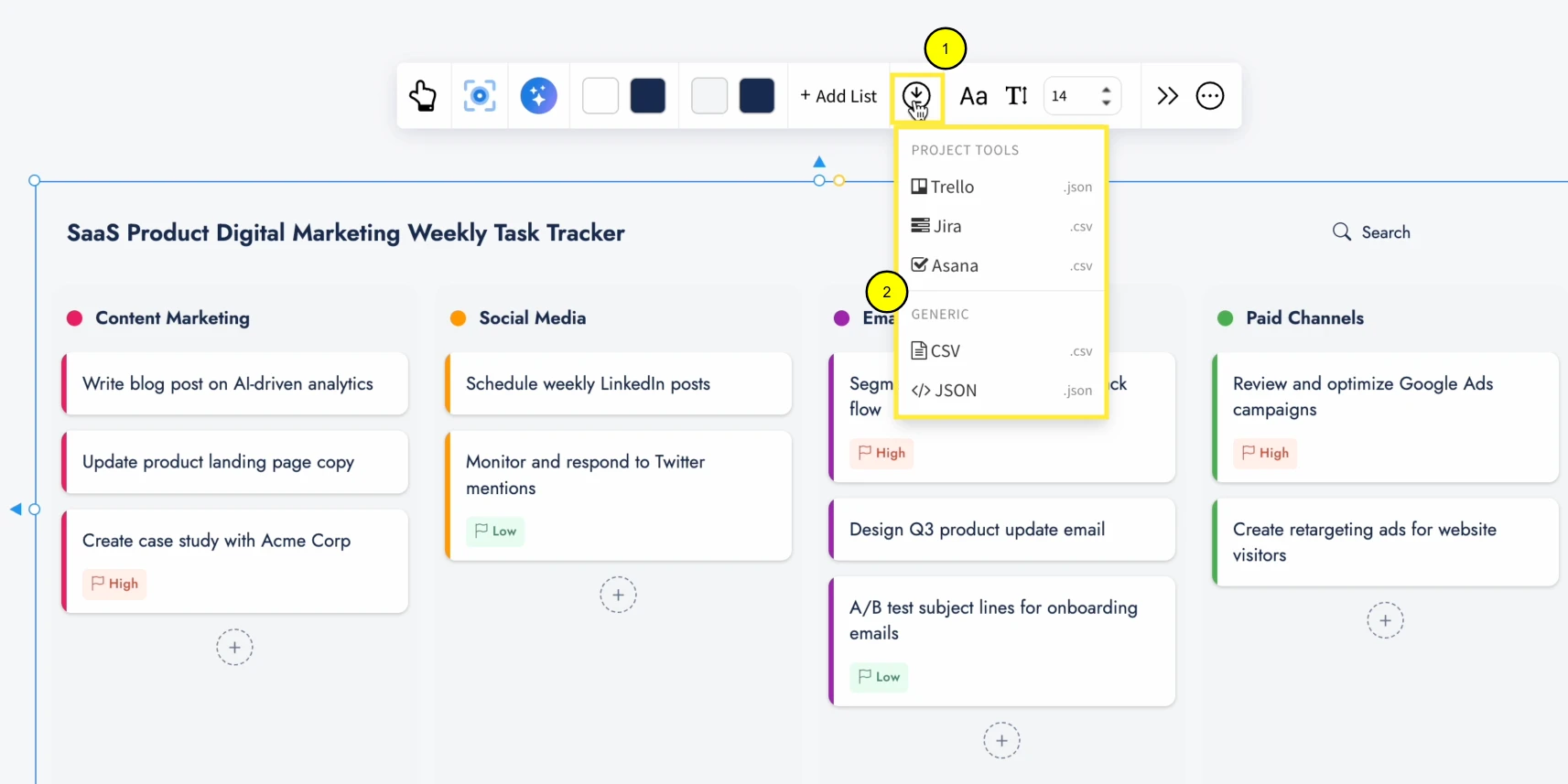
Exporting the Kanban Board: You can download your Kanban Board component using the 'Export' option from the quick toolbar. The available export options are as generic CSV, JSON or compatible imports for tools - Trello, Jira, and Asana.
Distraction-Free View with Focus Mode: Focus Mode hides all other components and highlights only the Kanban Board, helping you work without distractions. Click the Focus icon in the quick toolbar to enable it, and use the Close icon at the top-right to exit Focus Mode.
Sharing the component: In focus mode, at the top right, there is a share icon next to the close icon. Click on this share icon to copy a unique link for the kanban board to share directly within the team.