Help Center

Support email - support@mockflow.com

Maps

Available in:
Basic
WireframePro
IdeaBoard
Bundle Plan
Enterprise

The Maps component lets you add real-world geographic context to your whiteboard.

Place interactive maps on the board and mark important locations with pins to visualize markets, customers, events, routes, or project sites.


It’s ideal for marketing planning, territory mapping, logistics strategy, and location-based brainstorming.

How to add the Maps Component?

1In the IdeaBoard editor, click on the 'Add' icon in the top left corner. Look for the Maps and add it to the canvas by dragging and dropping it.
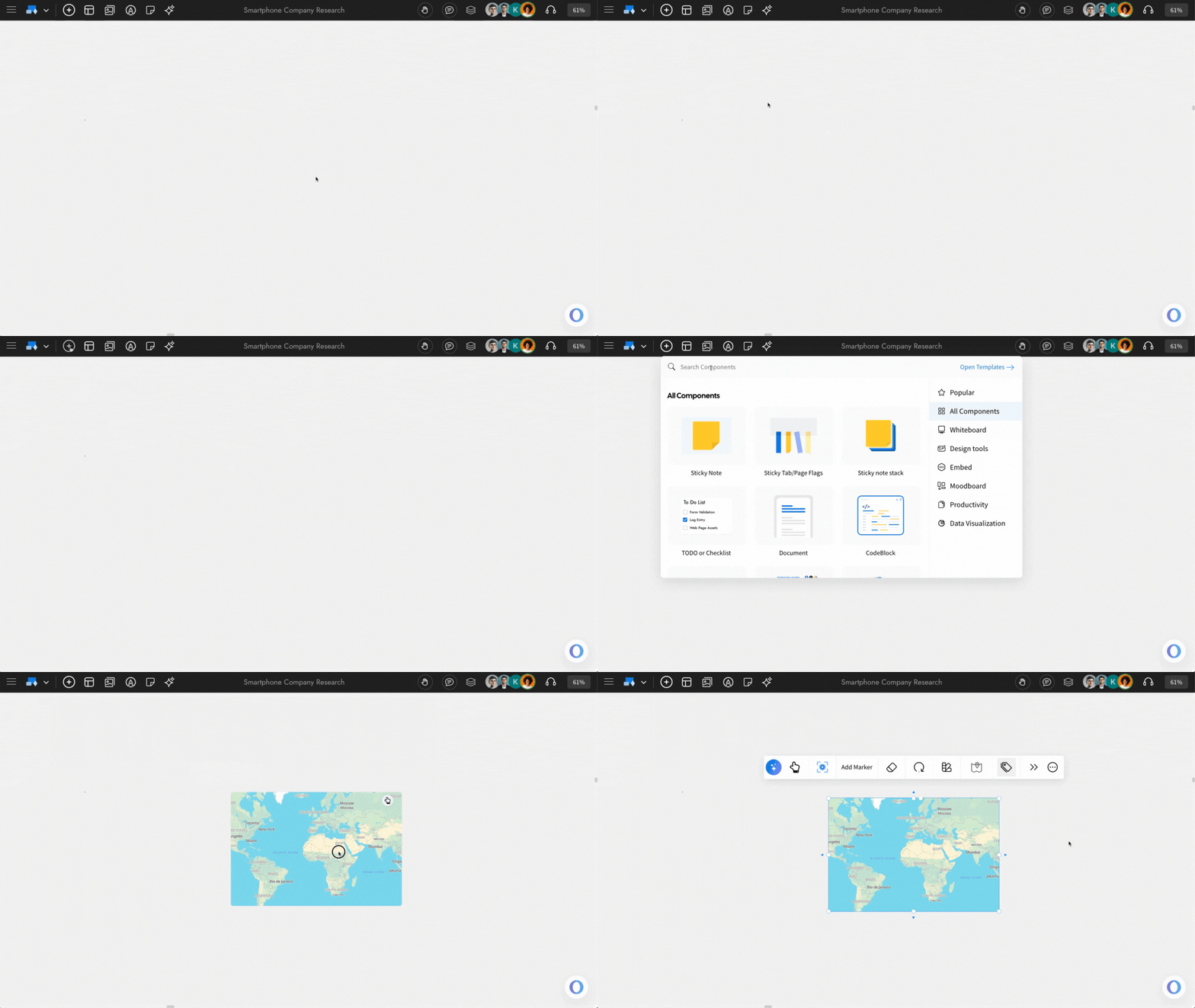
Adding Maps Component - MockFlow IdeaBoard


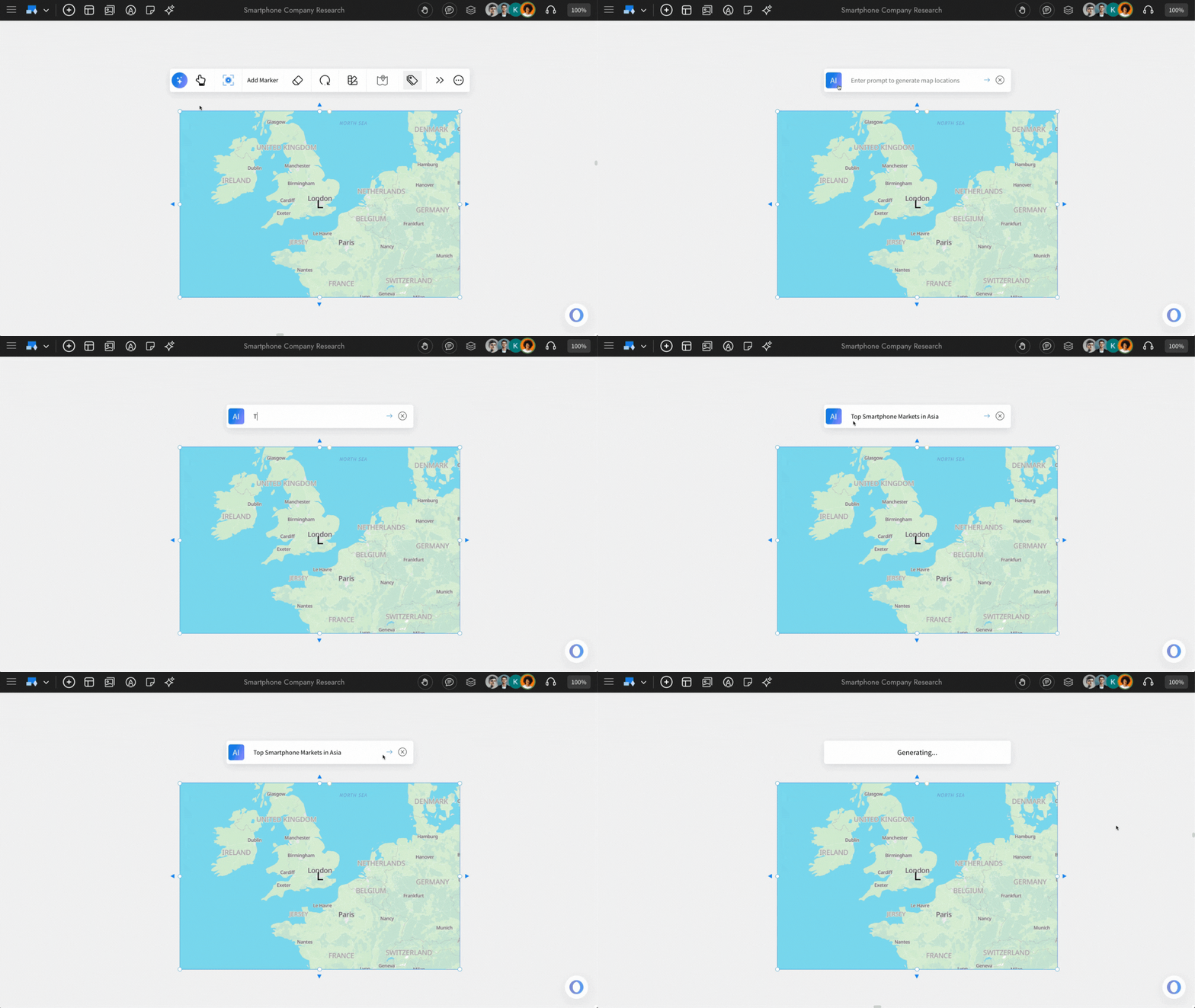
Generate locations with AI: You can generate specific map locations by entering a prompt in MockFlow IdeaBoard AI. Simply click the AI icon from the quick toolbar, enter your prompt, and the map will be generated accordingly.

Generating Maps with AI - MockFlow IdeaBoard

Customisation options

Changing Map Styles: You can change the theme of the Maps by clicking on 'Change Map Style.' And choosing one of your preferences.
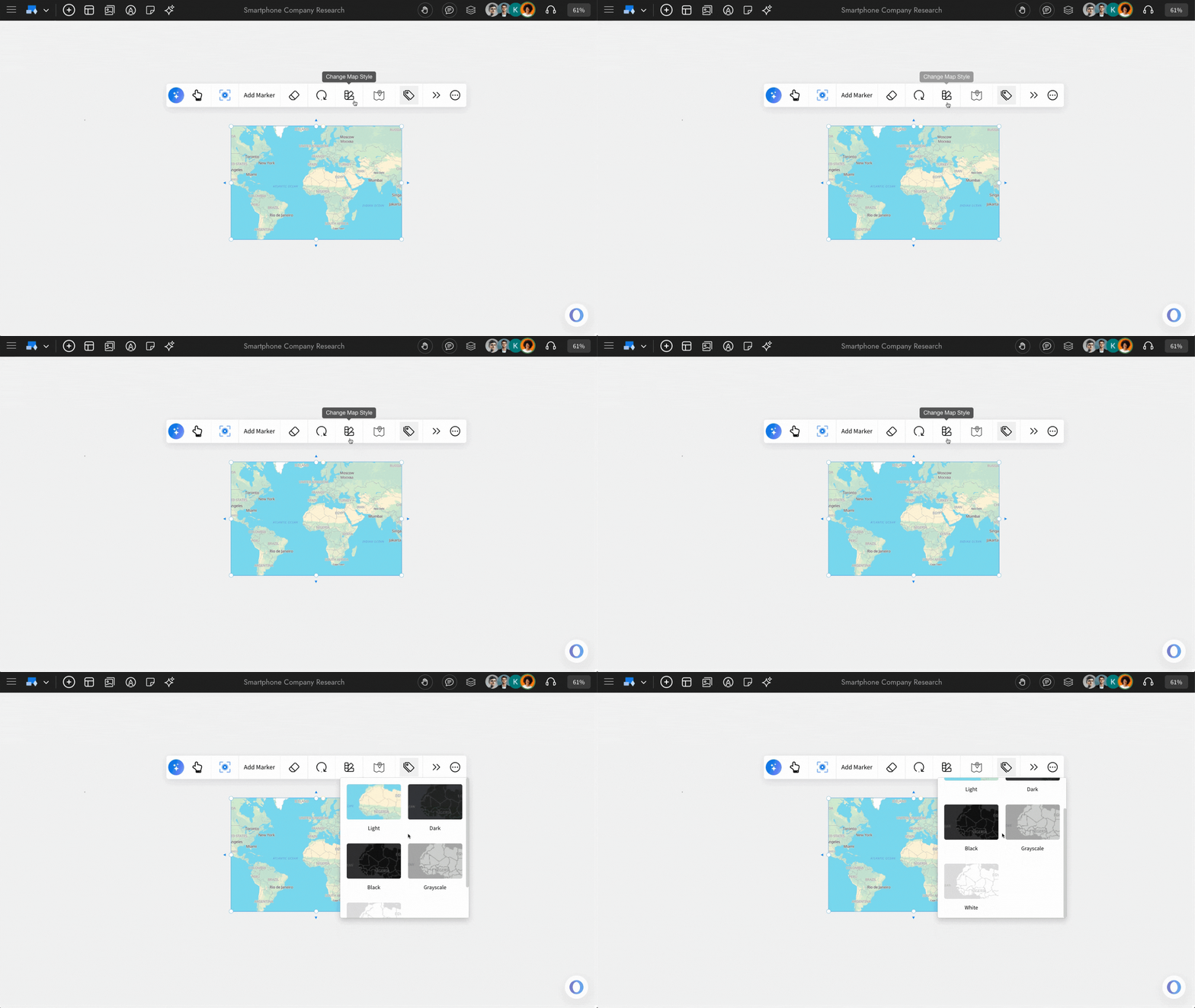

Navigating to Changing Map styles - MockFlow IdeaBoard


Highlight the locations with Markers: You can highlight specific locations on the map using your preferred text or emoji. To do this, click ‘Add Marker’ from the quick toolbar.
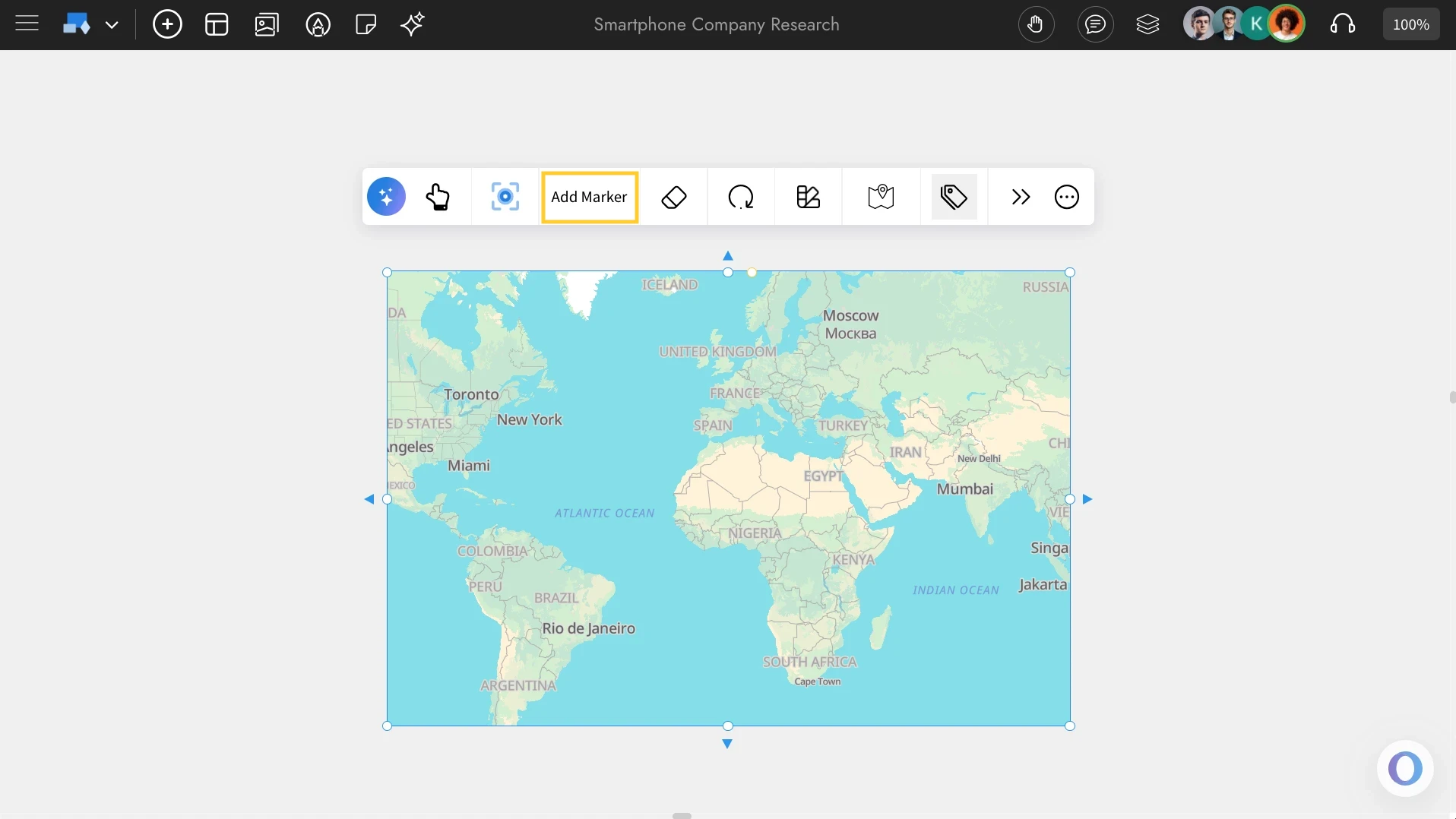

Adding Markers in Maps - MockFlow IdeaBoard


Enter the location name, marker details, and choose a marker icon. You can also use custom emojis or add text if needed. Once everything is set, click ‘Add Marker’ and the marker will be placed on the map.
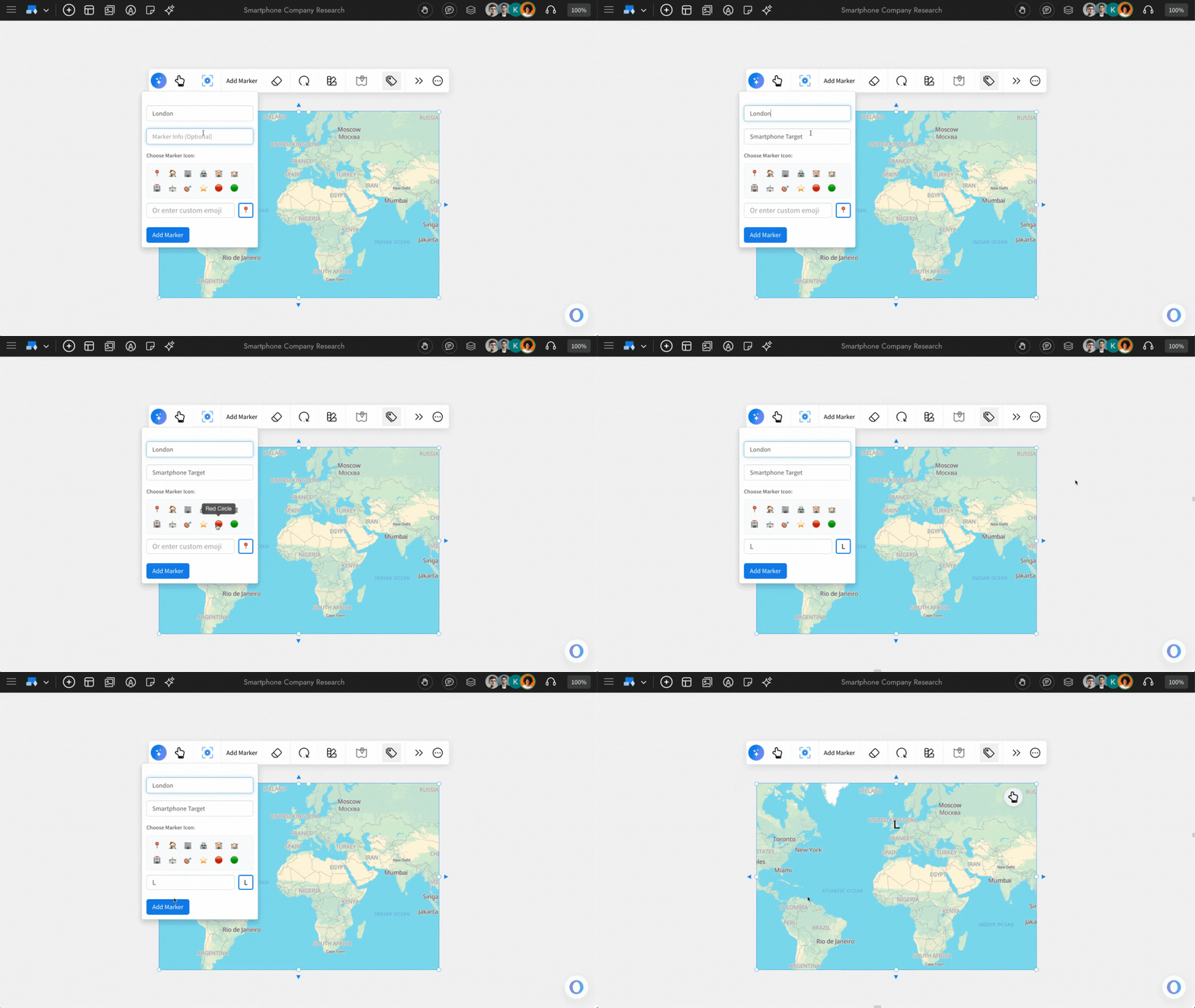

Filling in the fields while adding markers in the Maps component - MockFlow IdeaBoard


And you can remove the markers by using 'Clear all markers' from the quick toolbar.
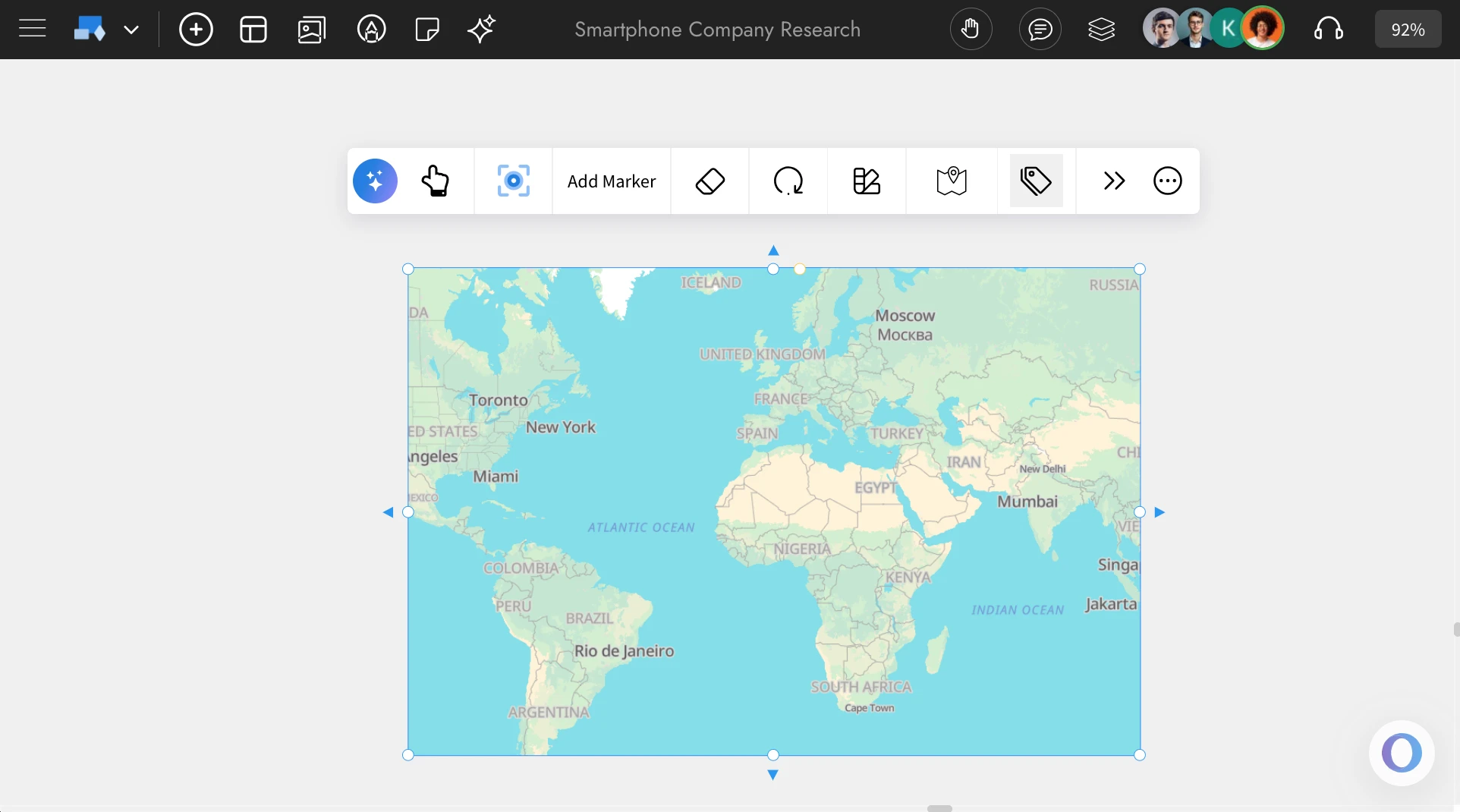

Removing markers from the Maps - MockFlow IdeaBoard


Changing the Maps projection: You can adjust the map’s projection using ‘Change Map Projection’. You’ll find two options available: Flat and Globe.
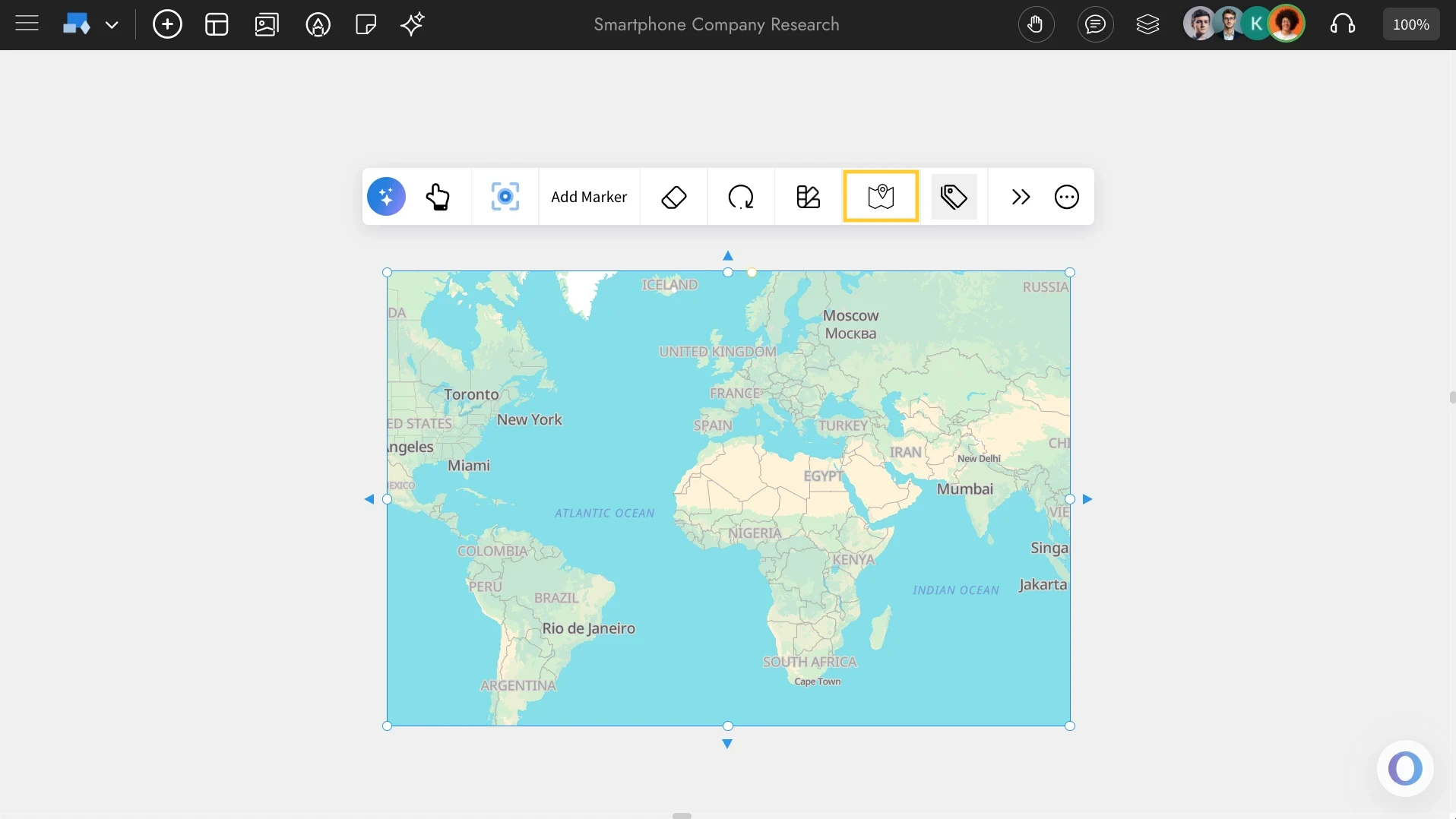

Projection in Map component - MockFlow IdeaBoard


Enable Map Labels: Use the 'Toggle Map Labels' feature to show and hide labels (Locations) in the Maps component.
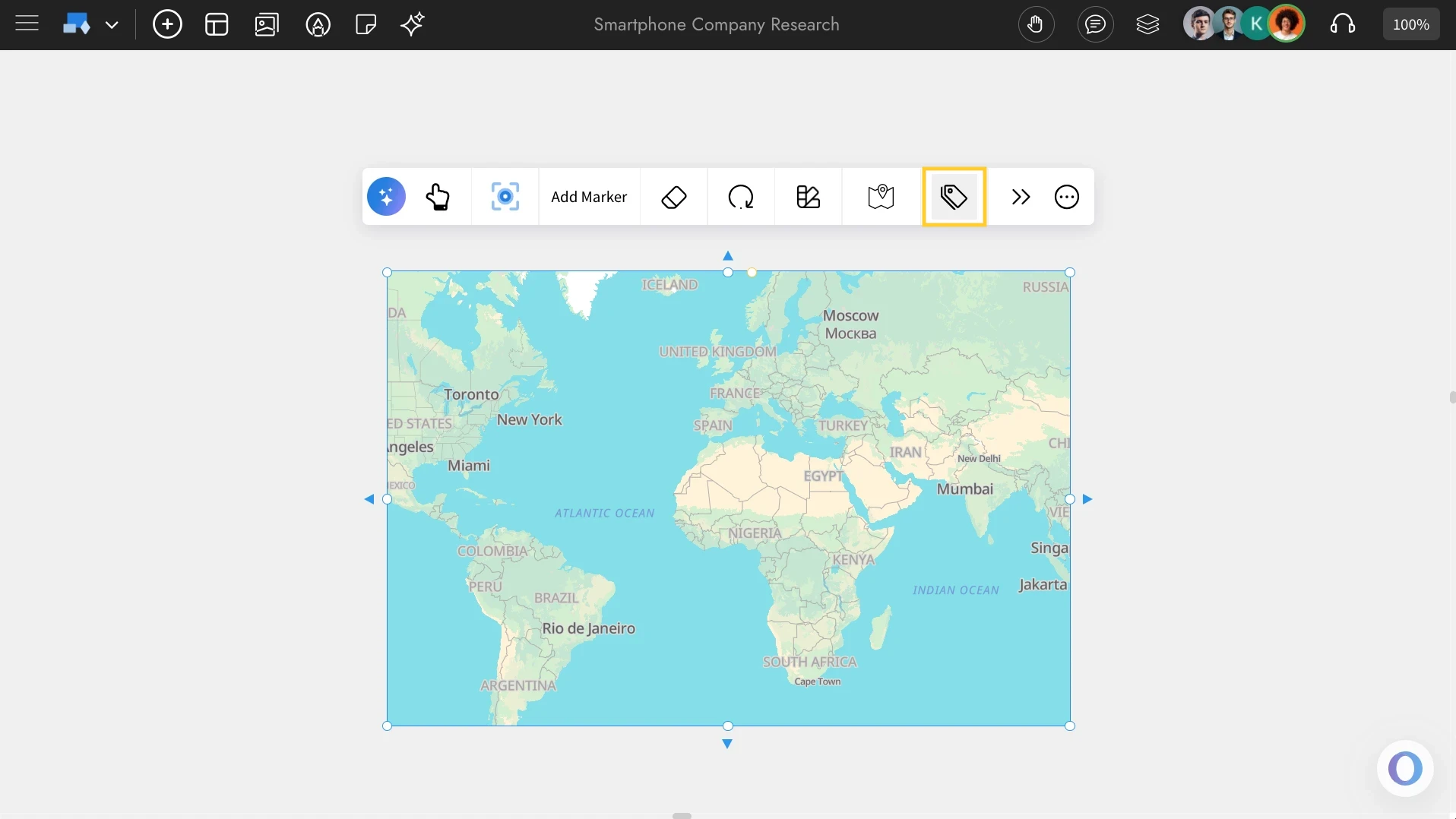

Adding Map labels - MockFlow IdeaBoard


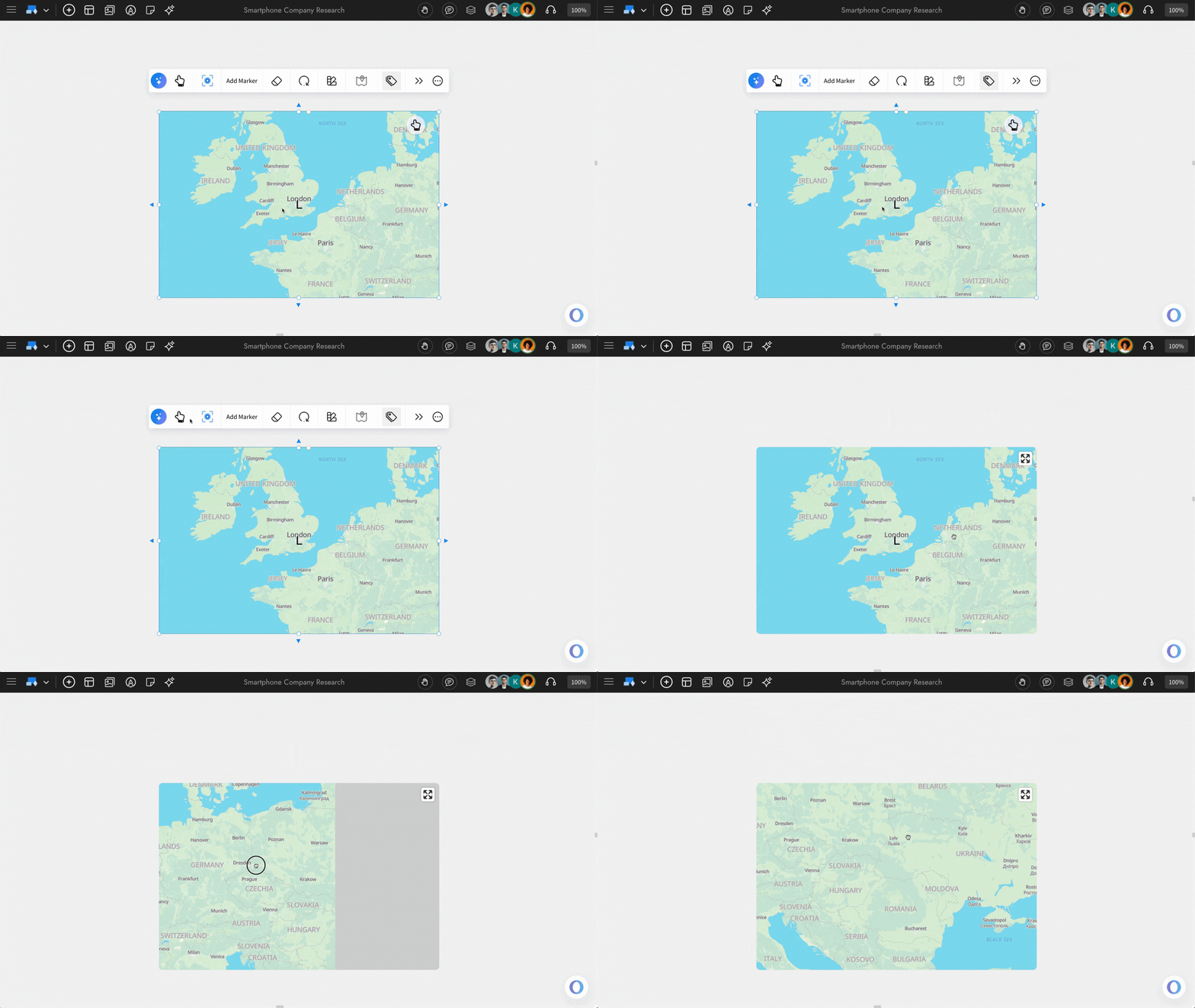
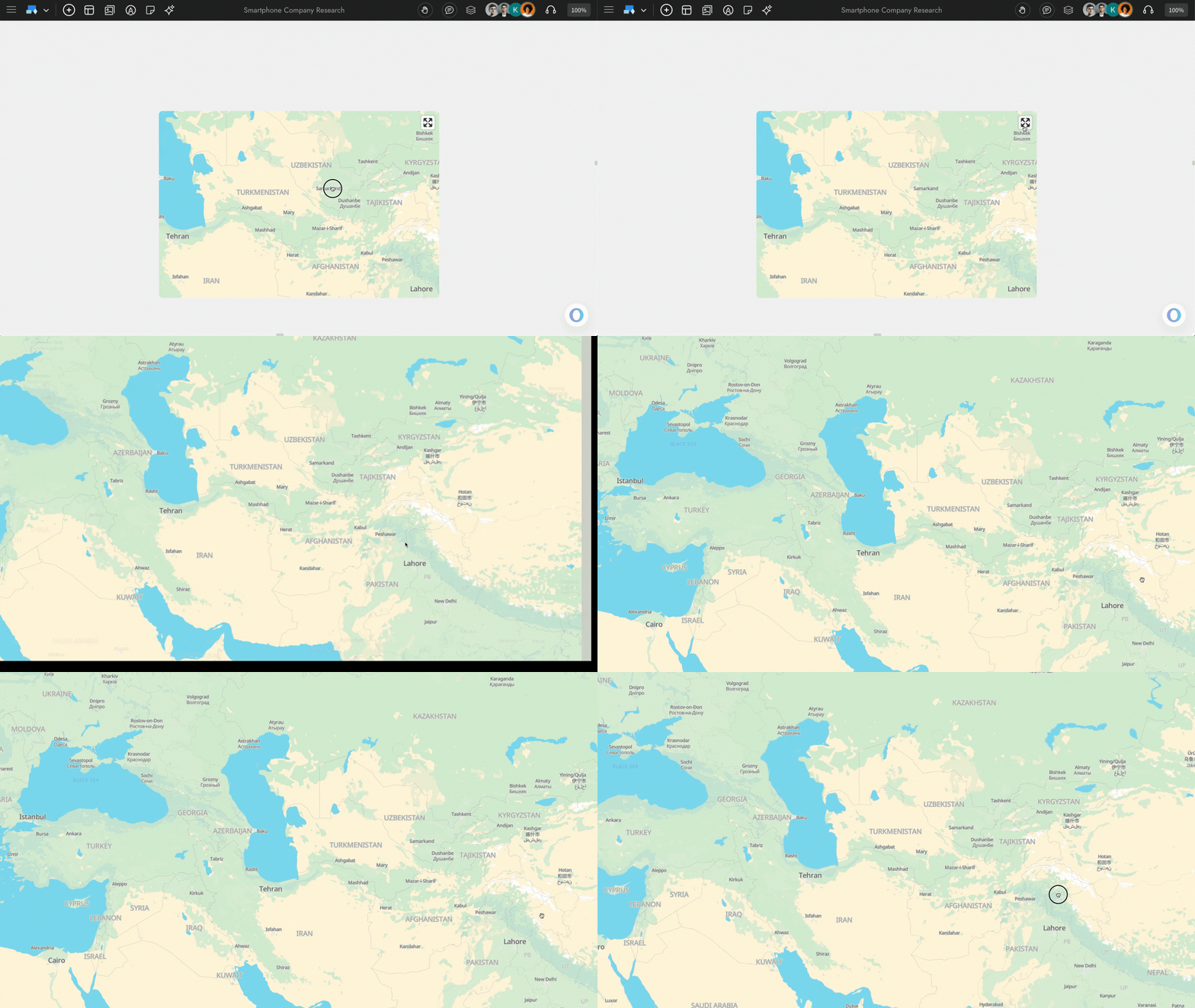
Interacting with the Component: You can use the ‘Interact with Component’ option to enable interaction with the Maps component. Once enabled, you’ll be able to freely move and explore the map within the component.

Interacting with Maps component - MockFlow IdeaBoard

Additionally, you can enable full-screen interaction by clicking on ‘Enter Full Screen’.

Full Screen Mode in Maps - MockFlow IdeaBoard

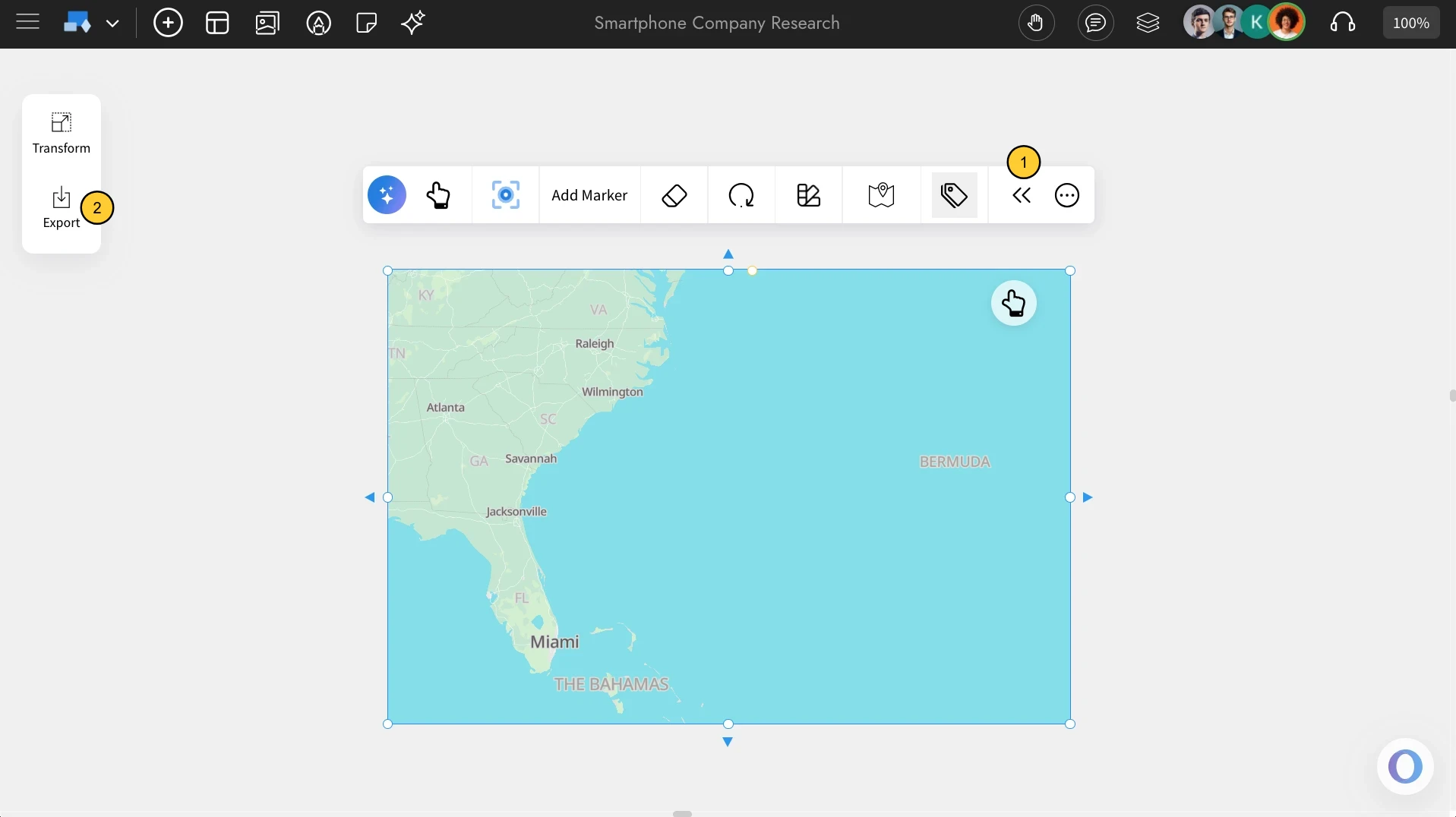
Accessing the Advanced Settings for Maps: To access the advanced settings toolbar, click on the 'Toggle Advanced Settings' option from the quick toolbar. You can find advanced options to export the Map component.

Advanced settings in Maps Component - MockFlow IdeaBoard


Using the Focus mode: There’s a Focus Mode that hides all other components and highlights only the map you're editing. Click the 'Focus' icon in the quick toolbar to enable it, and click the Close icon at the top-right to exit.
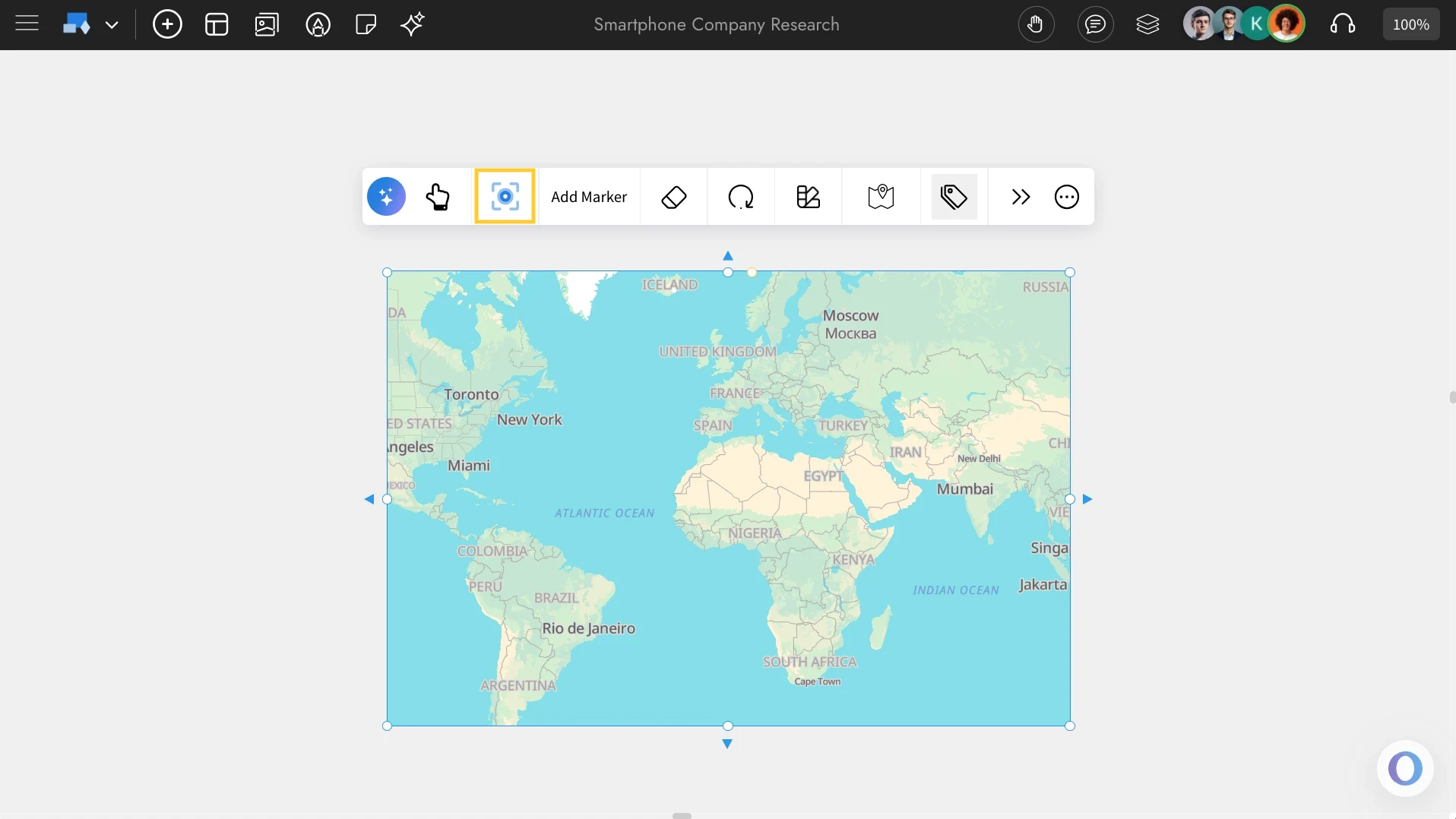

Navigating to focus mode in Maps - MockFlow IdeaBoard


Share component link with team: In focus mode, at the top right, there is a share icon next to the close icon. Click on this share icon to copy a unique link for the component view to share directly within your team.
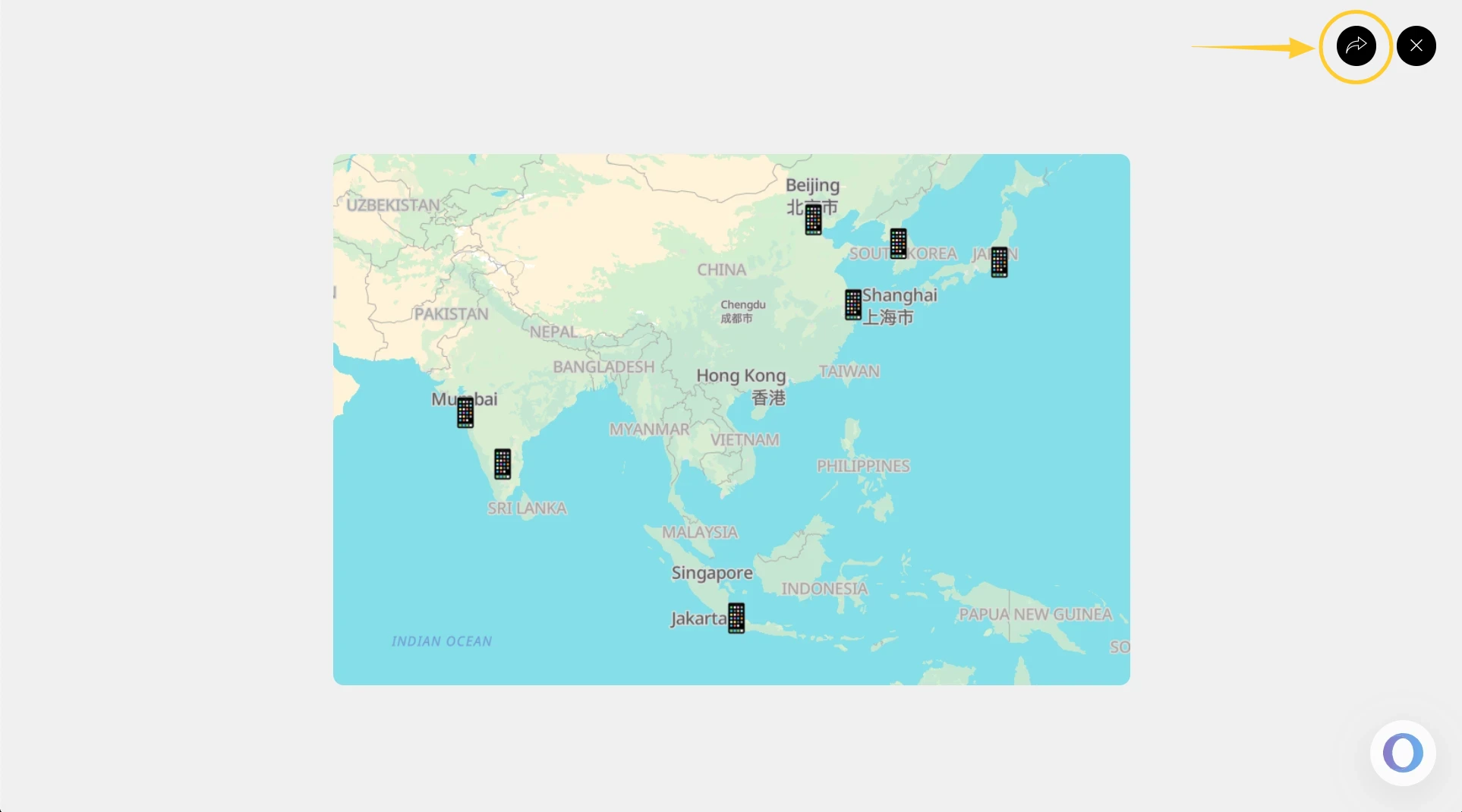

Sharing the Maps component - MockFlow IdeaBoard


Use Cases of the Map Component

Market Planning: Visualize expansion opportunities, target cities, and regional strategies.

Education & Research: Create interactive geography or data maps for learning and presentations.

Event Mapping: Plan global events, tours, or campaigns with clear location markers.

Team Collaboration: Coordinate remote teams and regional activities on a shared map.

Travel & Exploration: Design travel itineraries or visualize destinations with 3D globe views.


Rate this article
great ok bad
For more questions - Contact Us
...