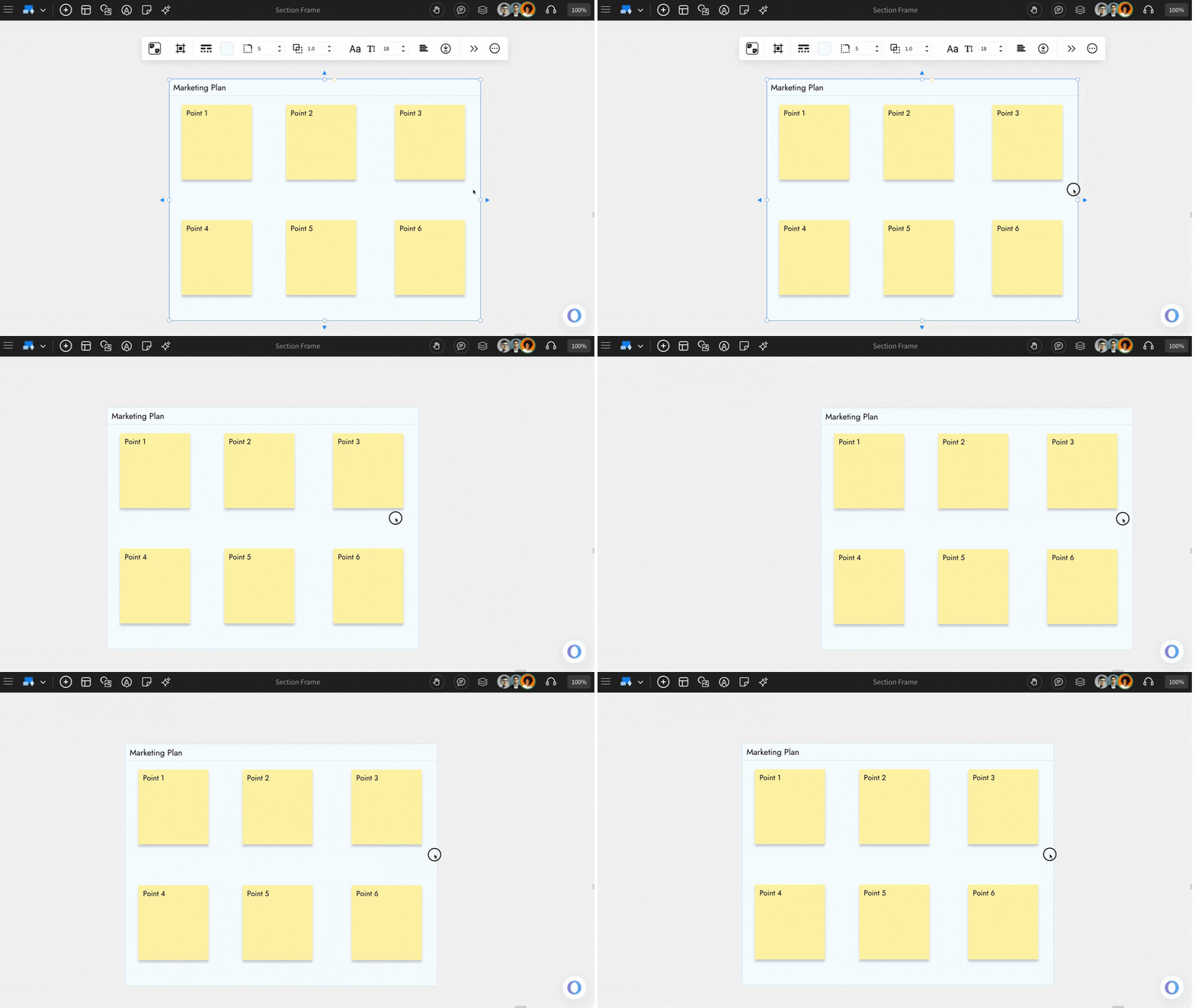
The Section Component in IdeaBoard is designed to help you organize and structure your ideas visually. Think of it as a flexible container where you can group multiple elements - stickies, text, icons, images, or even complex diagrams - into one neatly organized block. Unlike traditional grouping, a section allows you to move, arrange, and export collections of content effortlessly while keeping your board clutter-free.
What is a Section?
A Section acts like a movable workspace inside your board. You can drag and drop any components inside it - such as notes, sketches, or diagrams - to keep related ideas together. This makes it easier to brainstorm, organize thoughts, or present information clearly within specific categories or themes.
For example, if you’re mapping out a marketing plan, you could have separate sections for Strategy, Campaign Assets, and Budgets. Each section can hold multiple visual elements that belong to that part of the plan.
How to add a Section?
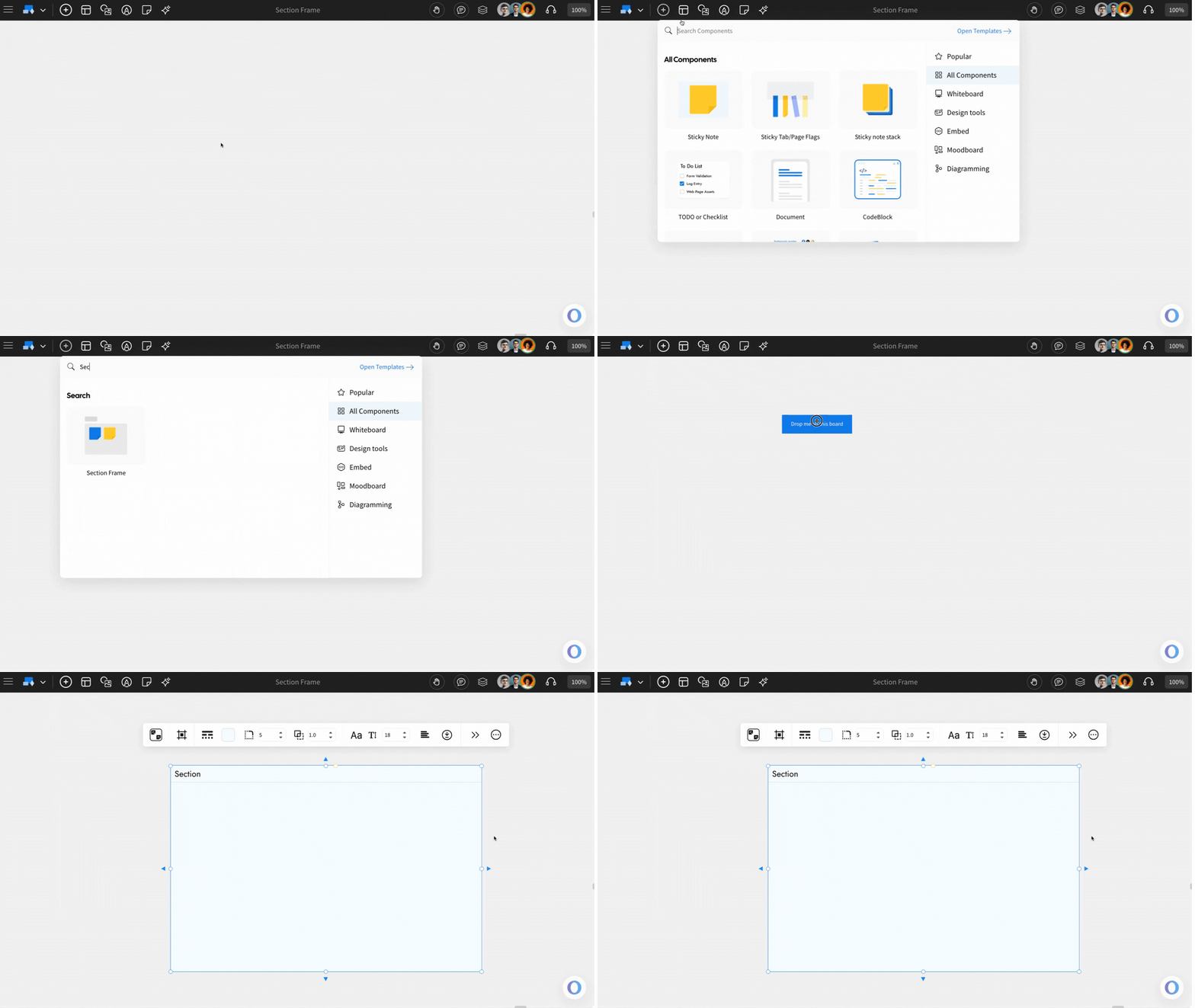
Inside the MockFlow IdeaBoard editor, click on the 'Add' and locate the section component from the components list. Click on it or drag & drop it to the whiteboard canvas.
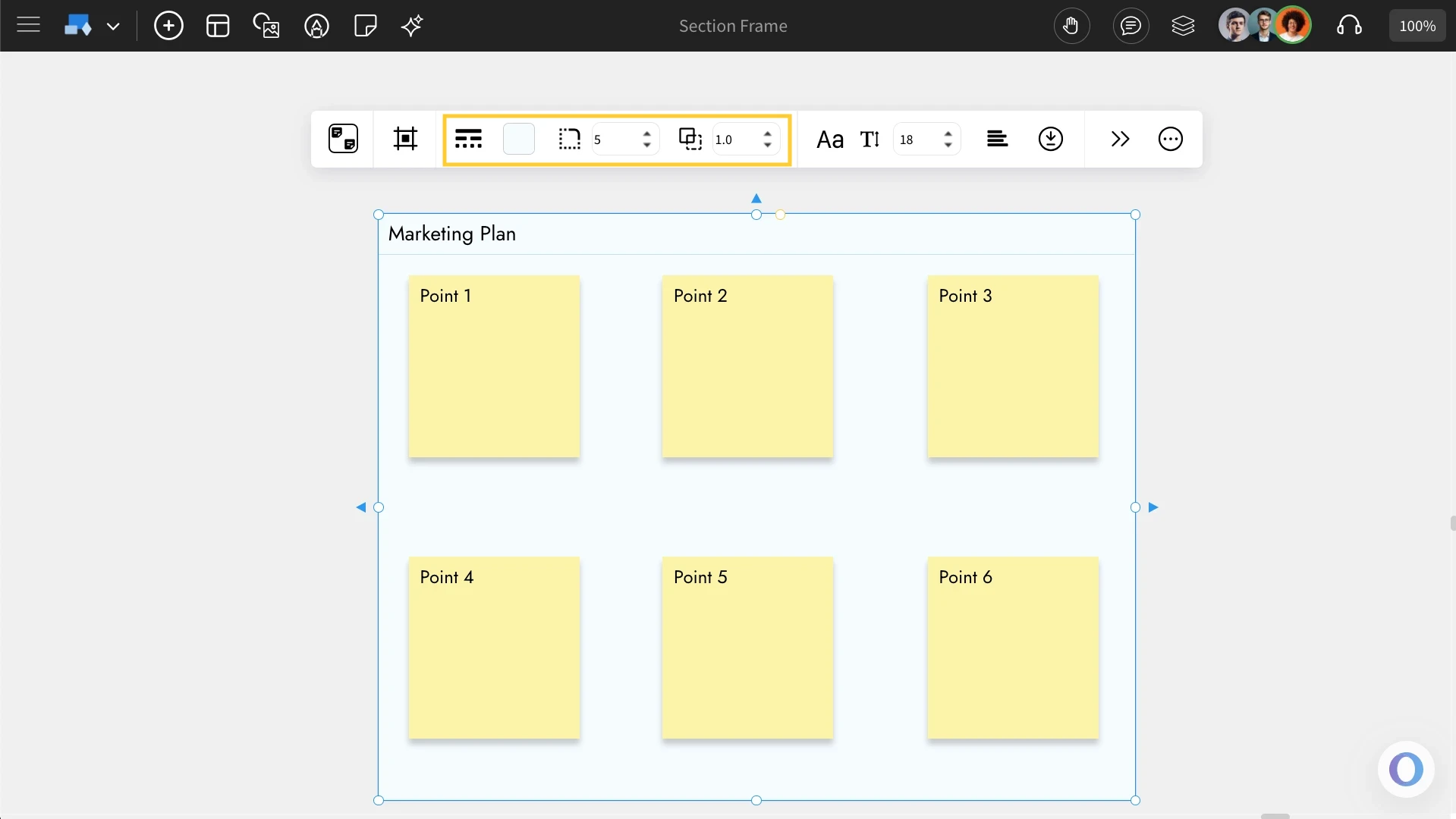
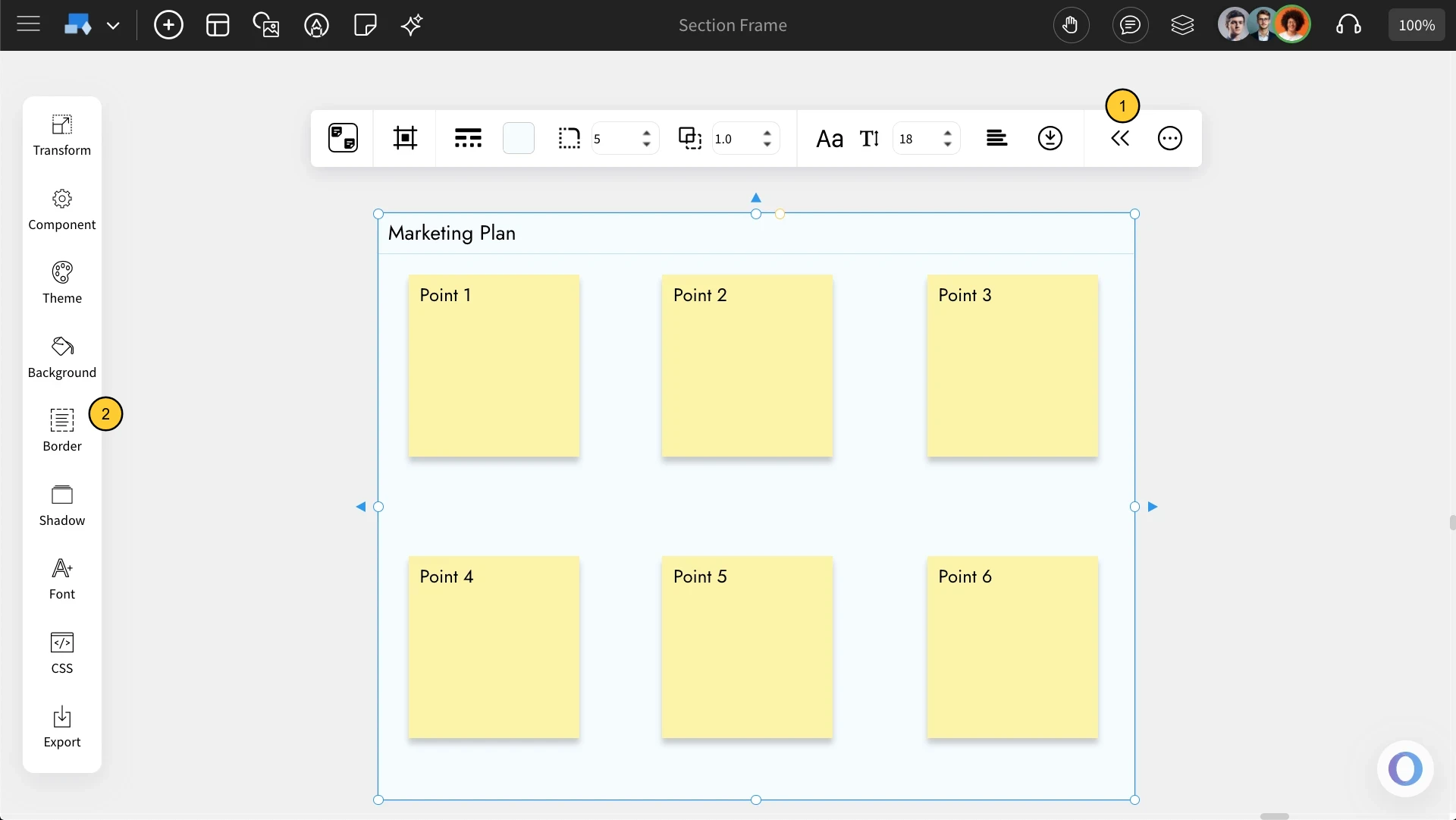
Customizing the Section Frame component: You can customize the border style, background color, and opacity using the options in the quick toolbar.
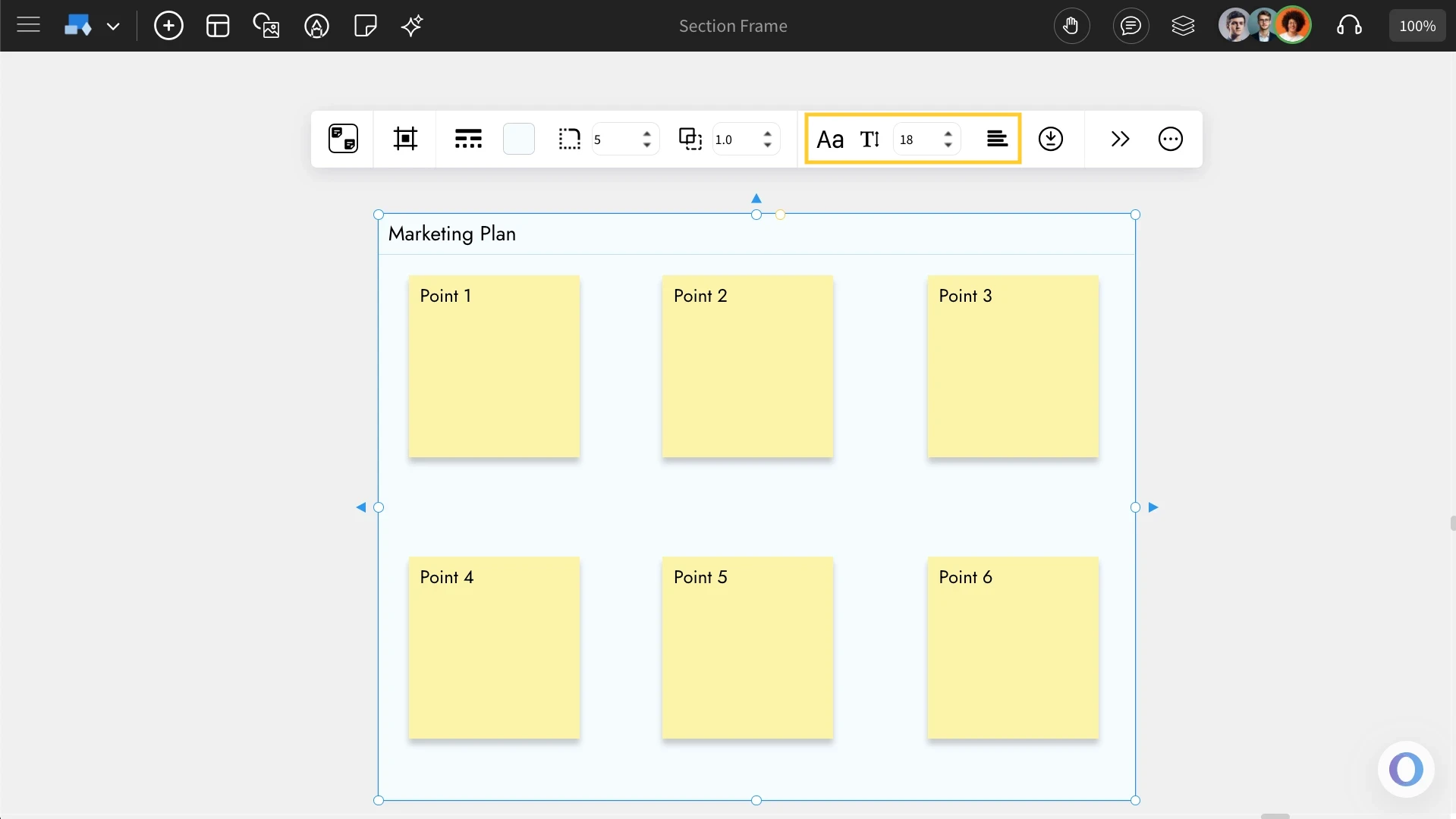
Font Settings: The title of the Section Frame can be customized by using the font settings, like Font style, alignment, and font size in the quick toolbar.
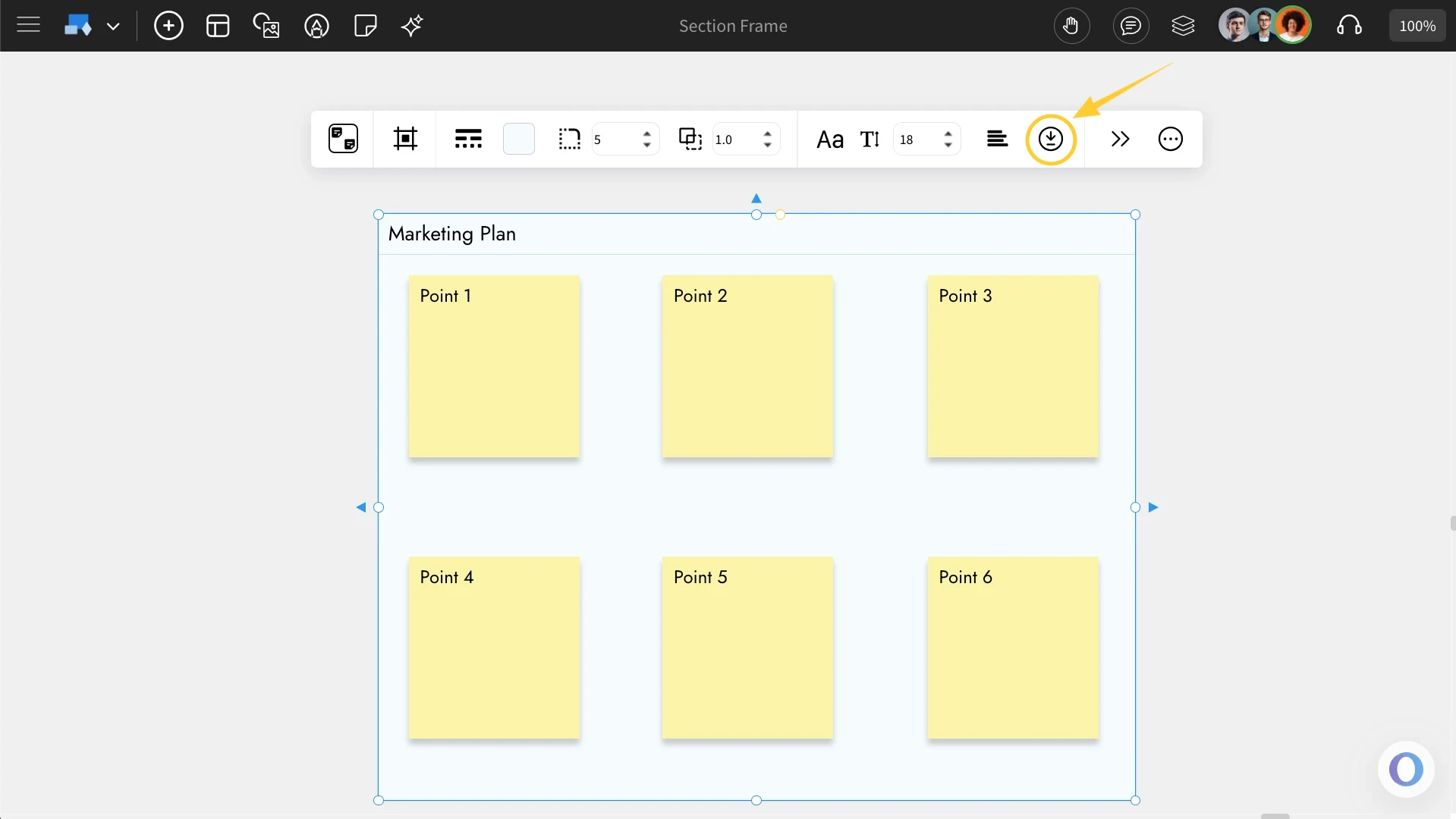
Organizing the Section Frame: You can use the Section Stacking and Layout Style options to keep components organized within the section frame.
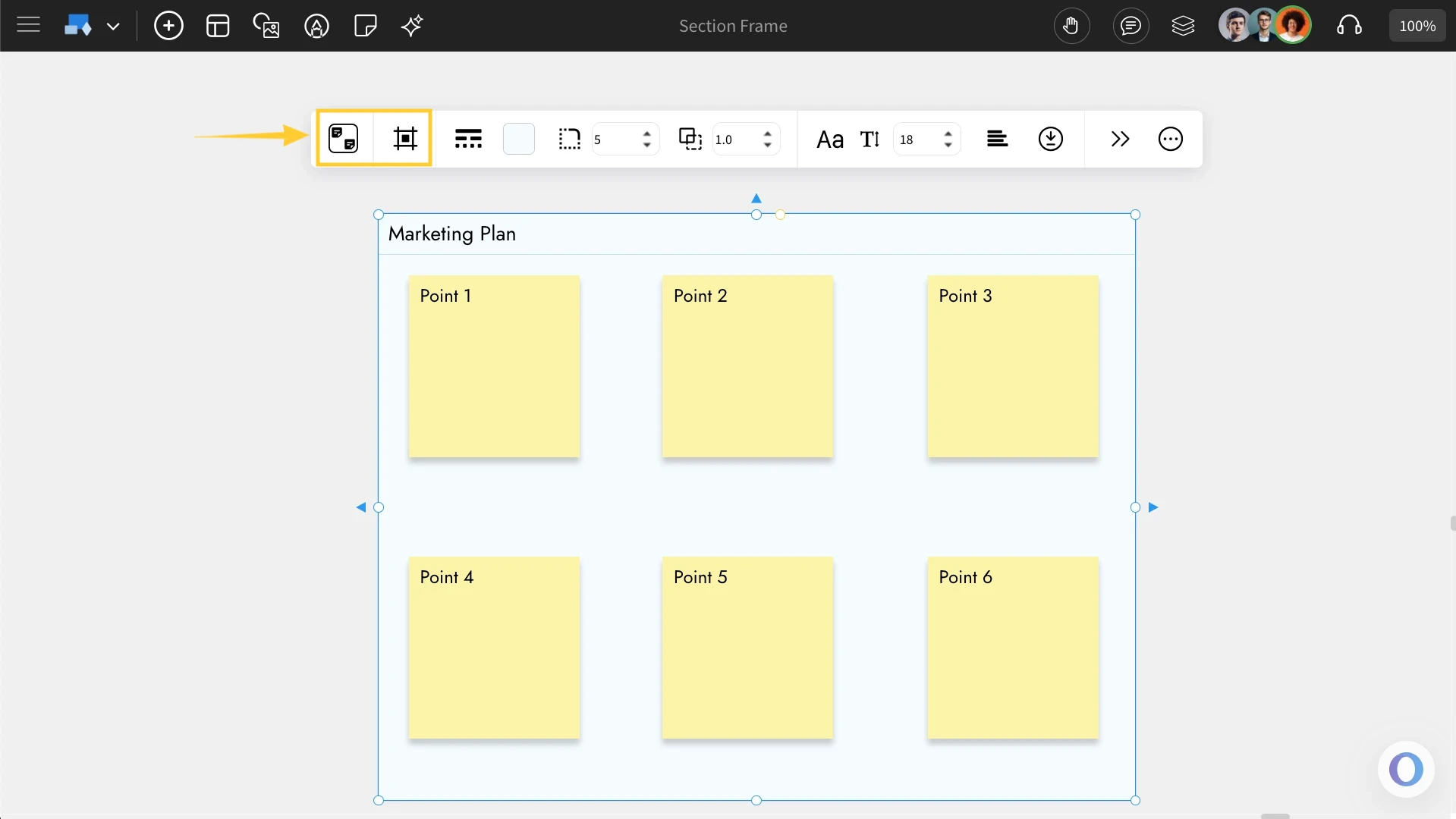
Drag and drop other components into the section frame. Once added, moving the section frame will also move all its contained components.