Help Center

Support email - support@mockflow.com

Spinning Wheel

Available in:
Basic
WireframePro
IdeaBoard
Bundle Plan
Enterprise

The Spinning Wheel Component is designed to make decision-making fun, interactive, and visual on your board.

It’s perfect for random selections, games, team activities, giveaways, or choosing between multiple options. Instead of using external tools, you can create, customize, and spin the wheel directly inside IdeaBoard.

How to add the Spinning Wheel Component?

1In the MockFlow IdeaBoard editor, click on the 'Add' icon in the top left corner. Look for the Spinning Wheel and add it to the canvas by dragging and dropping it.
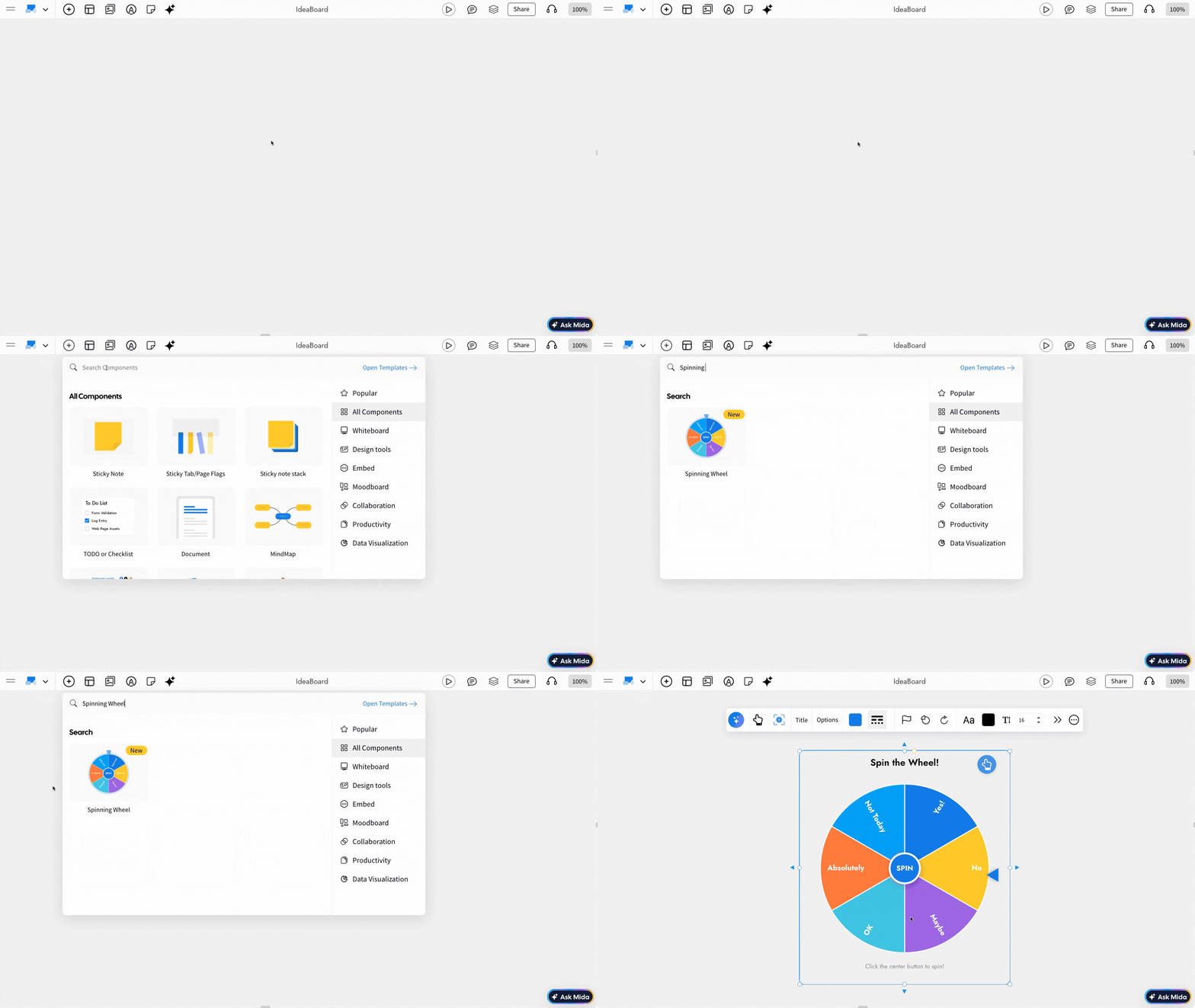
Adding Spinning Wheel Component - MockFlow IdeaBoard


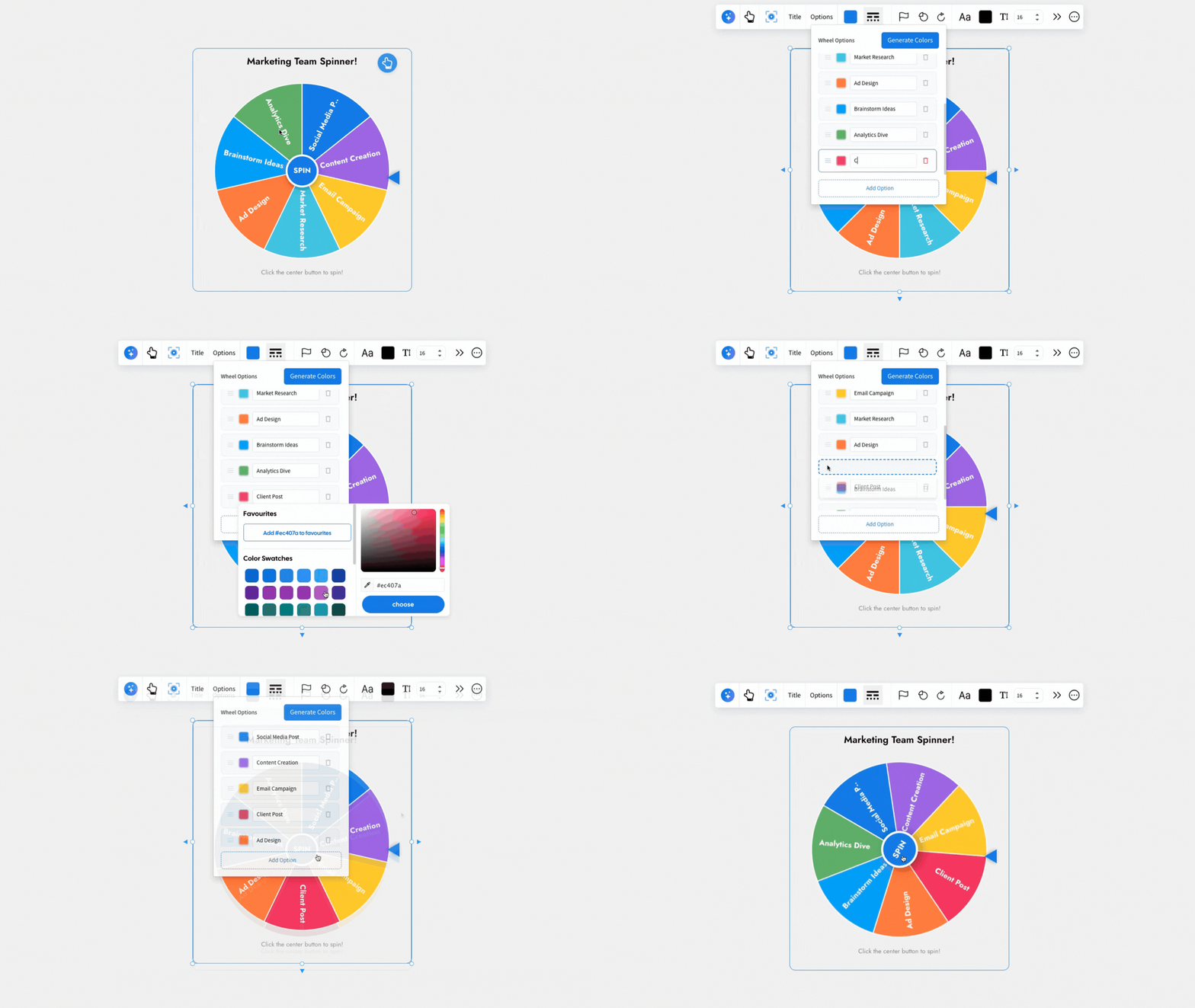
Editing the Spinning Wheel: Use the Interact with Component option to make changes to the wheel.


Editing the Spinning Wheel in MockFlow IdeaBoard


By selecting the component and using the quick toolbar, you can easily add, edit, sort, delete, and customize the options in the Spinning Wheel.

Other options are detailed below in this order:

  1. Generate with AI
  2. Adding a Title
  3. Color Settings
  4. Customizing Spinning Wheel Options
  5. Spinning Wheel Controls
  6. Font Settings
  7. Accessing the Advanced Settings for the Spinning Wheel
  8. Using focus mode


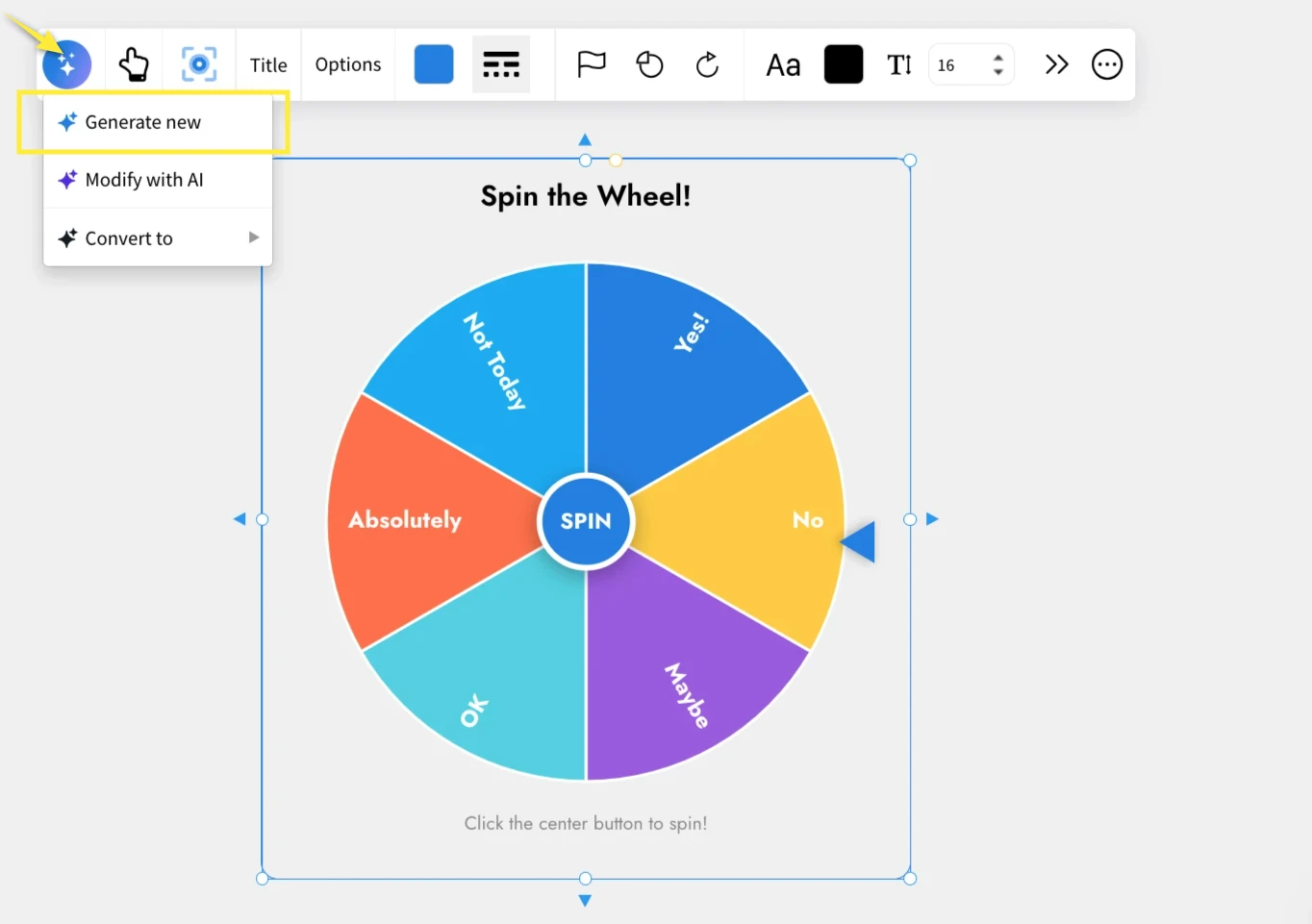
Generate Spinning Wheels with AI: You can generate a Spinning Wheel using AI by simply entering a prompt. Click the AI icon from the quick toolbar, type your prompt, and the wheel will be created automatically with options based on your input.

AI features in Spinning Wheel - MockFlow IdeaBoard

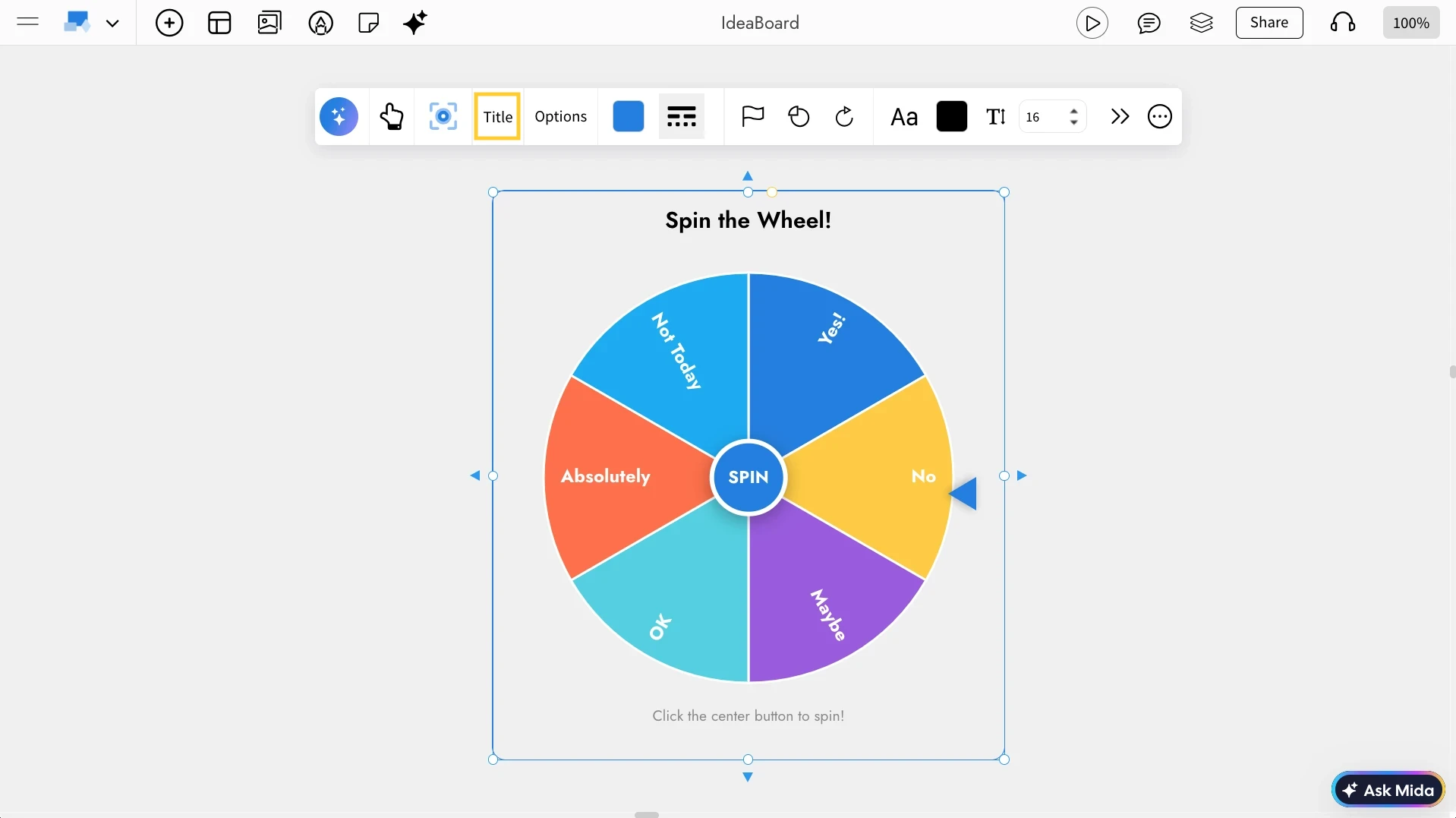
Adding a Title: The title can be added to the Spinning Wheel either by enabling the Title option from the toolbar or by double-clicking directly on the component.

Adding a Title in Spinning Wheel - MockFlow IdeaBoard

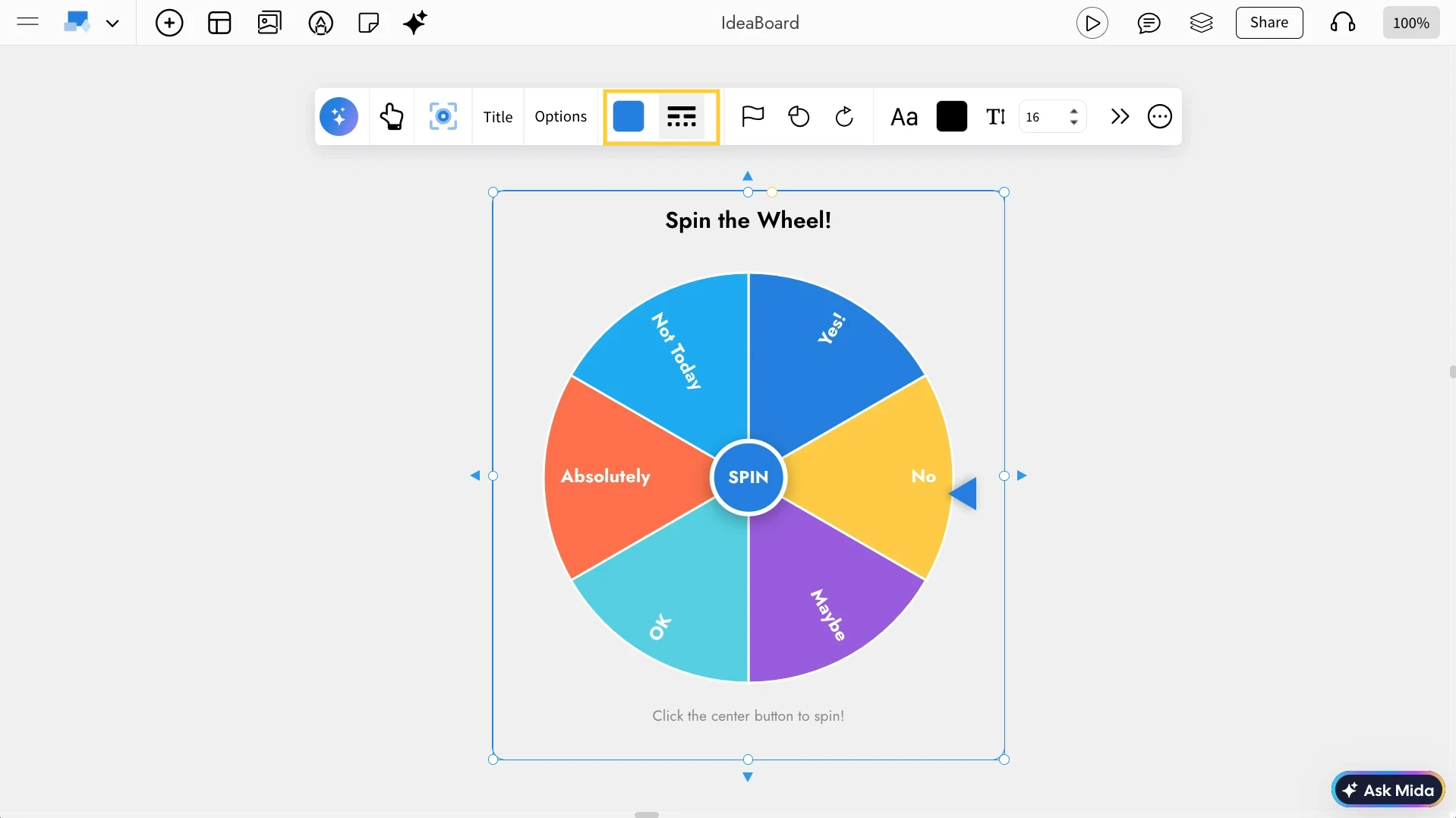
Color Settings: You can change the Spinning Wheel’s accent color and enable or disable the border using the color options in the quick toolbar. You can also customize the border color to match your board’s design.

Color Setting in Spinning Wheel - MockFlow IdeaBoard

Customizing Spinning Wheel Options: Using the Options panel from the quick toolbar, you can customize the colors of each segment in the wheel. You can auto-generate colors using the Generate Colors option, edit the name of each option, and add more options by clicking Add Option.


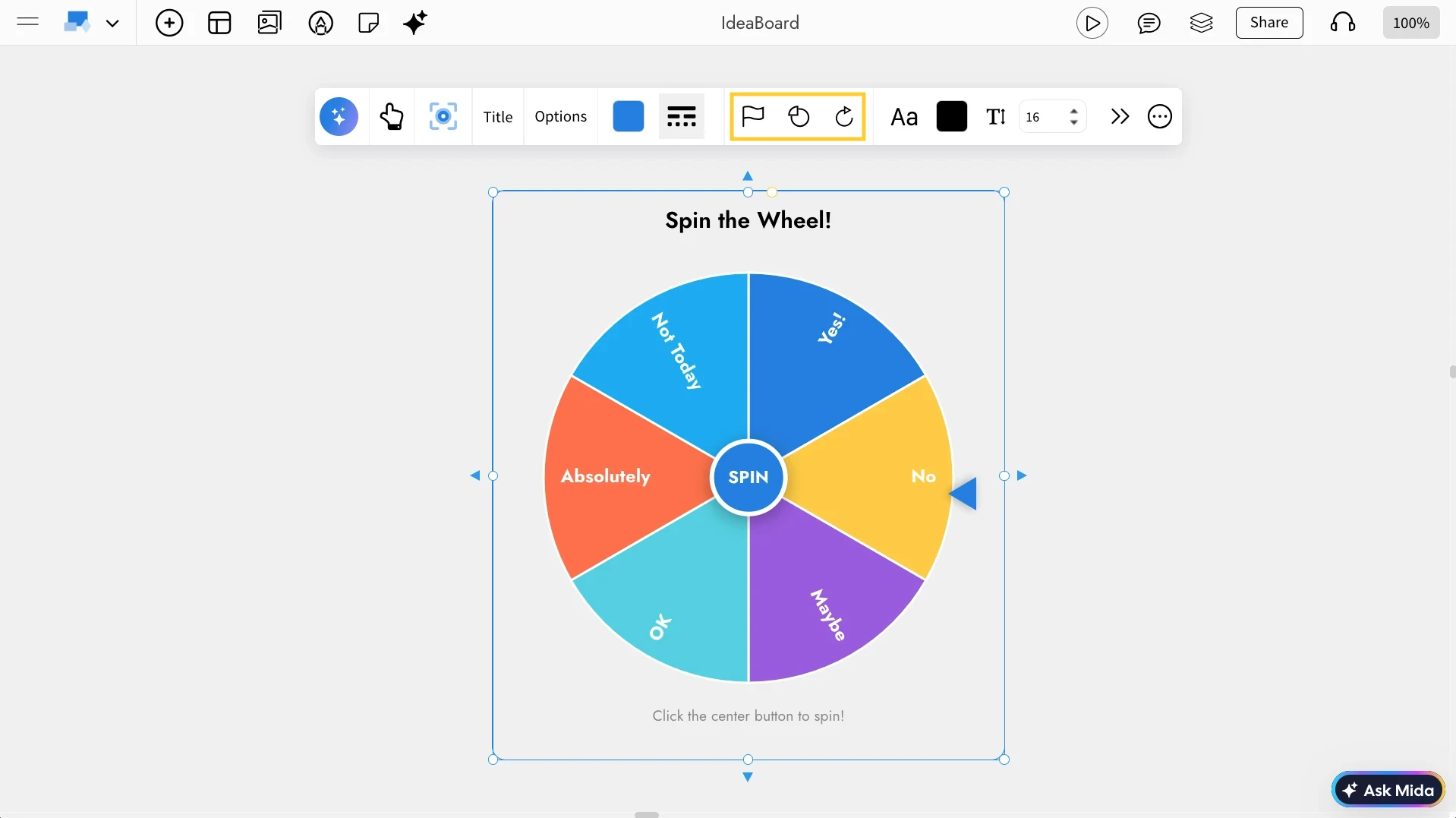
Spinning Wheel Controls: With the controls in the quick toolbar, you can spin the wheel, toggle the result visibility, and reset the wheel results whenever needed.

Controls in Spinning Wheel - MockFlow IdeaBoard


Using the Focus mode: By using Focus Mode that hides all other components and displays only the Spinning Wheel. Click the 'Focus' icon in the quick toolbar to enable it, and click the Close icon at the top-right to exit.
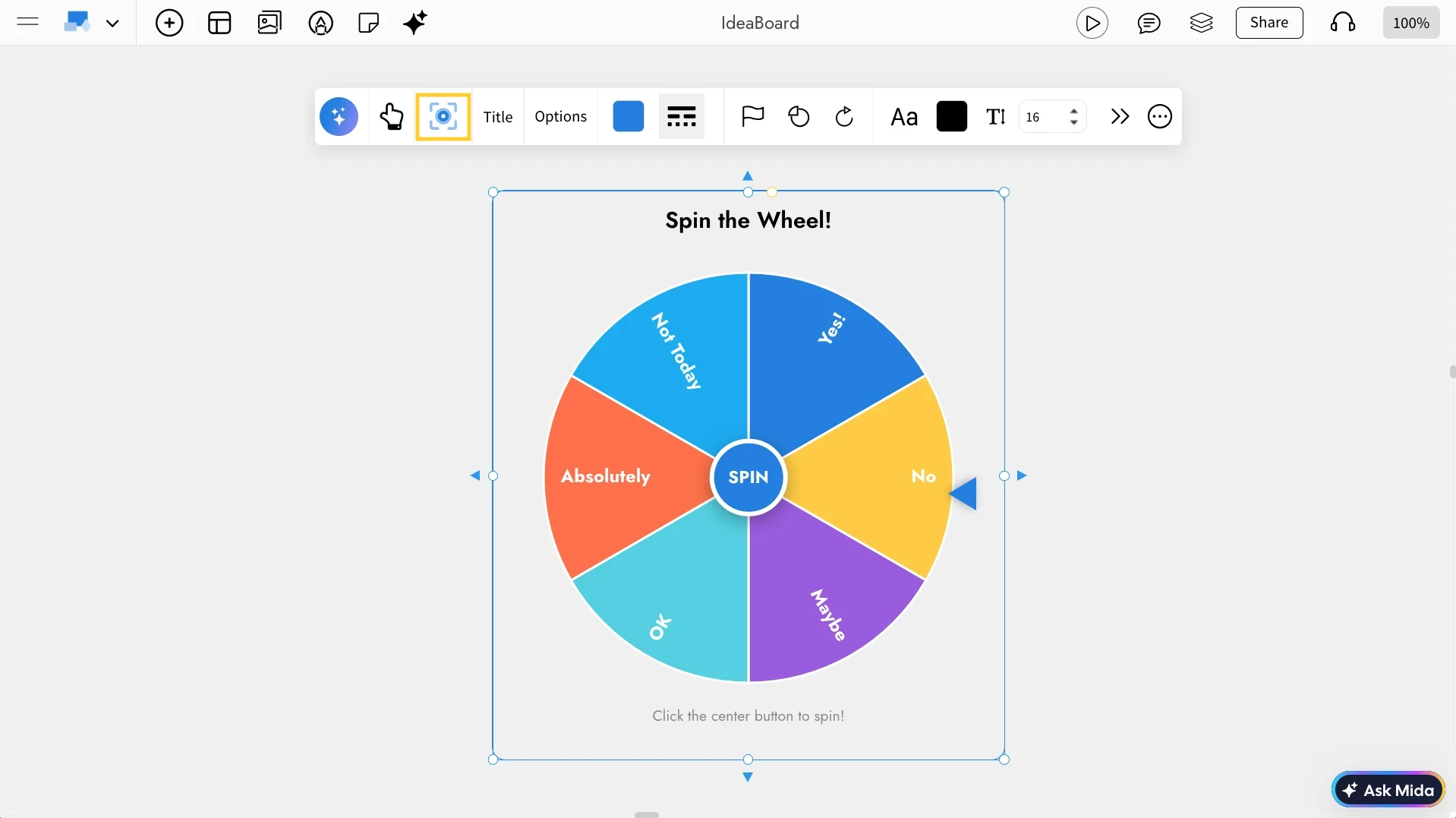

Navigating to focus mode in Spinning Wheel - MockFlow IdeaBoard


Share component link with team: In focus mode, at the top right, there is a share icon next to the close icon. Click on this share icon to copy a unique link for the Spinning Wheel to share directly within the team.
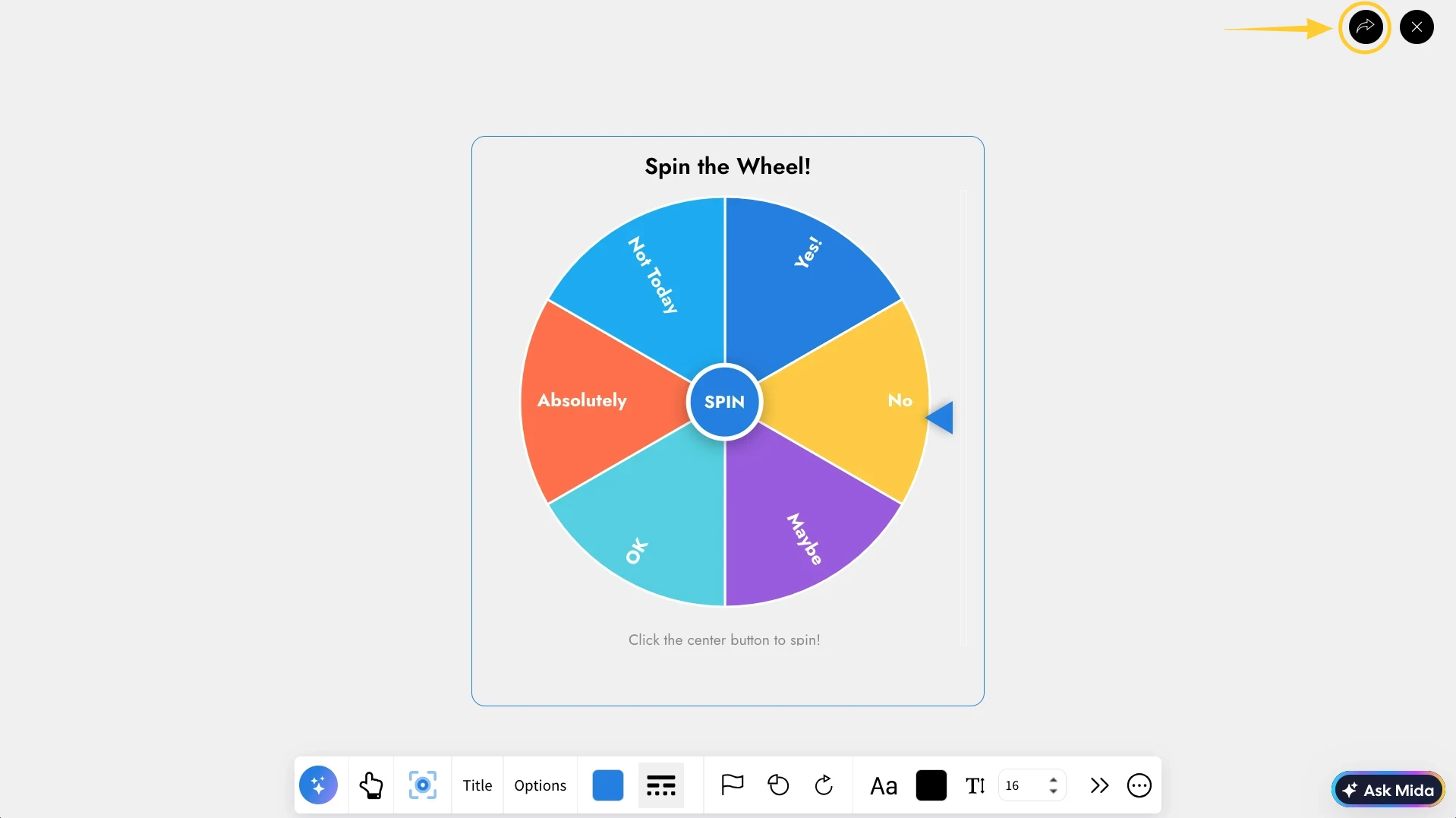

Sharing the Spinning Wheel component - MockFlow IdeaBoard

Use cases

  1. Decision making: Randomly pick options or tasks.
  2. Team activities: Choose speakers or topics.
  3. Gamification: Add fun to workshops or sessions.
  4. Icebreakers: Engage participants in meetings.


Rate this article
great ok bad
For more questions - Contact Us
...