The Swimlane Component in IdeaBoard helps you organize workflows by roles, teams, or stages. It allows you to break down complex processes into clearly separated lanes, making it easy to understand who is responsible for what and how tasks flow across different participants.
Instead of placing tasks randomly across the canvas, swimlanes give structure to your ideas—especially when mapping processes, responsibilities, or cross-functional collaboration.
What is the Swimlane Component?
A swimlane diagram is a visual framework that divides a workflow into horizontal or vertical lanes. Each lane typically represents a team, department, role, or phase. Tasks are placed inside these lanes to show ownership and progression.
In IdeaBoard, the Swimlane Component provides a clean, editable layout where you can add tasks, sticky notes, text, or other elements within each lane. This helps clarify process flow while keeping your board organized.
How to Add the Swimlane in MockFlow IdeaBoard?
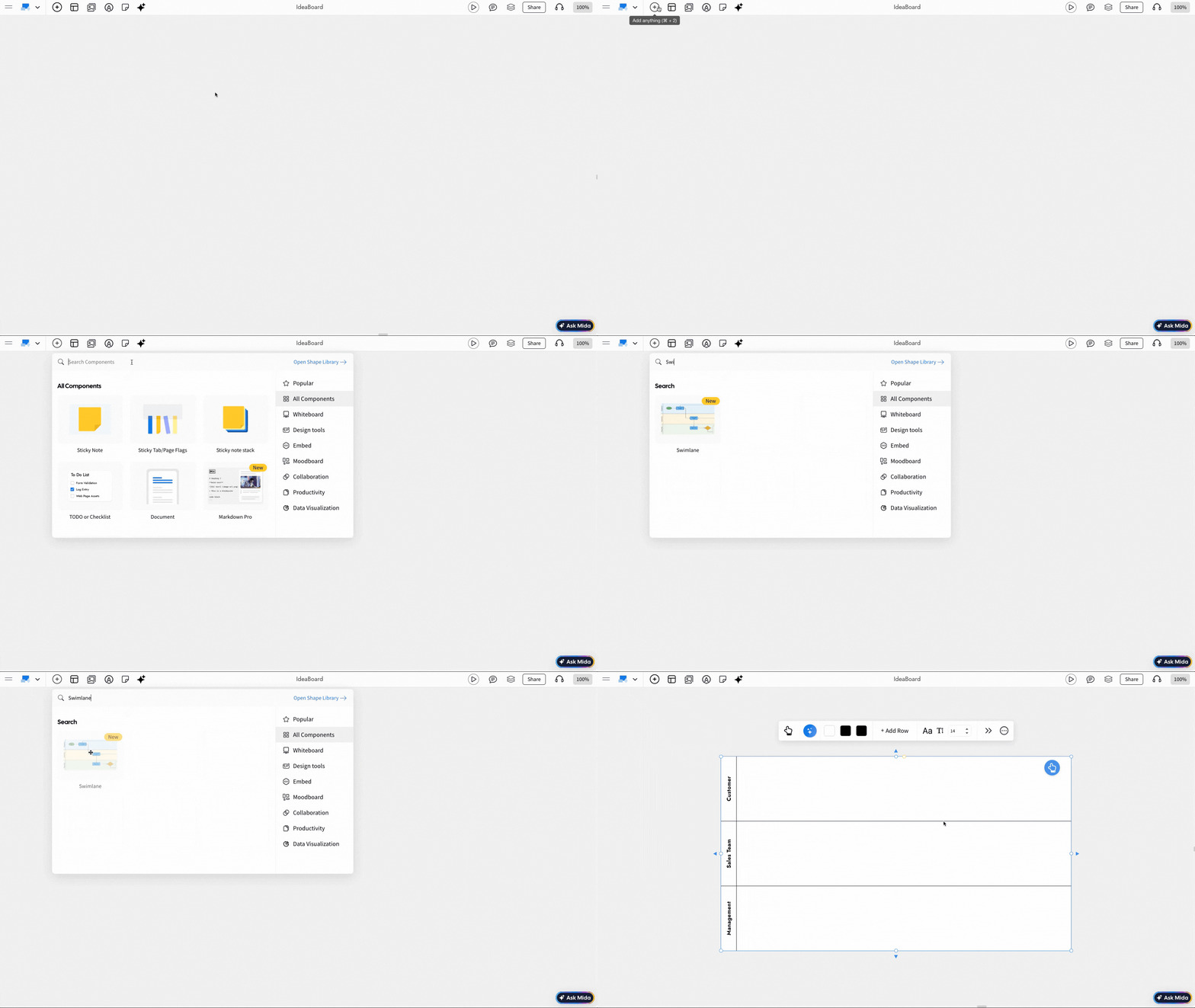
Inside MockFlow IdeaBoard, you can click on the Plus (+) icon, search for Swimlane from the components list, and drag and drop it onto the canvas.
Editing the Swimlane: Use the Interact with Component option from the quick toolbar or simply double-click the Swimlane to edit flowchart elements inside it. You can drag and drop components into the Swimlane, and once added, edit each component individually by selecting it. You can add or delete rows and customize each Swimlane row title by double-clicking on it.
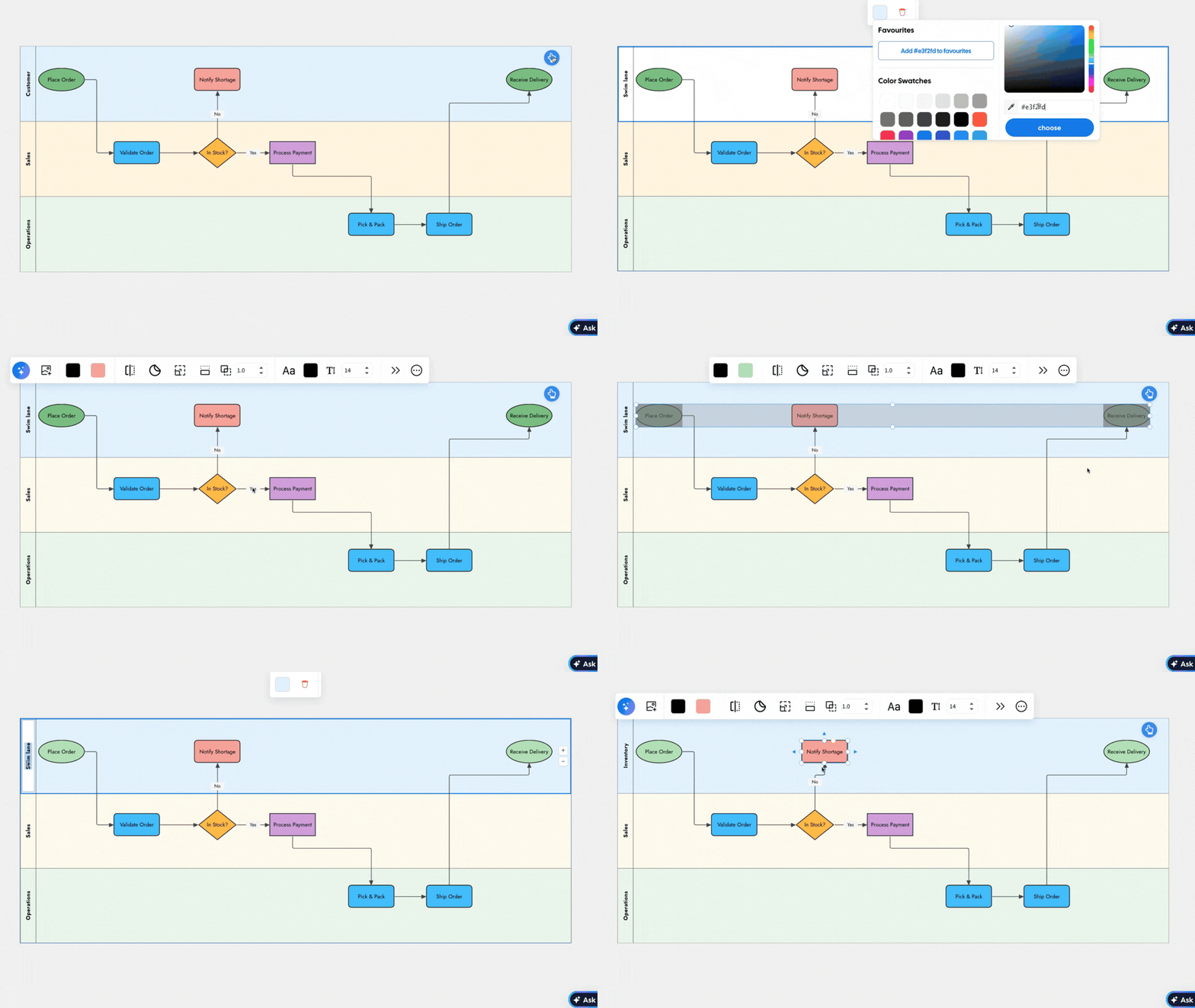
Other options are detailed below in this order:
- Generate Swimlane Diagrams with AI
- Customize Swimlane Colors
- Adjust Font Settings for Swimlane Titles
- Adding Rows to the Swimlane
- Enabling Advanced settings in Swimlane
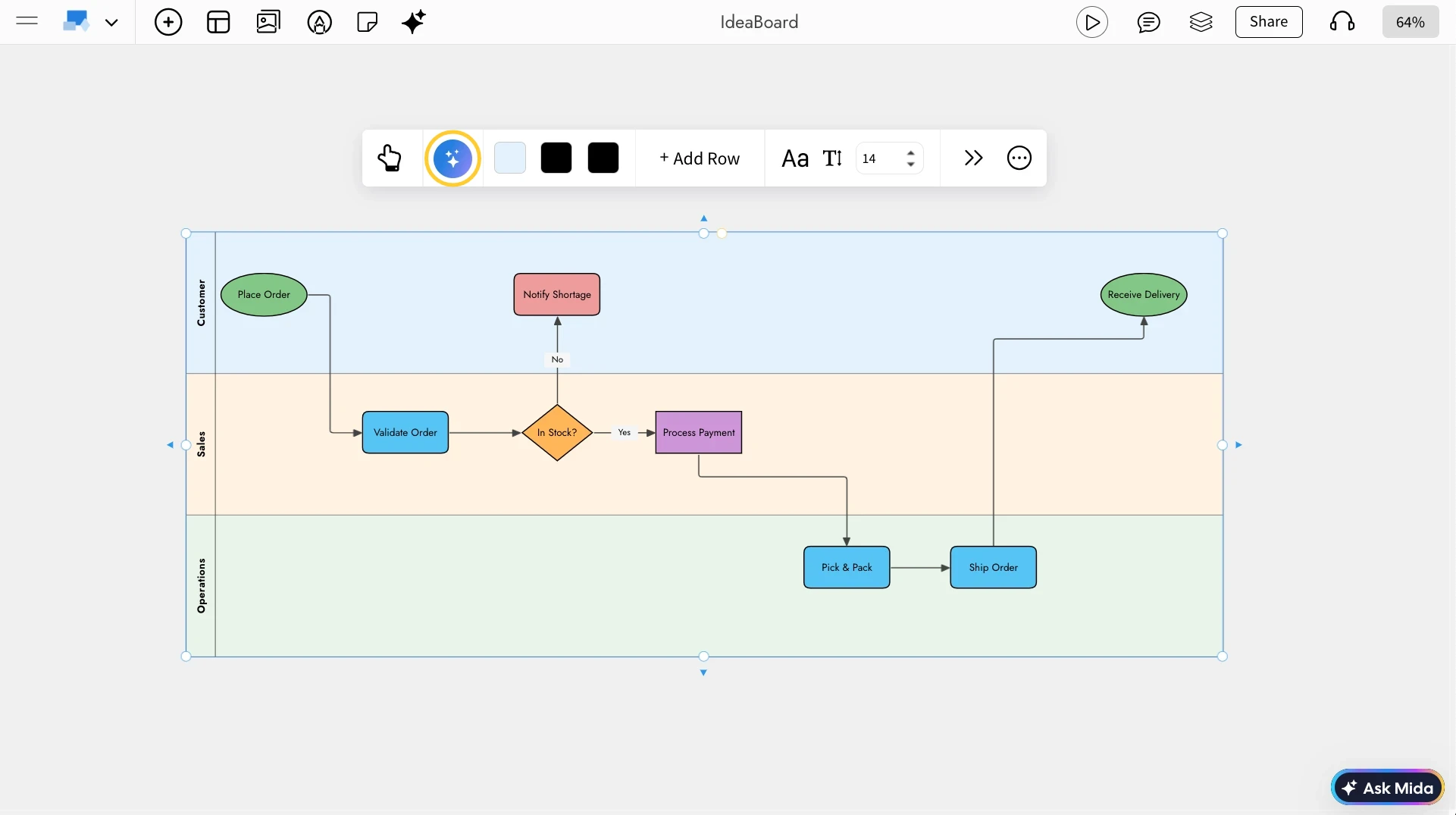
Generate Swimlane Diagrams with AI: You can quickly create swimlane diagrams using AI by entering a single prompt. AI will generate the swimlane layout for us in just a few seconds, which you can further edit and refine.
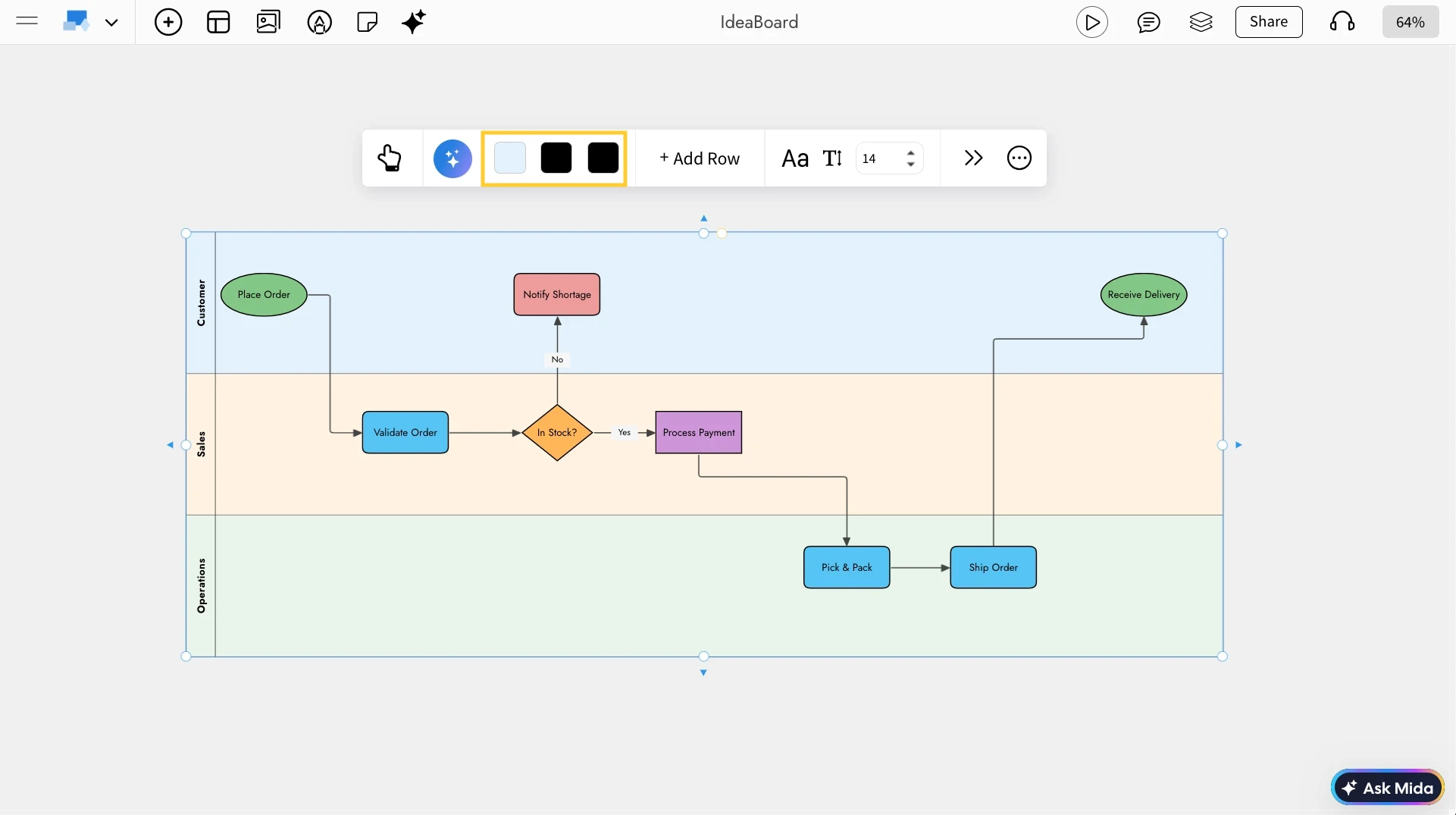
Customize Swimlane Colors: You can customize the appearance using the Color Settings in the quick toolbar. This lets us change the text color, row border lines, and the swimlane background to match our workflow or brand style.
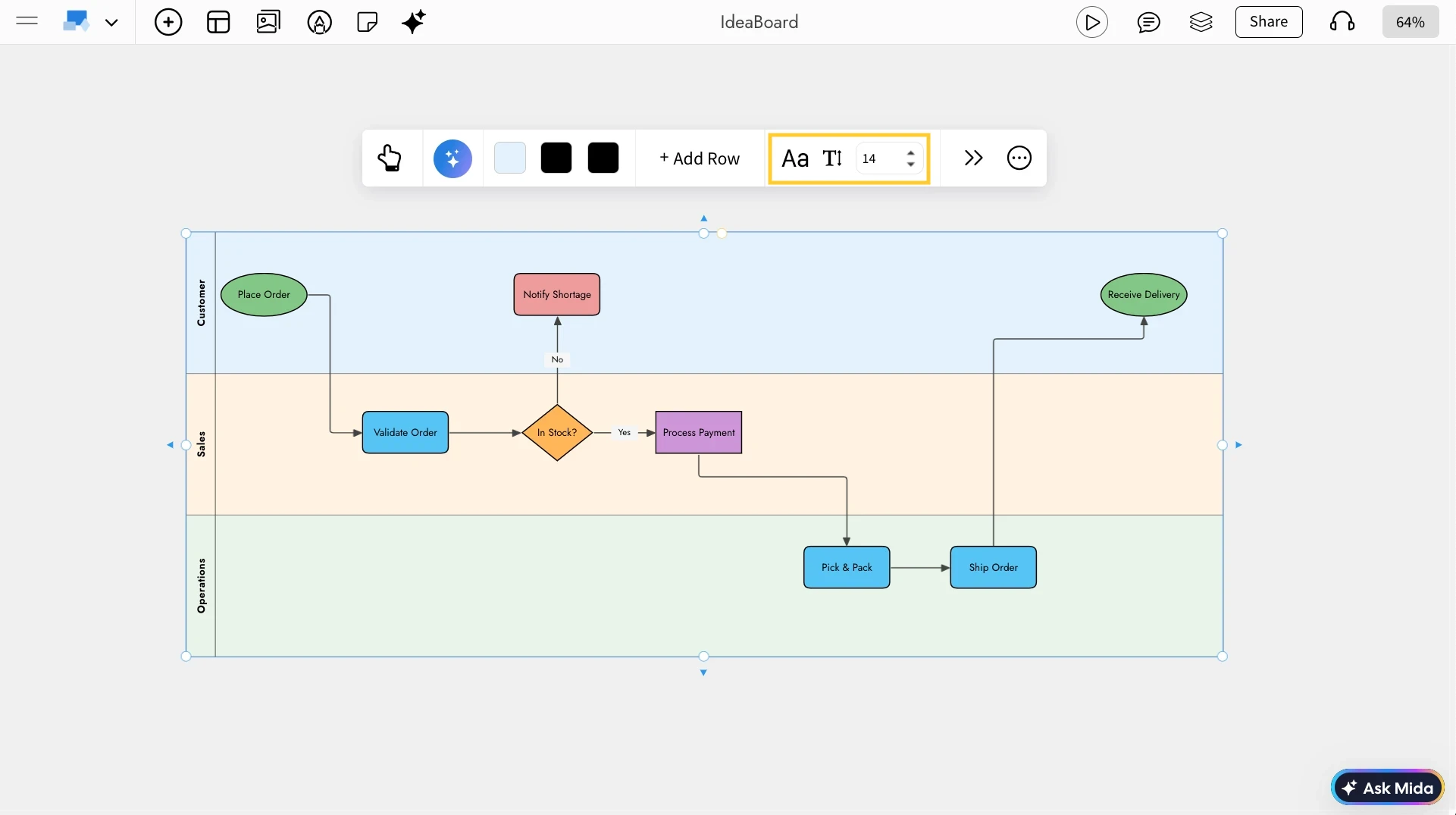
Adjust Font Settings for Swimlane Titles: You can customize the font style and size for the swimlane row titles using the Font Settings in the quick toolbar to improve clarity and readability.
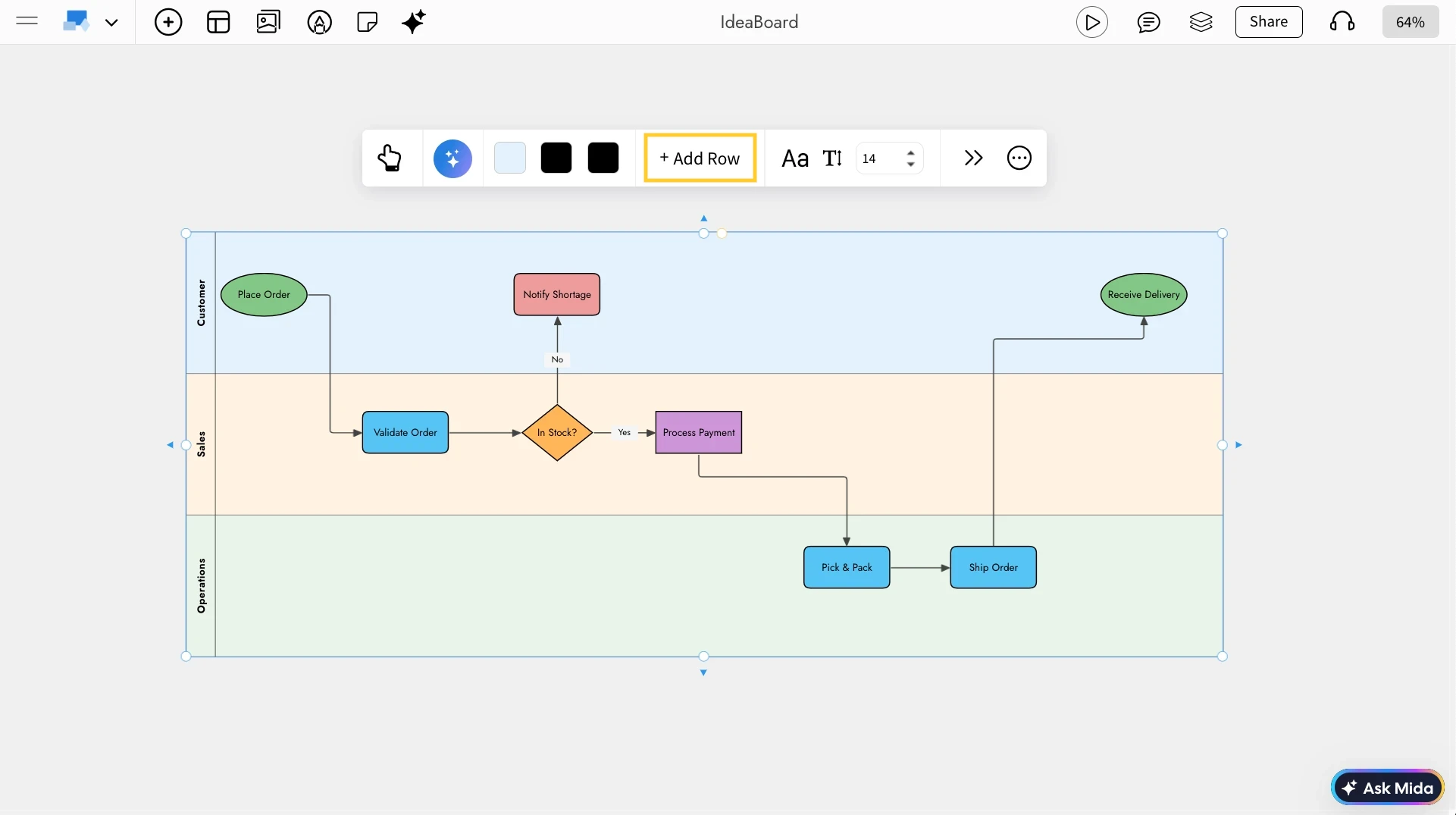
Adding Rows to the Swimlane: By using the Add Rows option in the quick toolbar, you can quickly add new rows to the swimlane component as our process or flow grows.
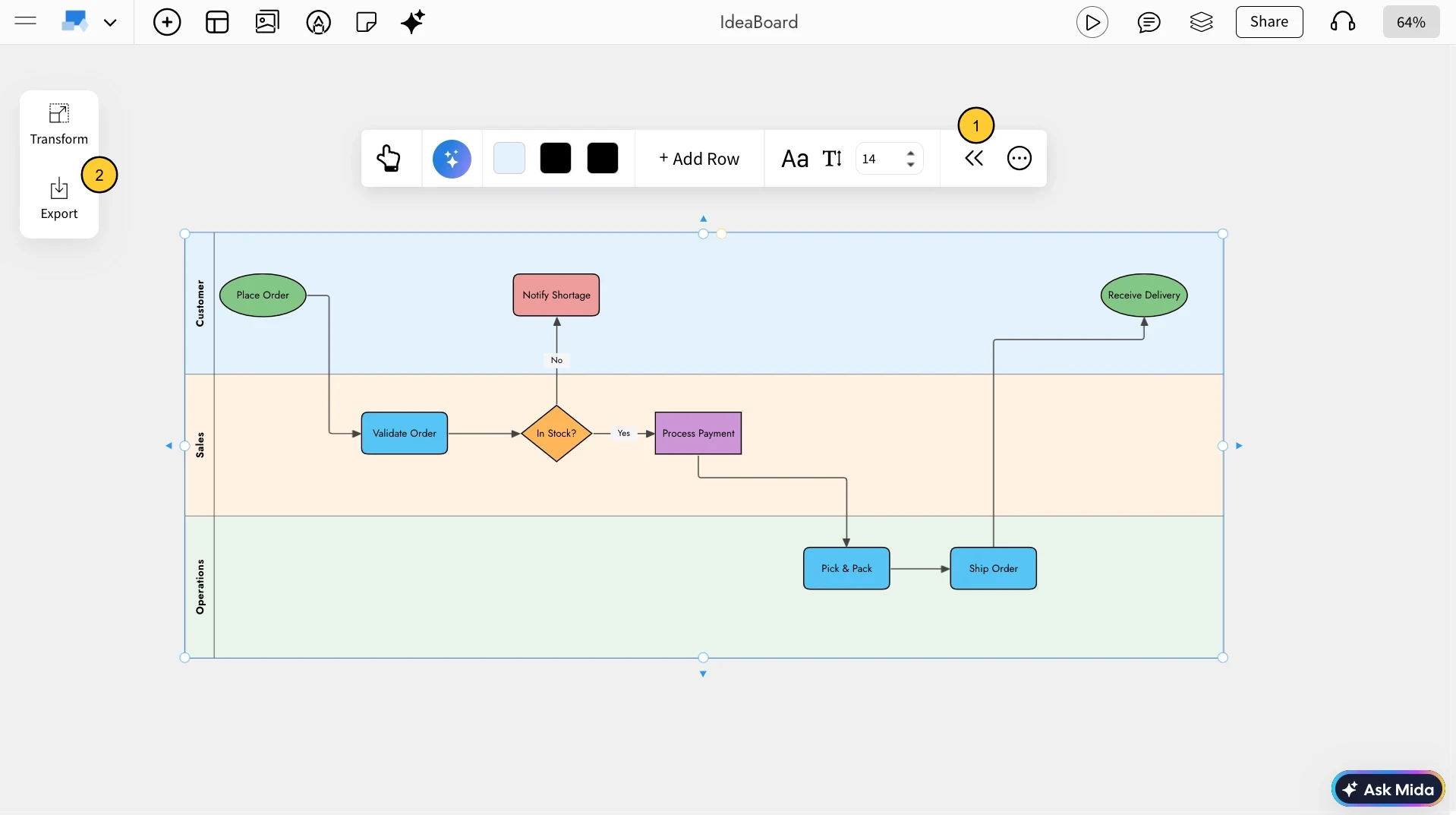
Enabling Advanced settings in Swimlane: By clicking Toggle Advanced Settings, you can access advanced options such as transforming and exporting the Swimlane component.
Use cases
- Process mapping: Visualize workflows across teams or roles.
- User journeys: Map steps across stages or departments.
- Project handoffs: Show responsibilities between teams.
- Service design: Break down complex processes into lanes.


