The Upvote Component in IdeaBoard helps teams prioritize ideas quickly and visually. It allows you to list multiple ideas, suggestions, or options in one structured block, where team members can cast votes to indicate preference or importance.
Instead of manually counting sticky notes or reactions, the Upvote Component makes decision-making simple, transparent, and collaborative.
How to Add the Upvote Ideas Component in MockFlow IdeaBoard
Inside MockFlow IdeaBoard, click on the Plus (+) icon, search for Upvote Ideas from the components list, and drag and drop it onto the canvas.
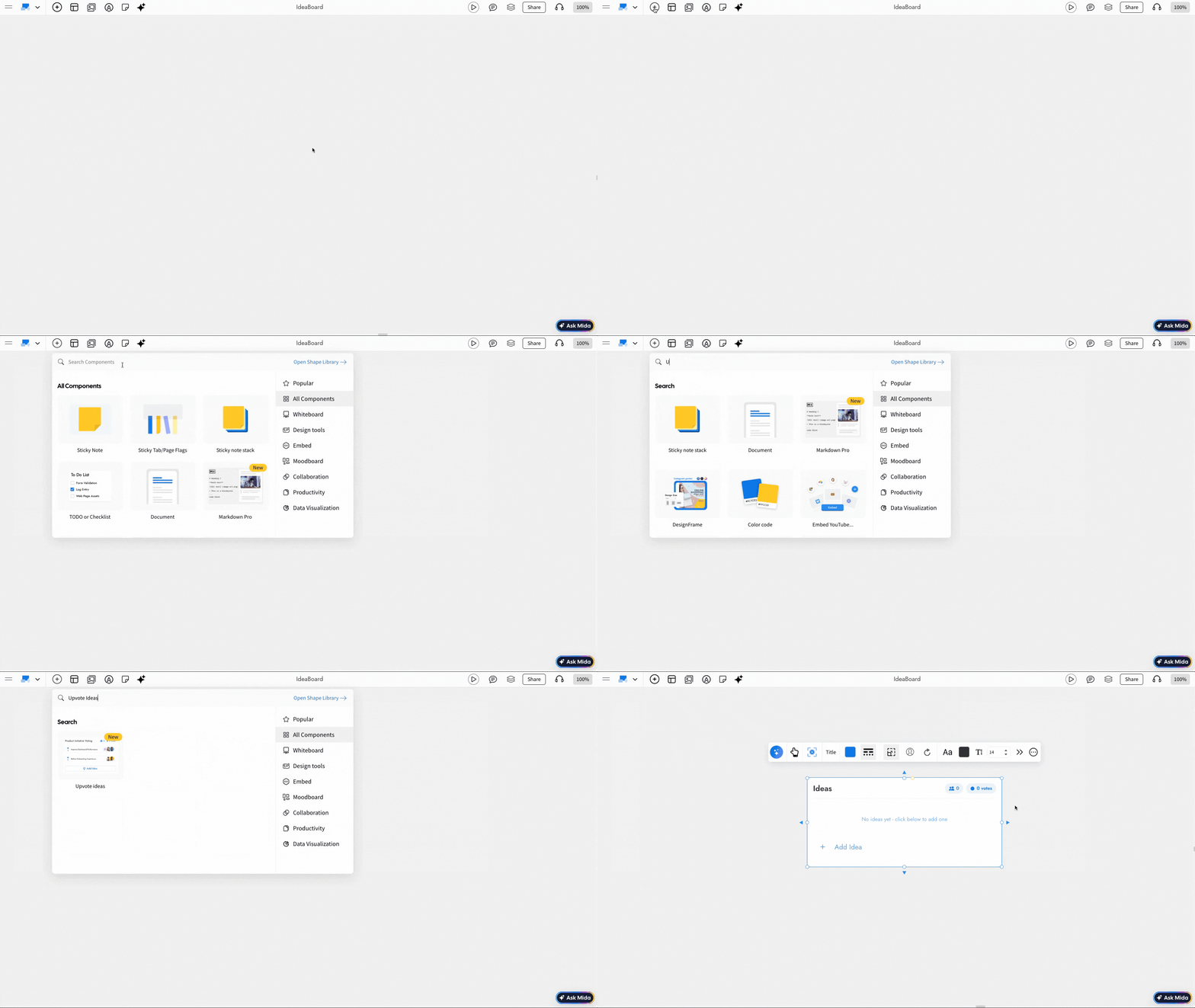
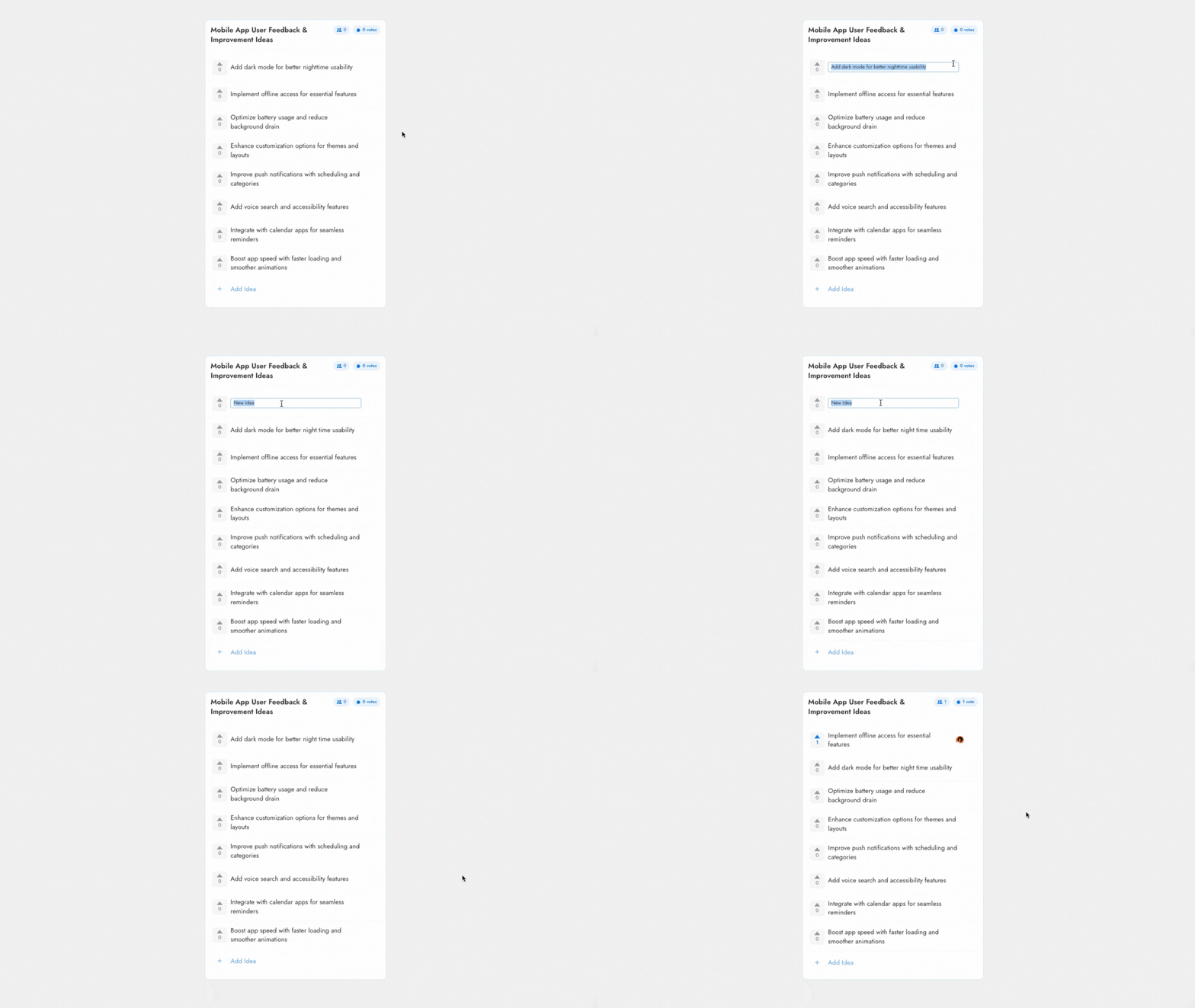
Editing the Upvote Ideas: By using the Interact with Component option from the quick toolbar, you can add new ideas, delete ideas, and modify existing ones directly within the Upvotes component.
- Multiple idea entries: Add as many ideas or suggestions as needed within one component.
- One-click voting: Team members can upvote ideas instantly.
- Automatic vote count: Votes are tracked and displayed in real time.
- Clear prioritization: Most-supported ideas become immediately visible.
- Movable component: Place the entire voting list anywhere on your IdeaBoard.
- Workshop-friendly: Ideal for live collaboration and remote team sessions.
Other options are detailed below in this order:
- Generate Upvote Ideas with AI
- Customize the Upvote Ideas Component with Colors
- Customize Upvote Ideas Component Settings
- Accessing Advanced Settings
- Adjusting the Font Settings
- Using focus mode
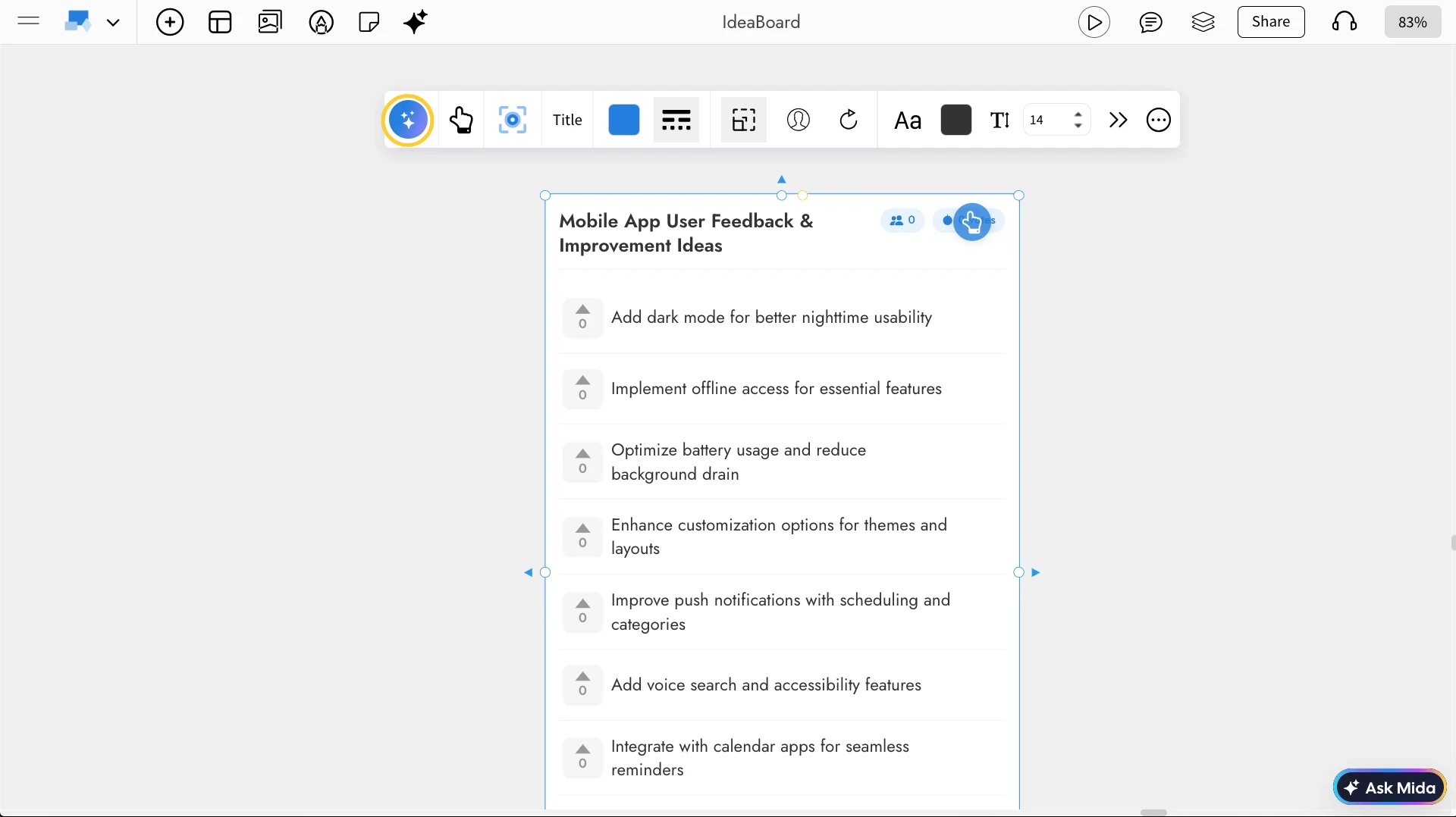
Generate Upvote Ideas with AI: Using the AI option in the quick toolbar can quickly create upvotes. Just enter a single prompt, and AI will generate the upvotes layout for us. You can then edit the AI-generated content or convert it into other components. To learn more about AI generation and conversions, you can check out the help article.
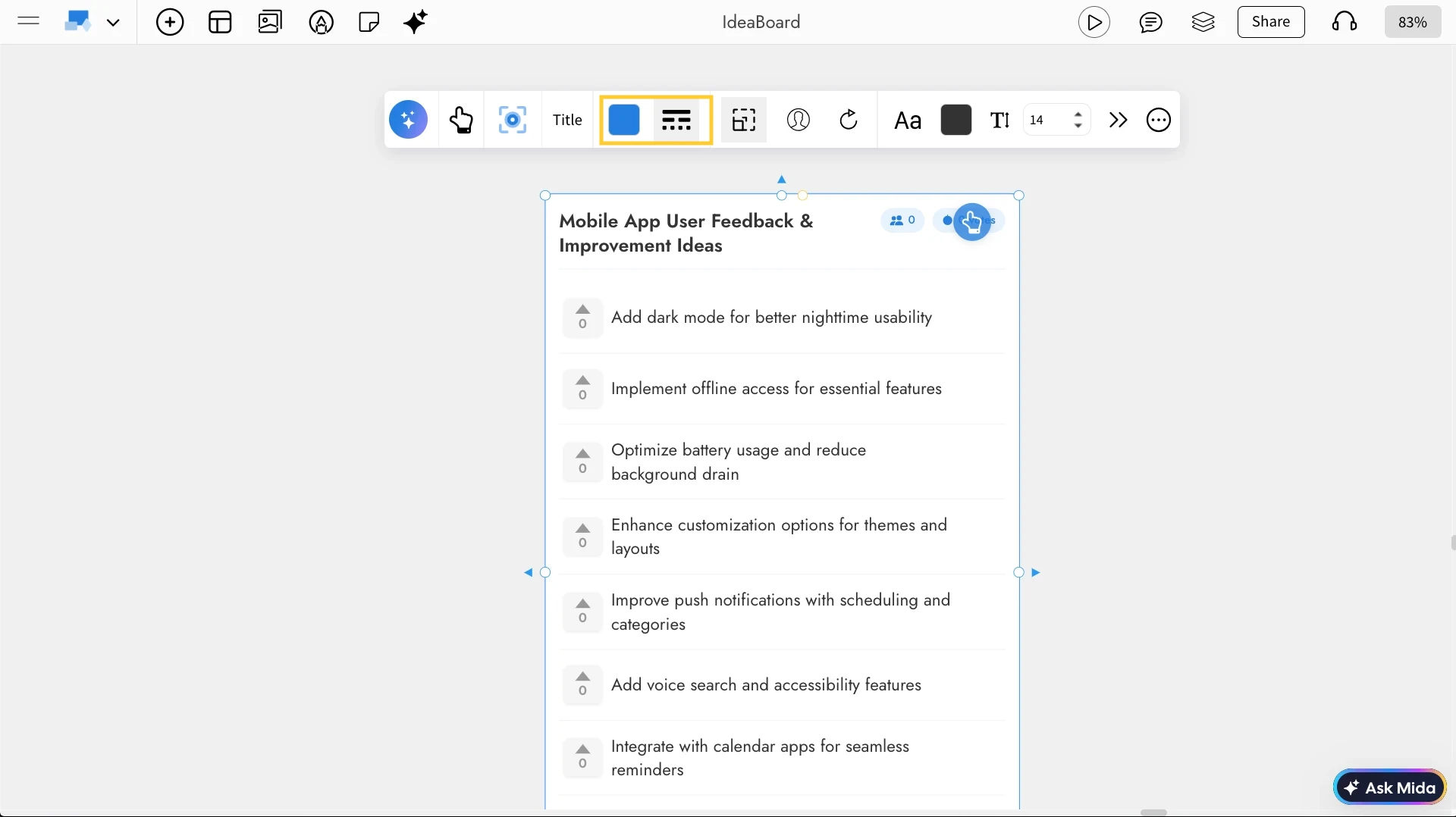
Customize the Upvote Ideas Component with Colors: You can customize the appearance using the Color Settings in the quick toolbar, where you can change the text color and border color of the Upvotes component.
Customize Upvote Ideas Component Settings: From the quick toolbar settings, you can adjust the component height, show or hide the voter avatars, and reset the vote count whenever needed.
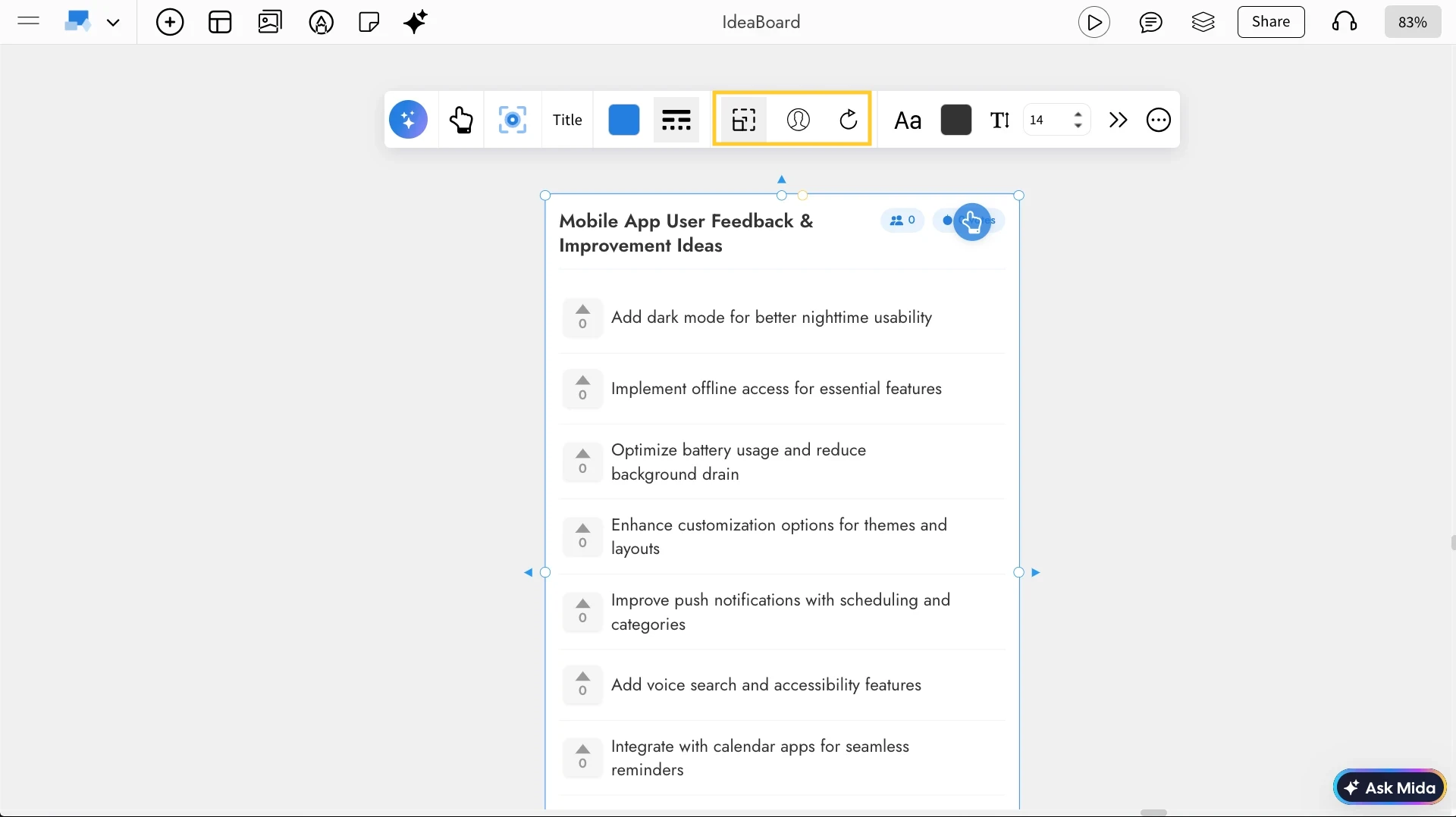
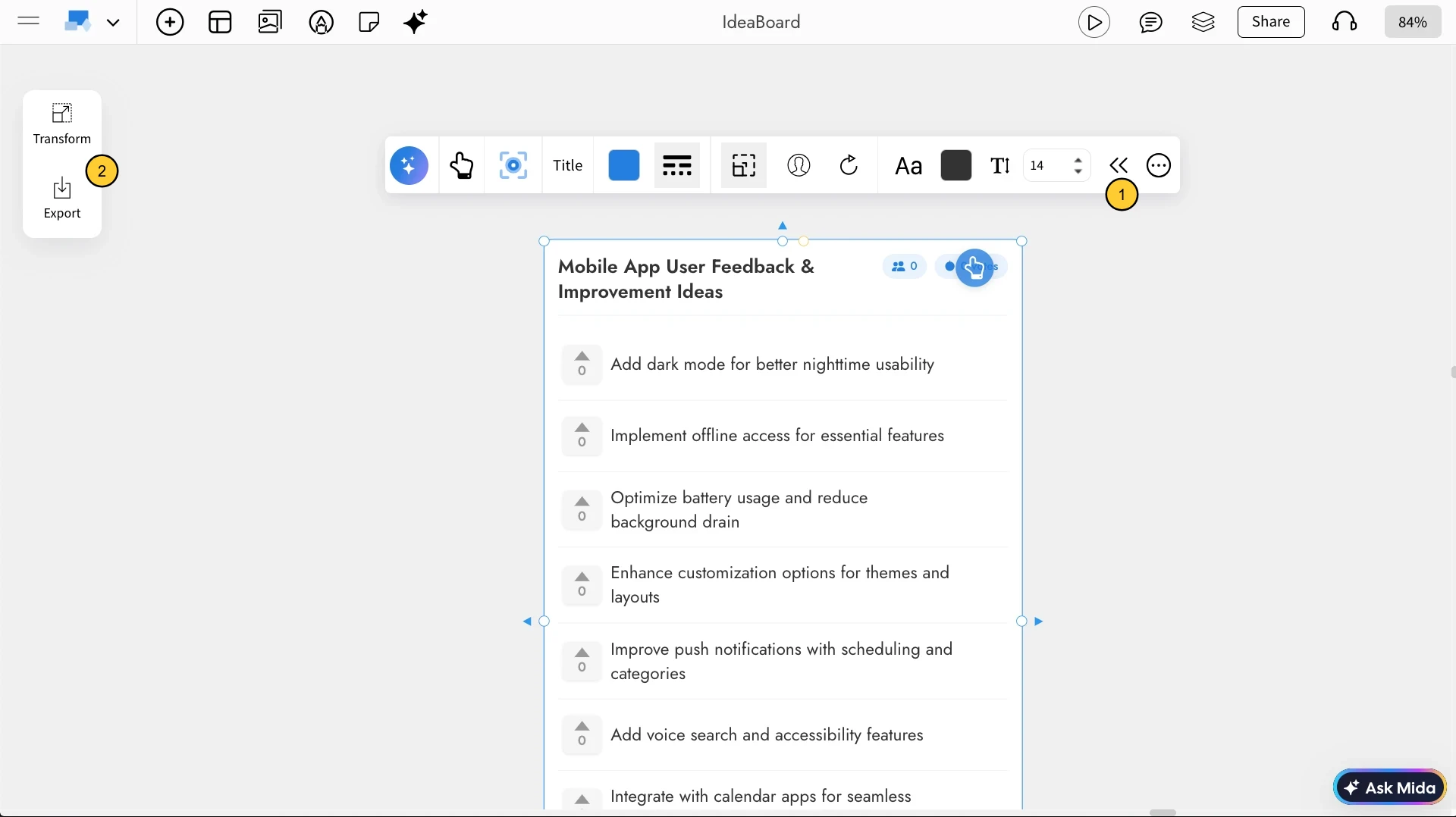
Accessing Advanced Settings: You can enable Advanced Settings using the “Toggle Advanced Settings” option in the quick toolbar. From there, we’ll find additional options, including exporting the Upvote Ideas component.
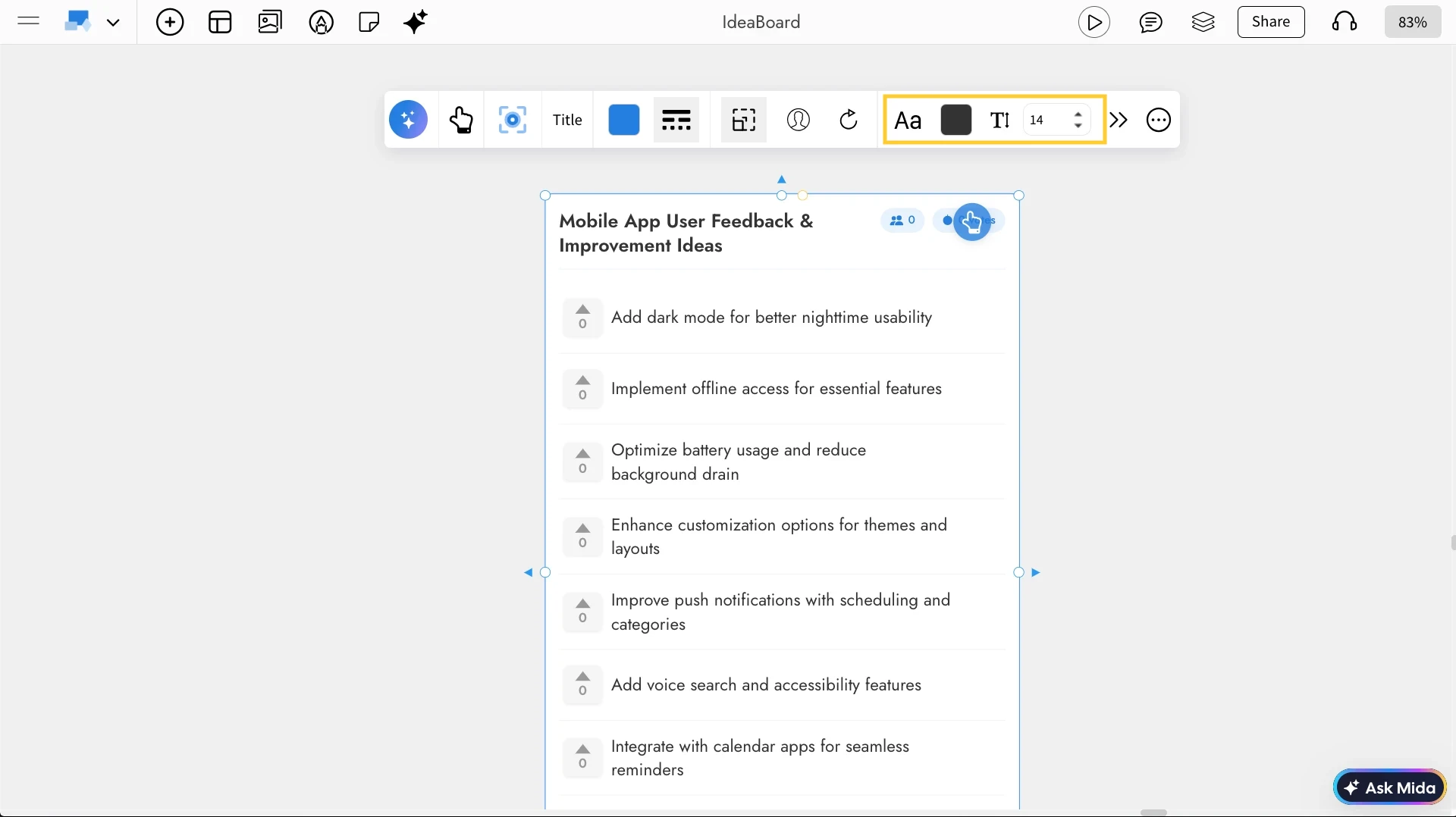
Adjusting the Font Settings: You can customize the font style and size using the Font Settings in the quick toolbar to match our board’s visual style.
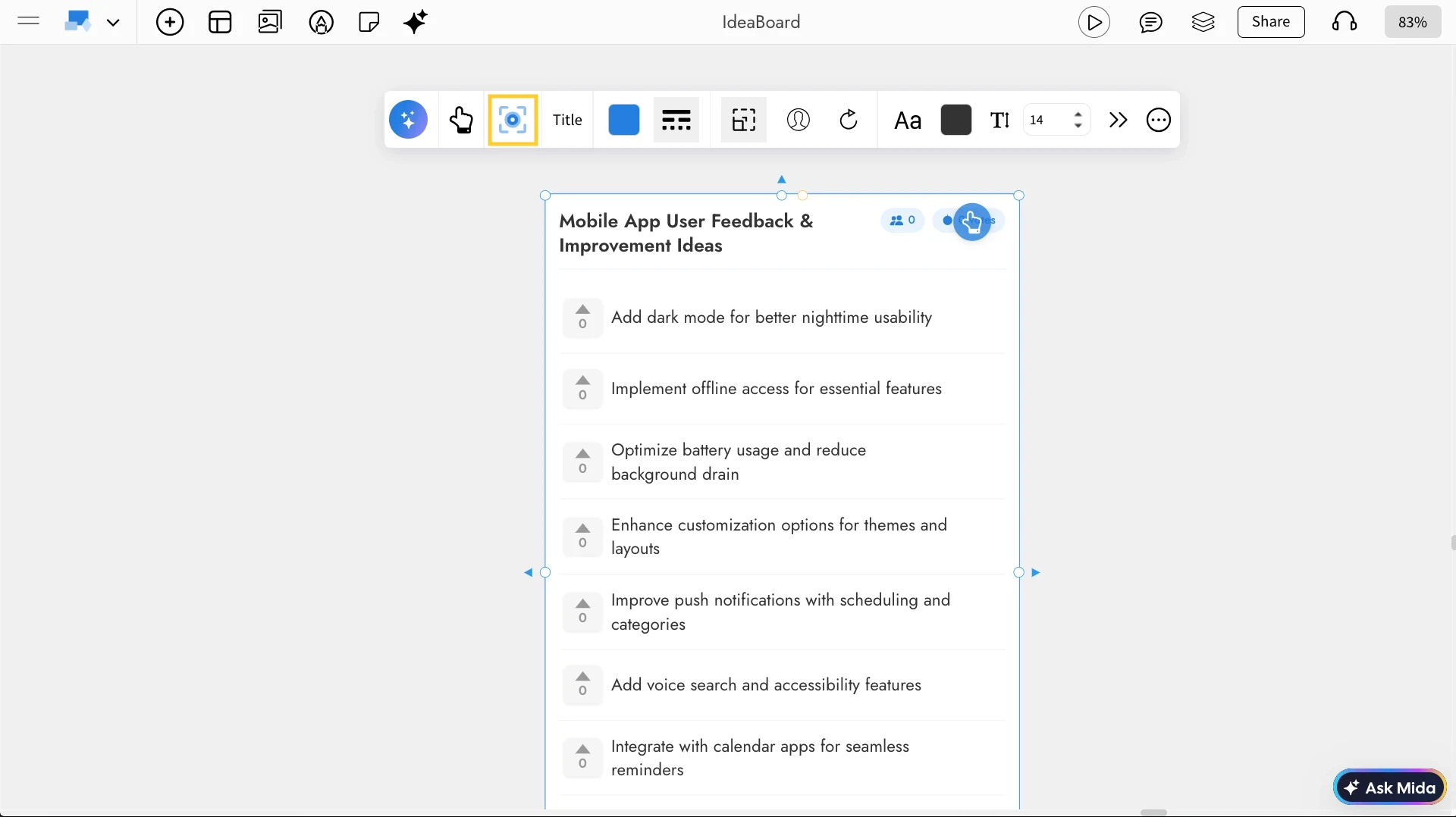
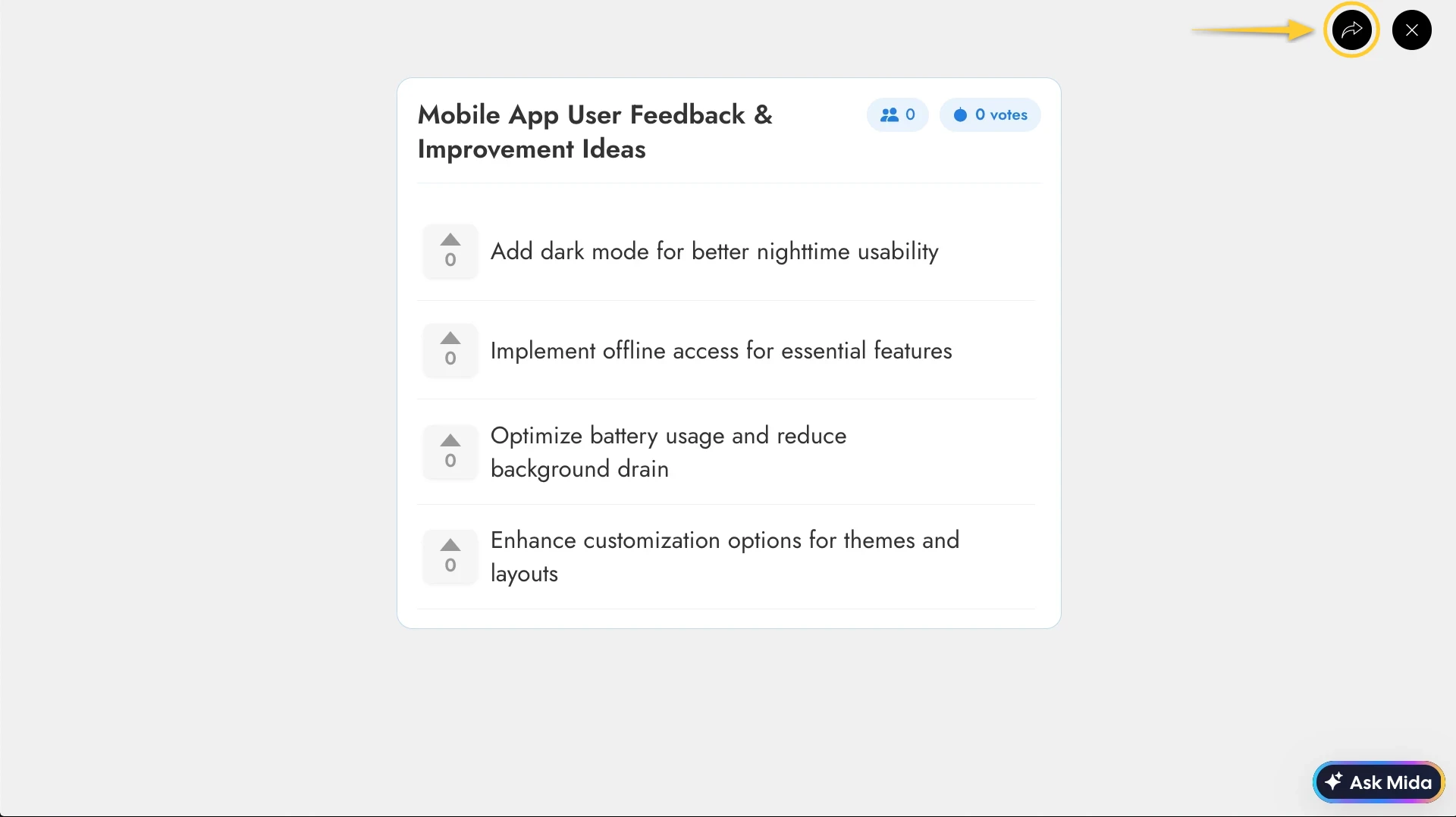
Use Focus Mode for Distraction-Free Voting: With Focus Mode enabled from the quick toolbar, you can work only on the Upvote Ideas component without distractions, as all other components are hidden from the canvas.
Share the Upvote Ideas Component: While in Focus Mode, you can click the Share icon at the top-right corner (next to the close icon) to copy a unique link for the Upvotes component view and share it directly with our team.
Use Cases
- Feature prioritization: Let users or internal teams vote on the next features to build.
- Retrospectives: Vote on the most critical issues to address in the next sprint.
- Product improvement sessions: Collect feedback and rank improvements by importance.
- Workshop activities: Run dot-voting sessions digitally during brainstorming.
- Customer feedback boards: Organize suggestions and let teams decide what to implement first.


