The Video Player component in IdeaBoard allows you to embed and play videos directly on your whiteboard. Instead of switching to external tabs or media players, you can watch demos, tutorials, reference clips, or recorded sessions right where your brainstorming happens.
The video appears as an interactive player with playback controls, enabling teams to collaborate visually and maintain all context in one organized space.
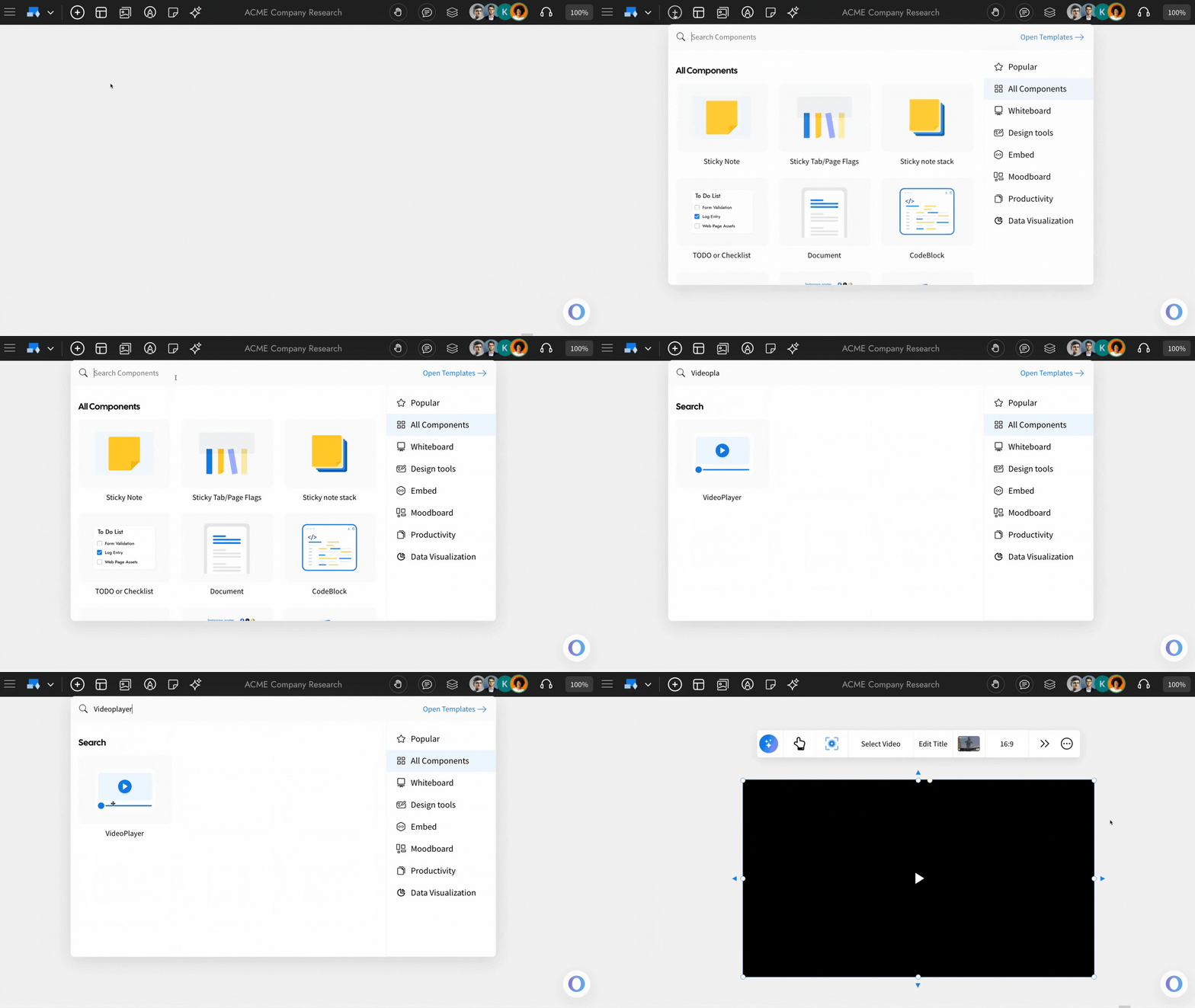
How to add a Video Player Component?
1In the IdeaBoard editor, click on the 'Add' icon in the top left corner.
2This will open the components modal. Look for the Video Player Component and add it to the canvas by dragging and dropping it.
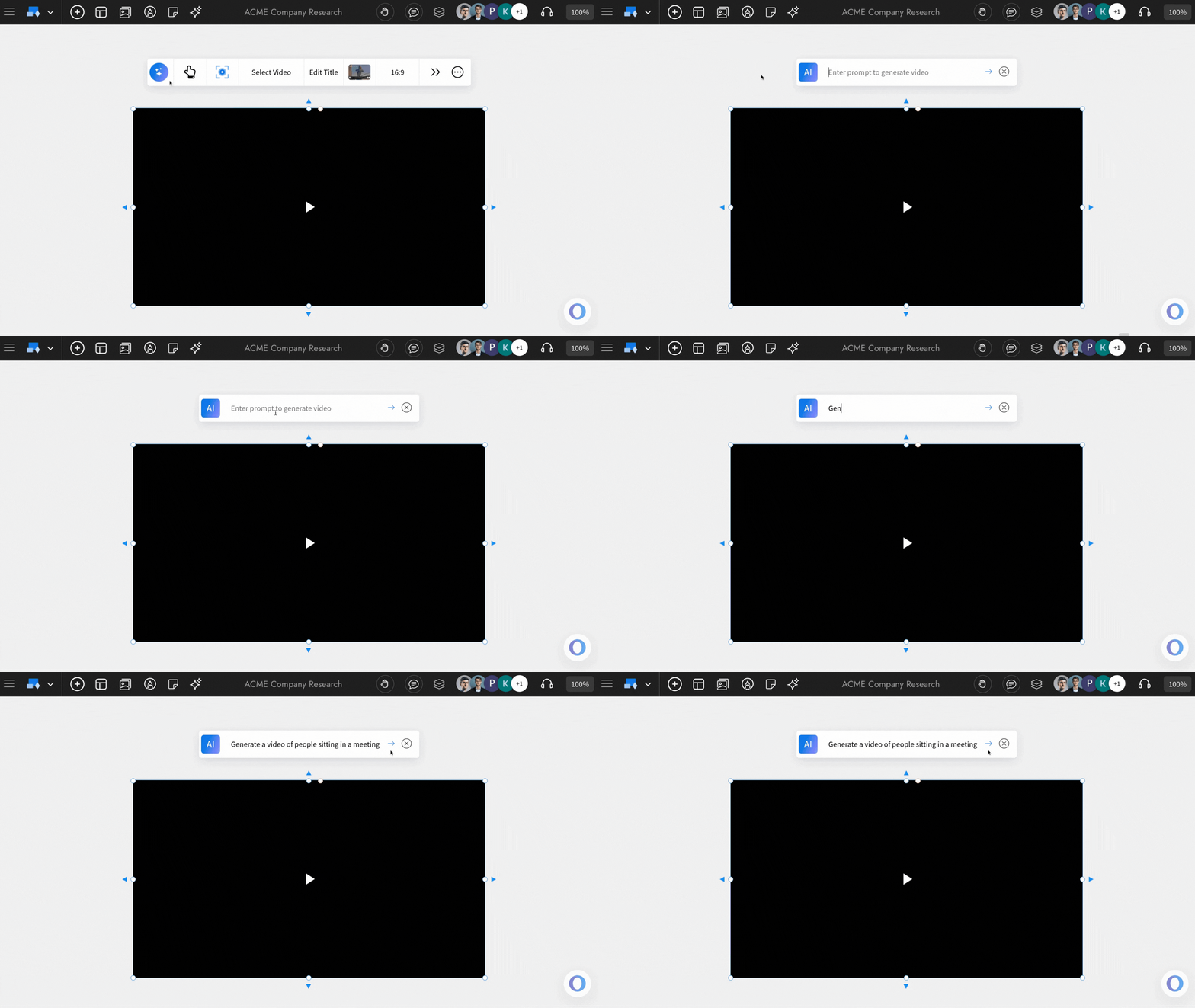
Generate video with AI: By using ‘Generate with AI’, you can create a video inside your MockFlow IdeaBoard editor simply by entering a prompt.
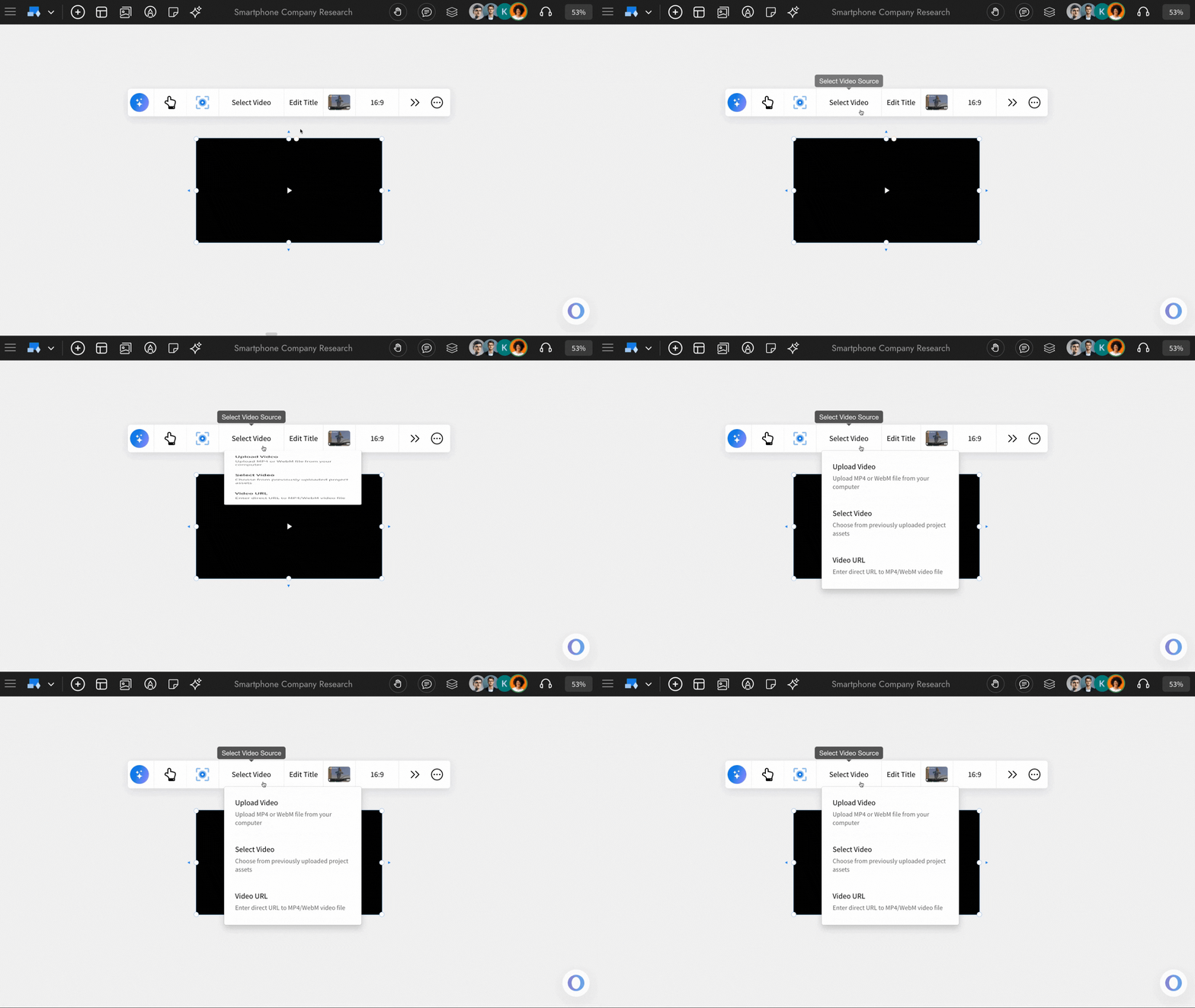
Multiple options to import a Video: The Video Player component allows you to insert a video into the MockFlow IdeaBoard editor in three ways. Click Select Video and choose from the dropdown options: Upload Video, Select Video, or Video URL.
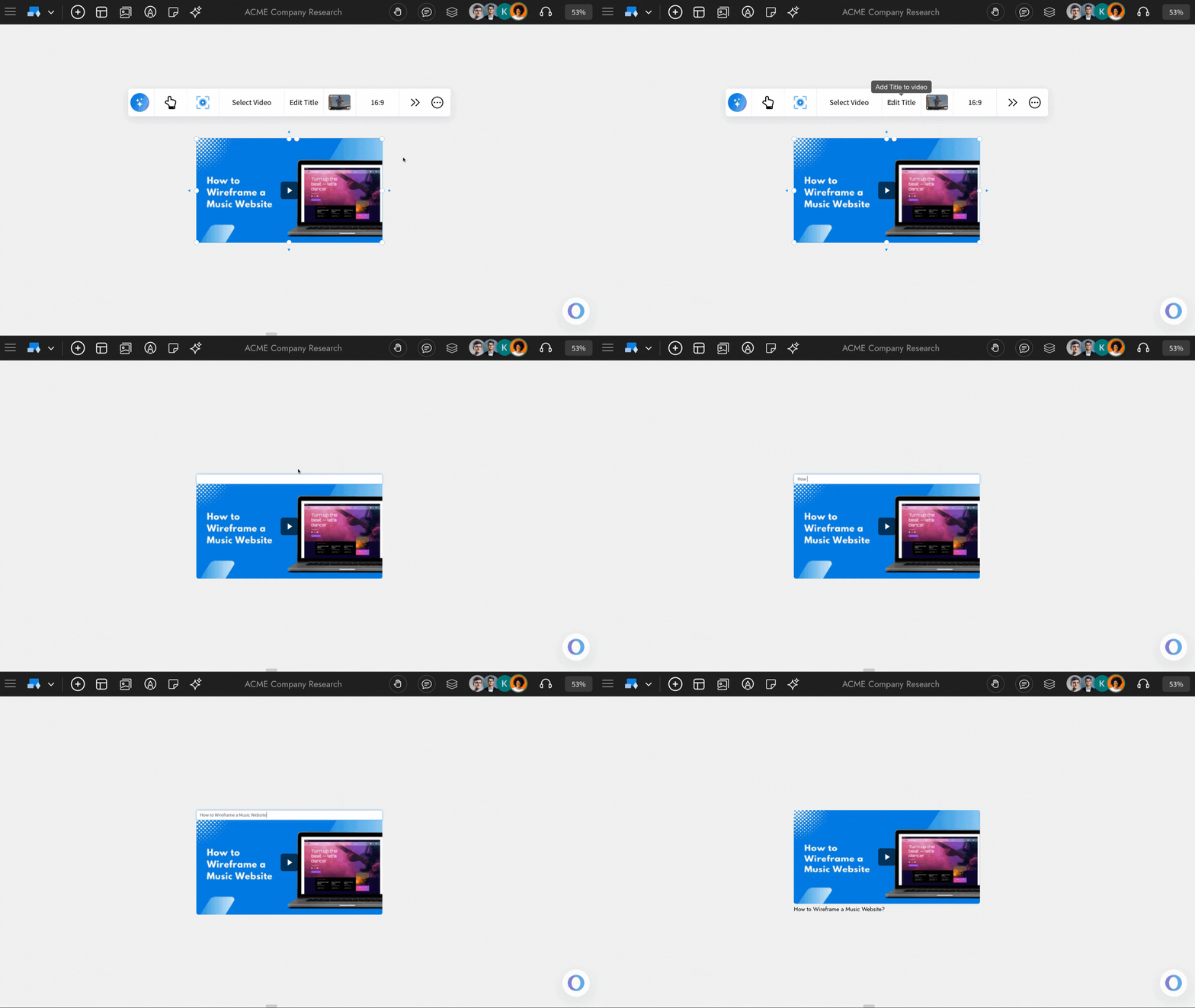
Adding a title to the Video Player component: By using the ‘Edit Title’ option from the quick toolbar, you will be able to add or modify the title of the Video Player component.
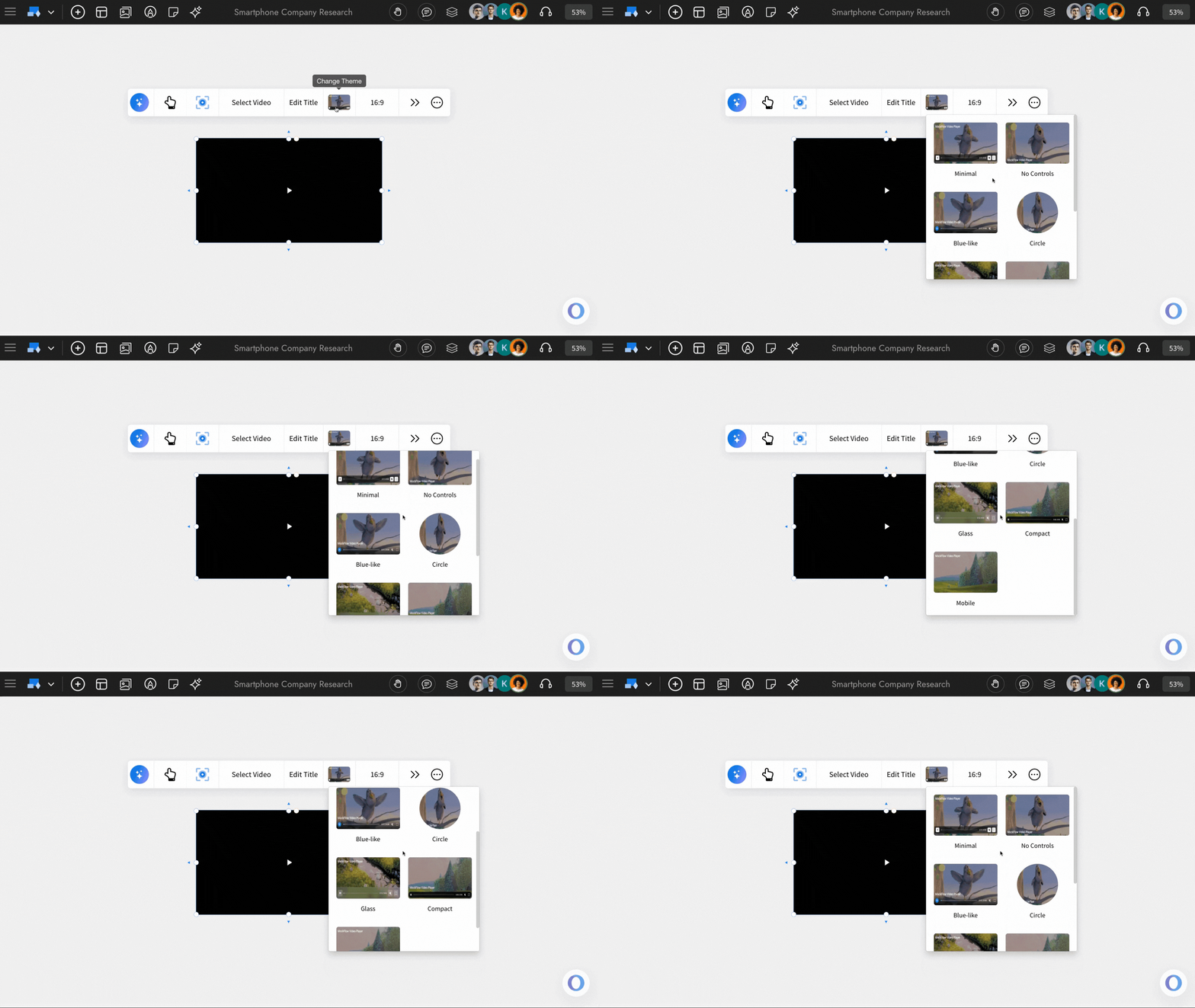
Changing the theme of the Video Player component: You can customize the theme of the Video Player component using the 'Change Theme' from the quick toolbar.
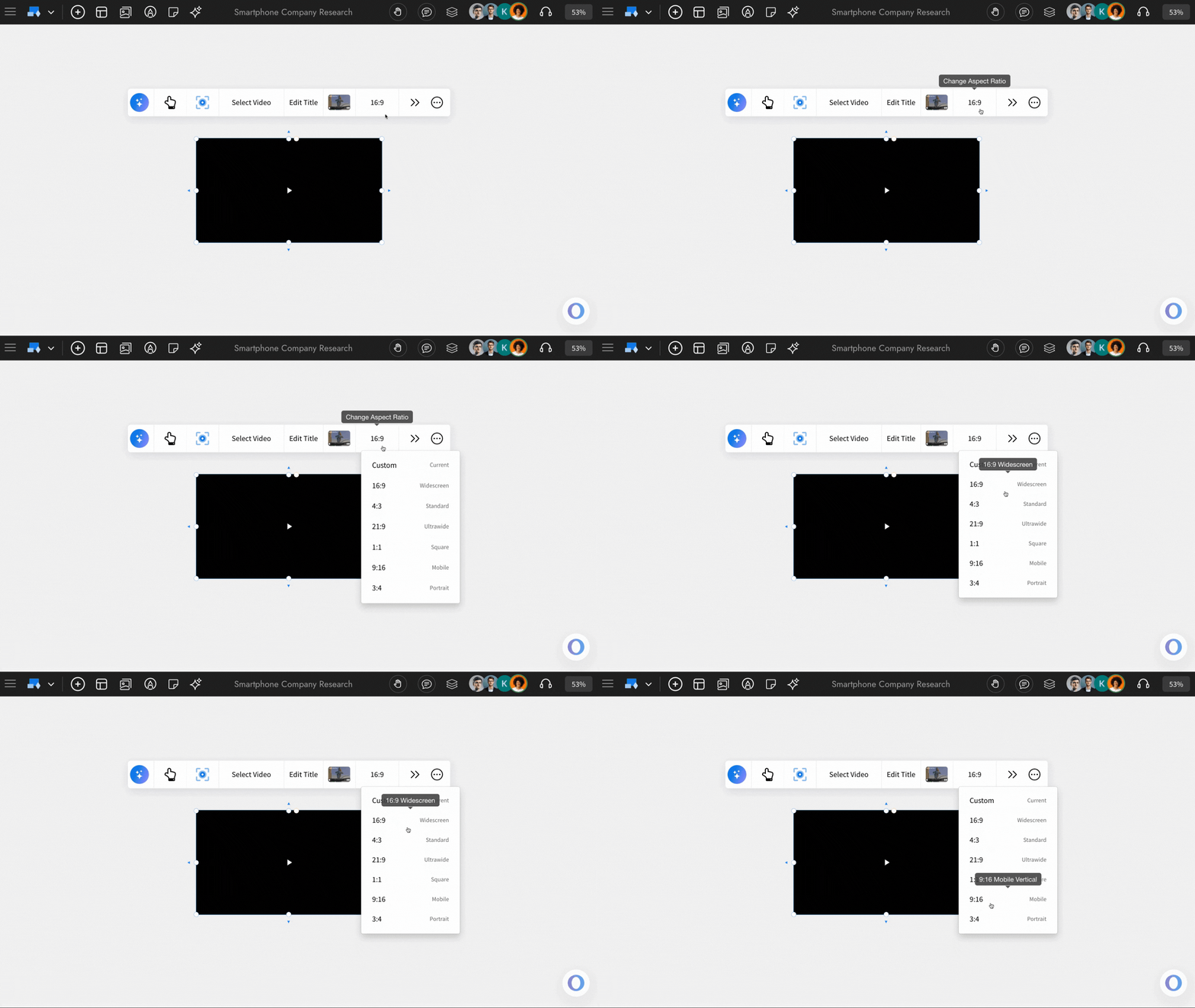
Set aspect ratio of your choice: The MockFlow IdeaBoard offers multiple aspect ratios to choose from, and you can also resize the Video Player component to any preferred dimensions, which will be treated as a custom size. You can adjust the aspect ratio of the Video Player using the 'Change Aspect Ratio' option from the quick toolbar.
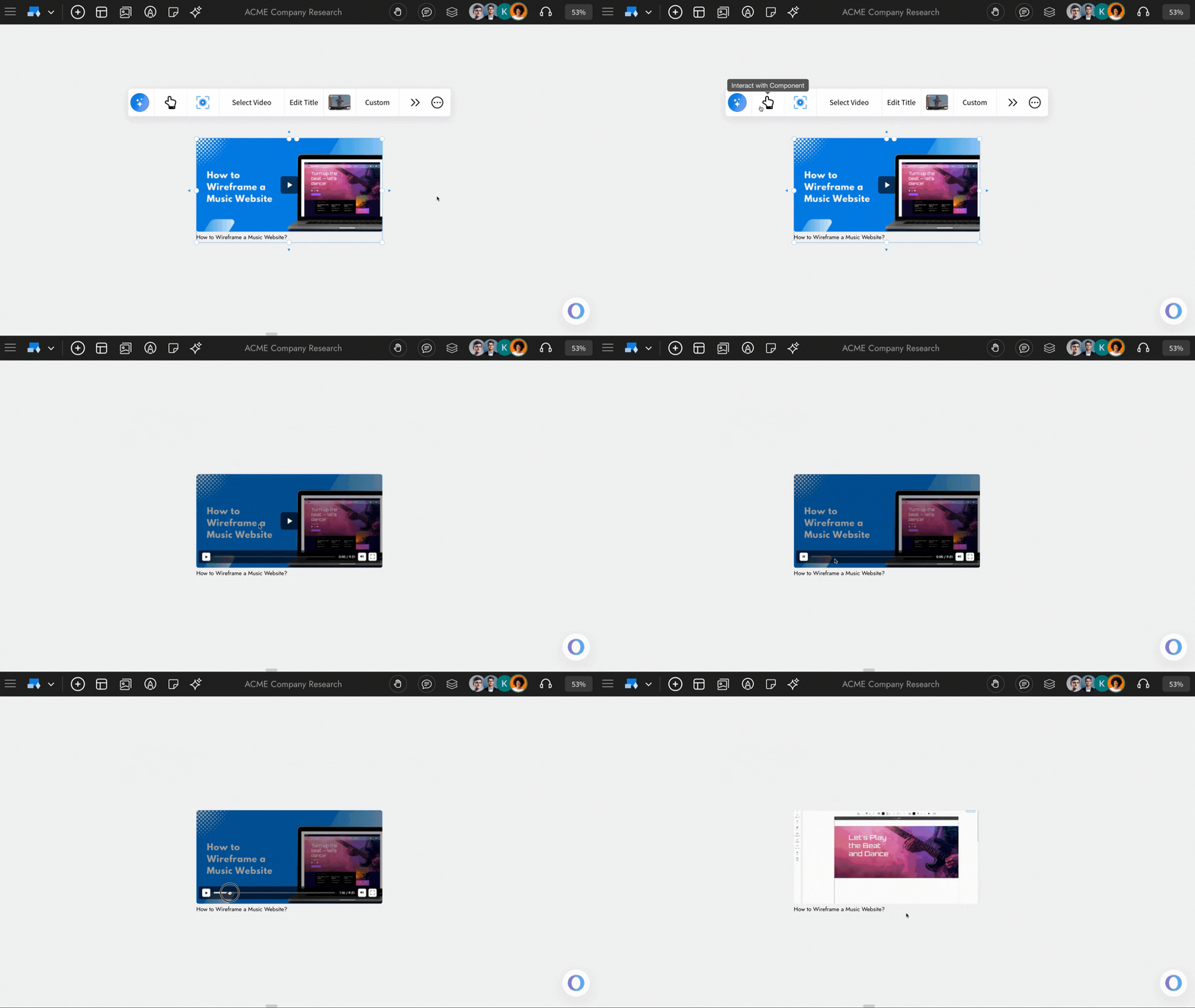
Interacting with the Video Player Component: Using the 'Interact with Component' option enables playback controls within the Video Player component. Once enabled, you’ll be able to play the video and adjust the progress using the play bar, as well as mute or unmute audio and view the video in full-screen mode.
Enabling the advanced Settings for Audio component: To access the advanced settings toolbar, click on the 'Toggle Advanced Settings' option from the quick toolbar. You can find advanced options like move and export.
Using the Focus mode: There’s a Focus Mode that hides all other components and highlights only the Audio component. To enable it, click the 'Focus' icon in the quick toolbar to enable it, and click the Close icon at the top-right to exit.
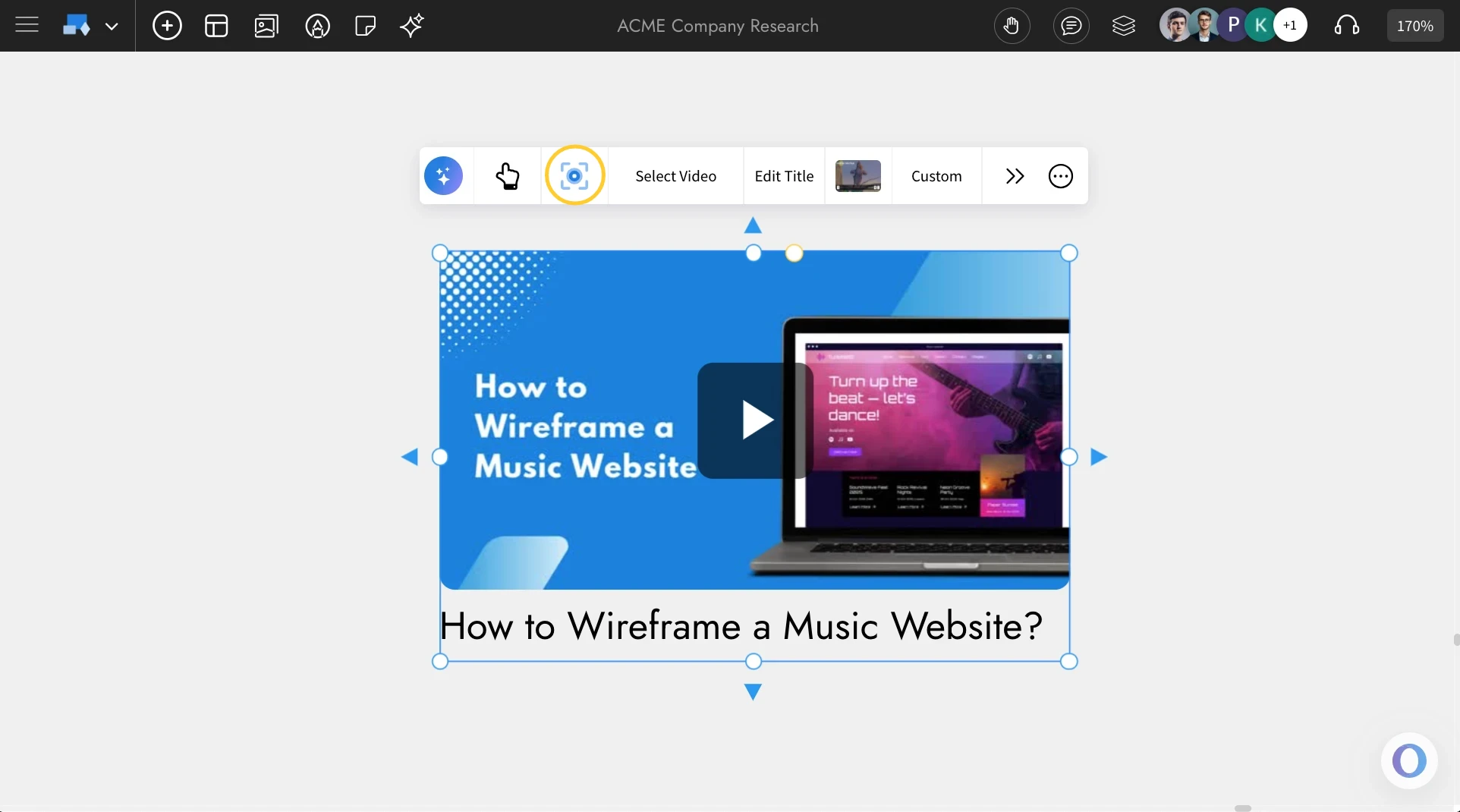
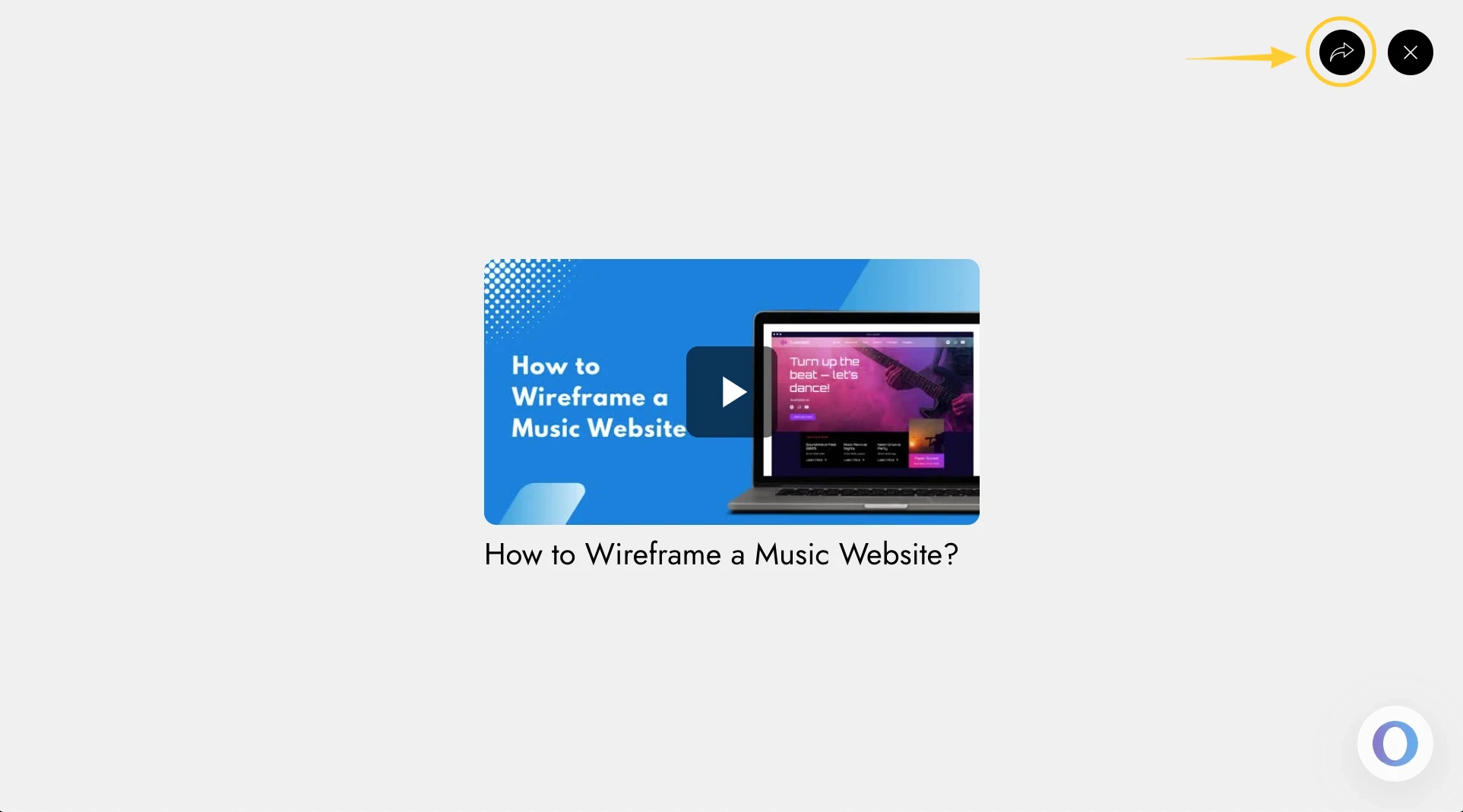
Share component link with team: In Focus Mode, you’ll find a Share icon at the top-right corner next to the Close button. Click it to copy a unique link to the audio component view, which you can share directly with your team.