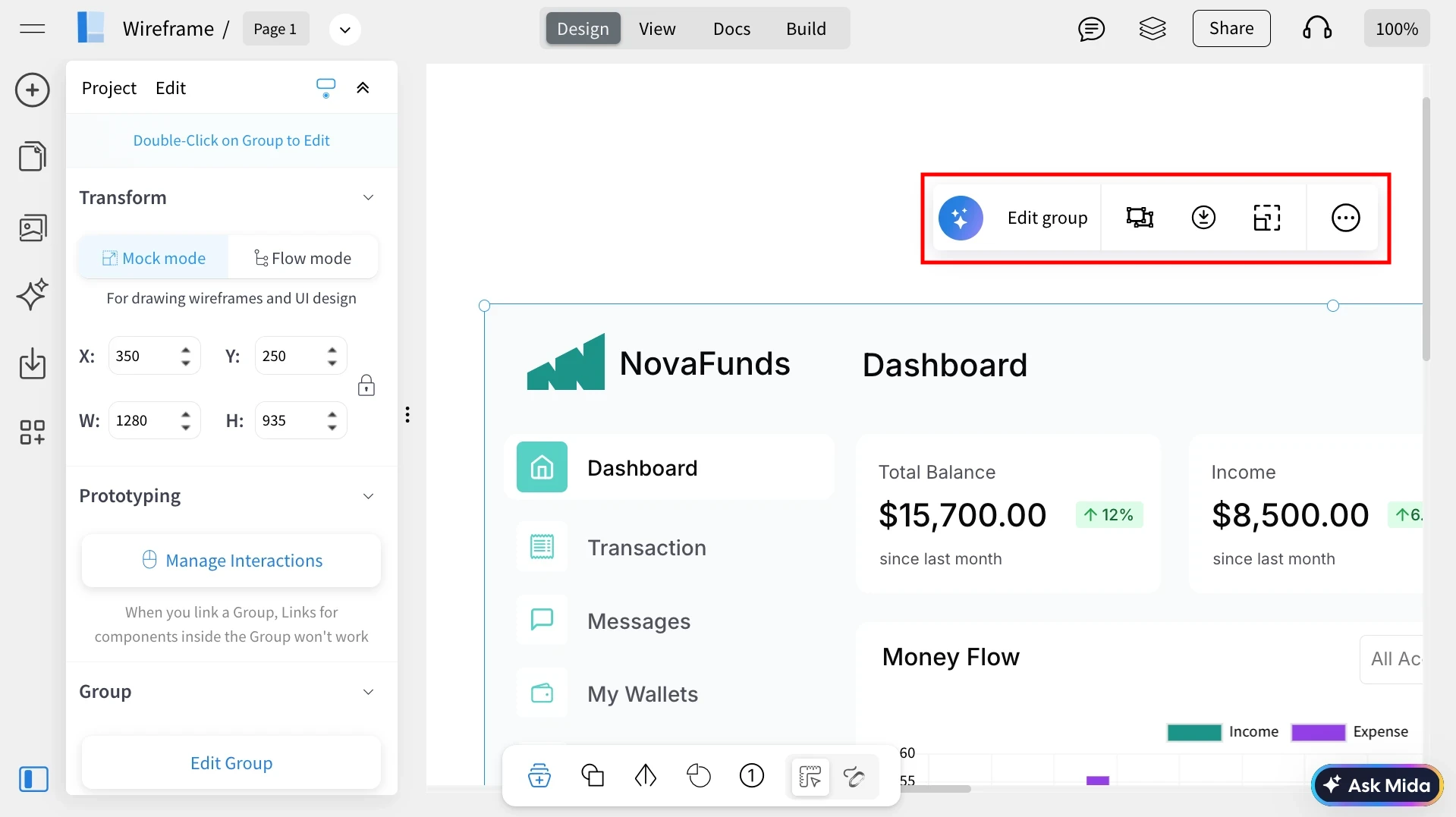
The quick settings toolbar is not enabled by default, but you can enable it once inside the editor and the choice will be remembered.
What is the Quick Settings Toolbar?
The Quick Settings Toolbar provides a small set of commonly used customization options for the selected component or group. When you select an element on the canvas, this toolbar appears near it, allowing you to quickly adjust settings without scanning the full properties panel.
This makes it easier to perform frequent actions directly on the canvas and speeds up your design workflow.
If you find the Quick Settings Toolbar helpful for making quick edits, you can keep it enabled. If you prefer a cleaner workspace without floating controls near components, you can disable it from the editor settings.
Steps to enable the toolbar
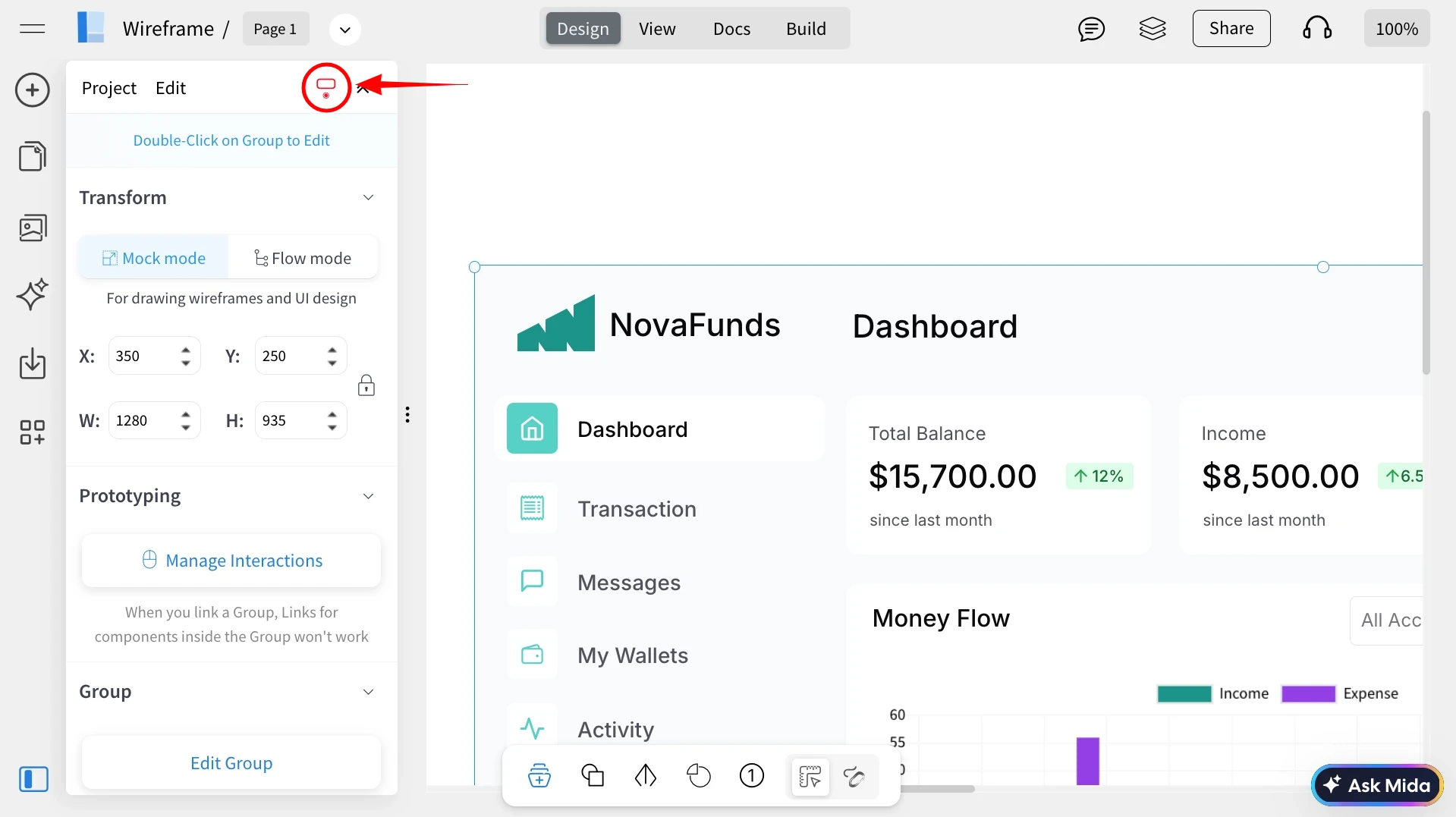
1Inside the MockFlow WireframePro editor, select any component on the canvas. In the left sidebar, you will see a toggle icon near the top right, as shown in the screenshot. This icon controls the Quick Settings Toolbar.
Click the icon to toggle the feature. When the icon turns blue, it indicates that the Quick Settings Toolbar is enabled and will appear near selected components. Clicking it again will disable the toolbar and it will turn red.
2When you select any component, the Settings Toolbar will appear, allowing you to configure its properties.