Create Like This allows you to create new screens using an existing wireframe as a reference, so your layouts, components, and visual style stay consistent across generations. Follow the steps below to get started.
You can access this feature in 2 ways:
- In the Right click menu after selecting a group of components
- From inside Mida.
Option1: From right click:
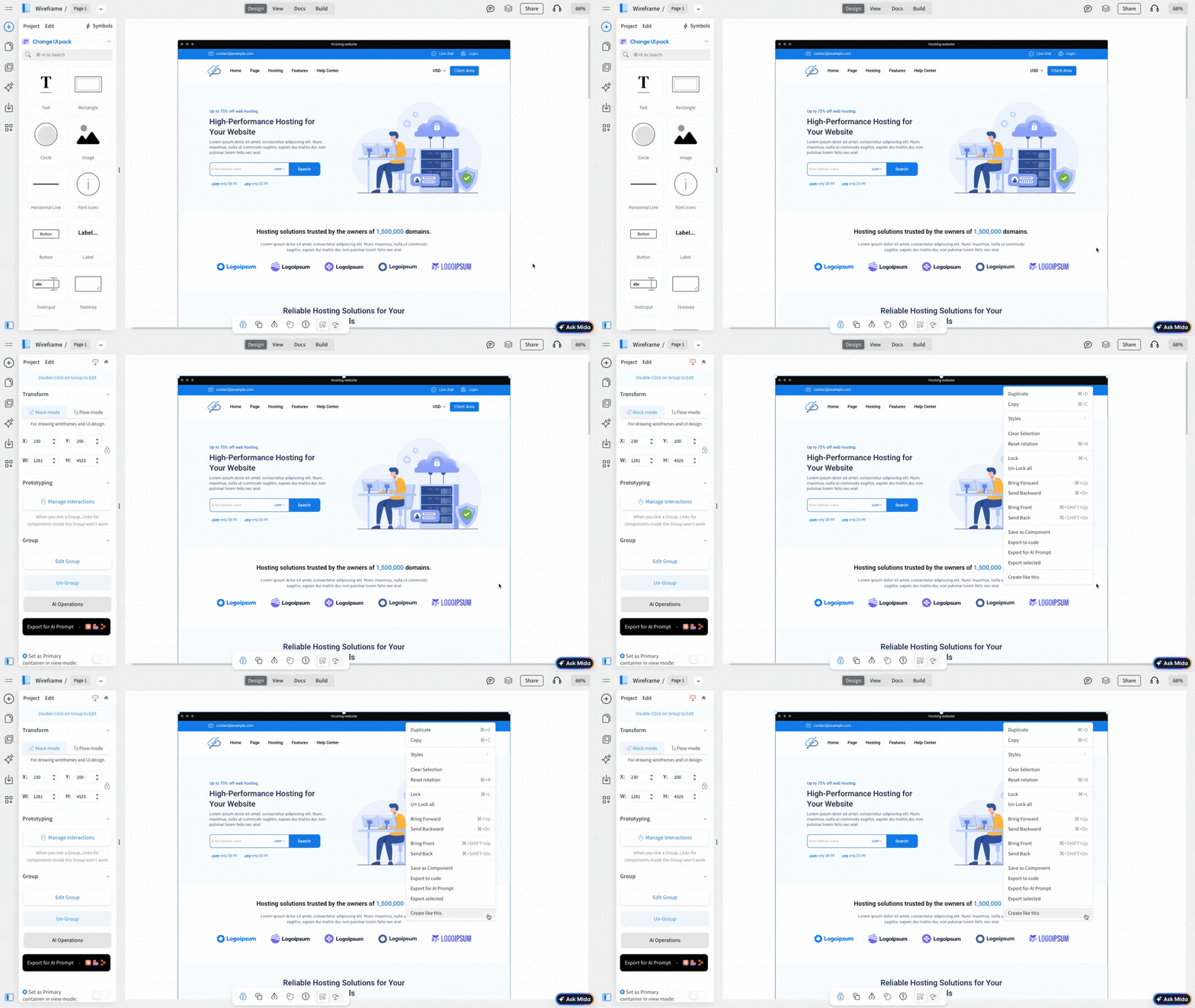
1 Click on the wireframe to select it, then right-click on it to use it as a reference.
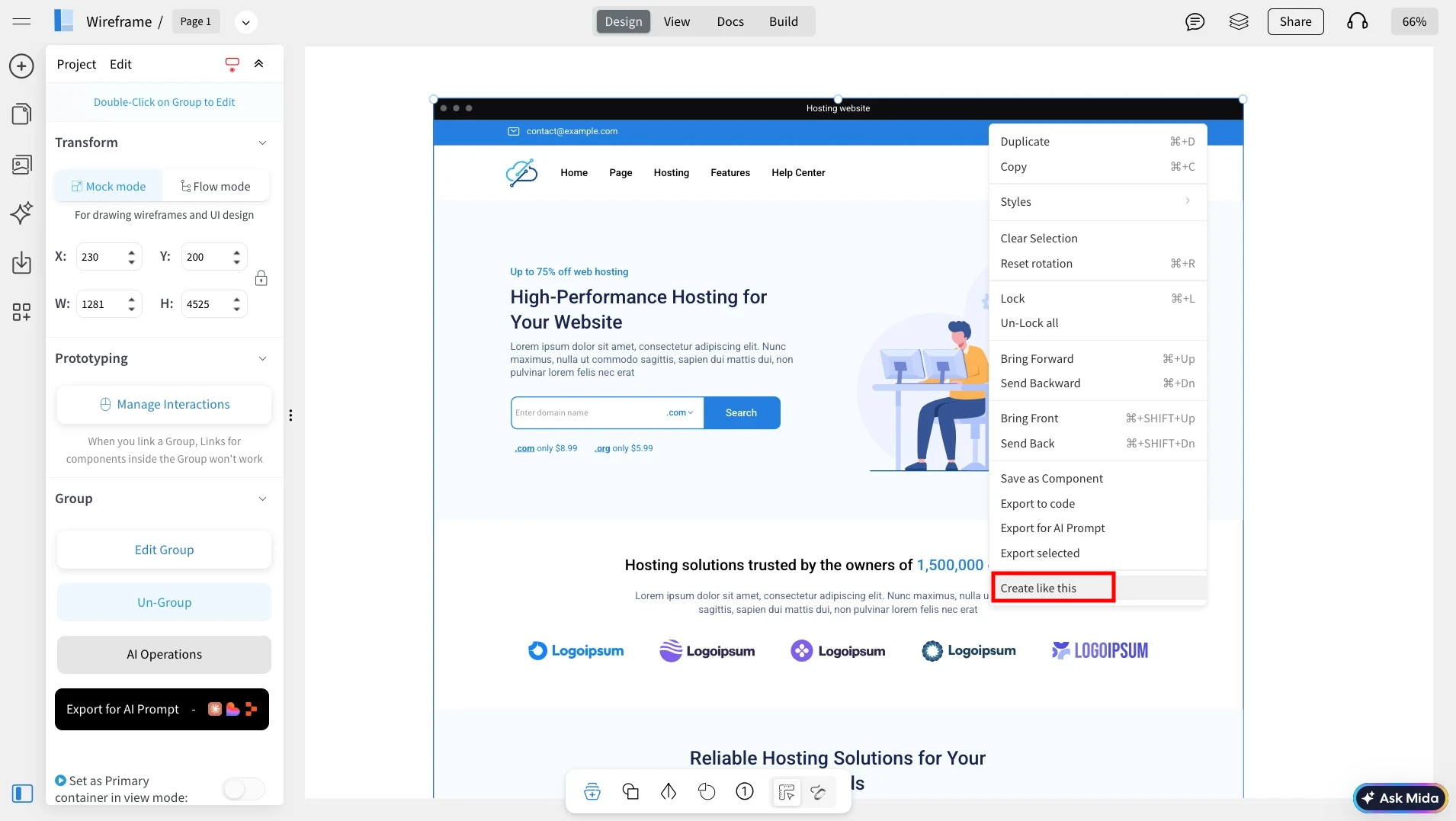
2From the context menu, click on Create Like This to use the selected wireframe as the base style. This can also be used on a smaller selection like a section.
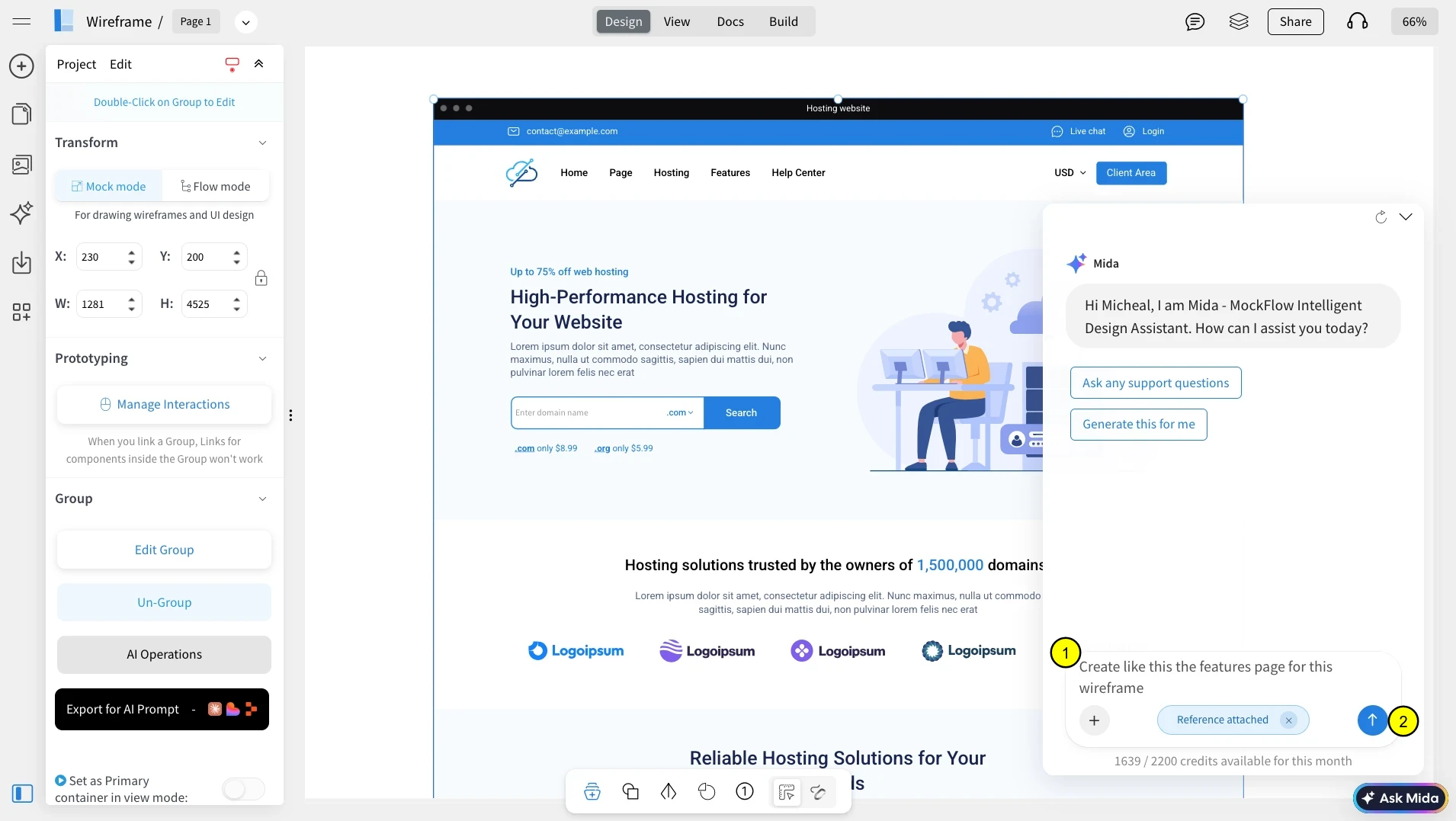
3MIDA will open automatically. Describe the new screen you want to generate (for example: “Create a features page for this website”). And click Generate.
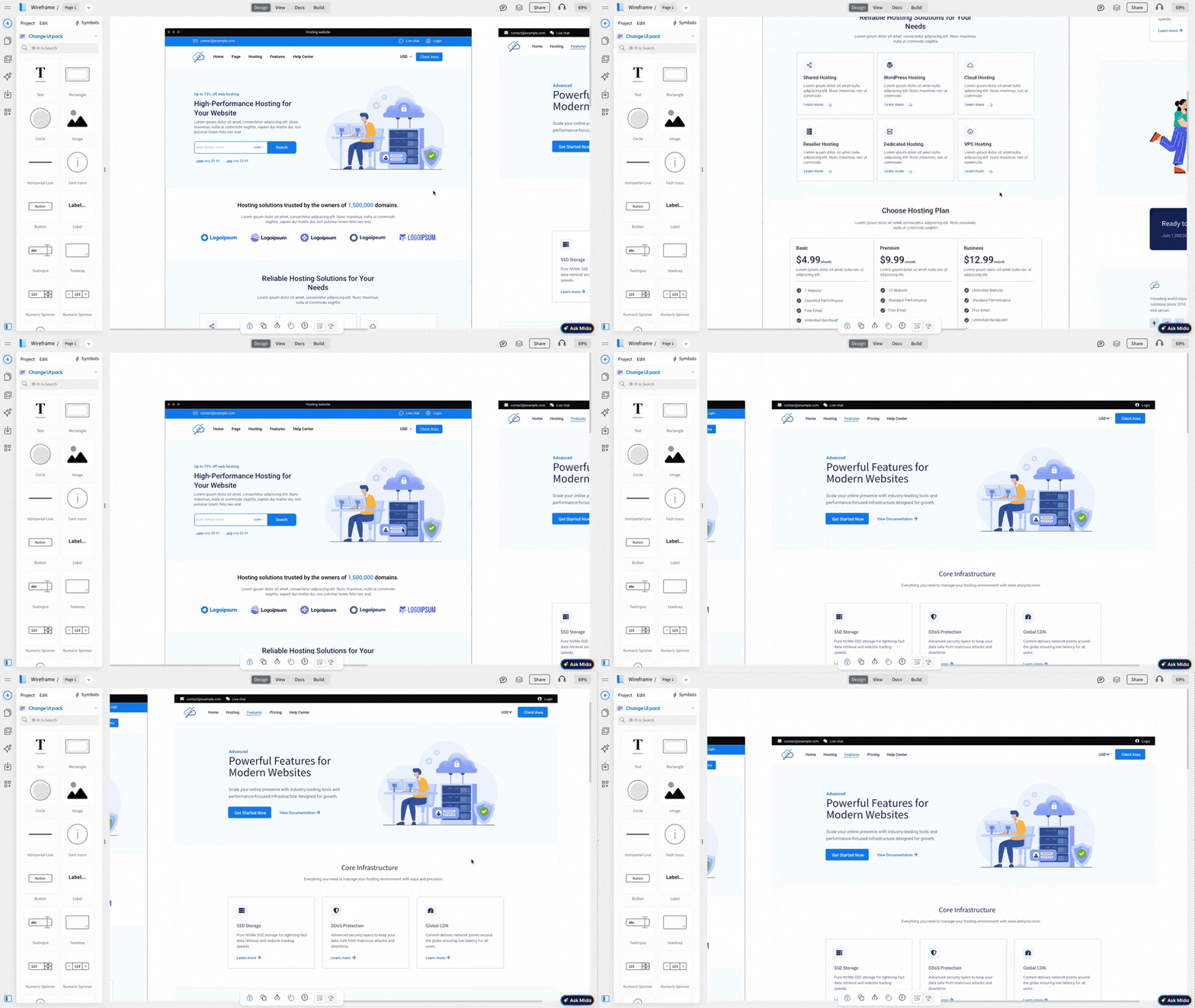
4Within a few seconds, MIDA will create a new wireframe that follows the same structure, layout, and visual style as the reference wireframe.
Option 2 : From inside Mida
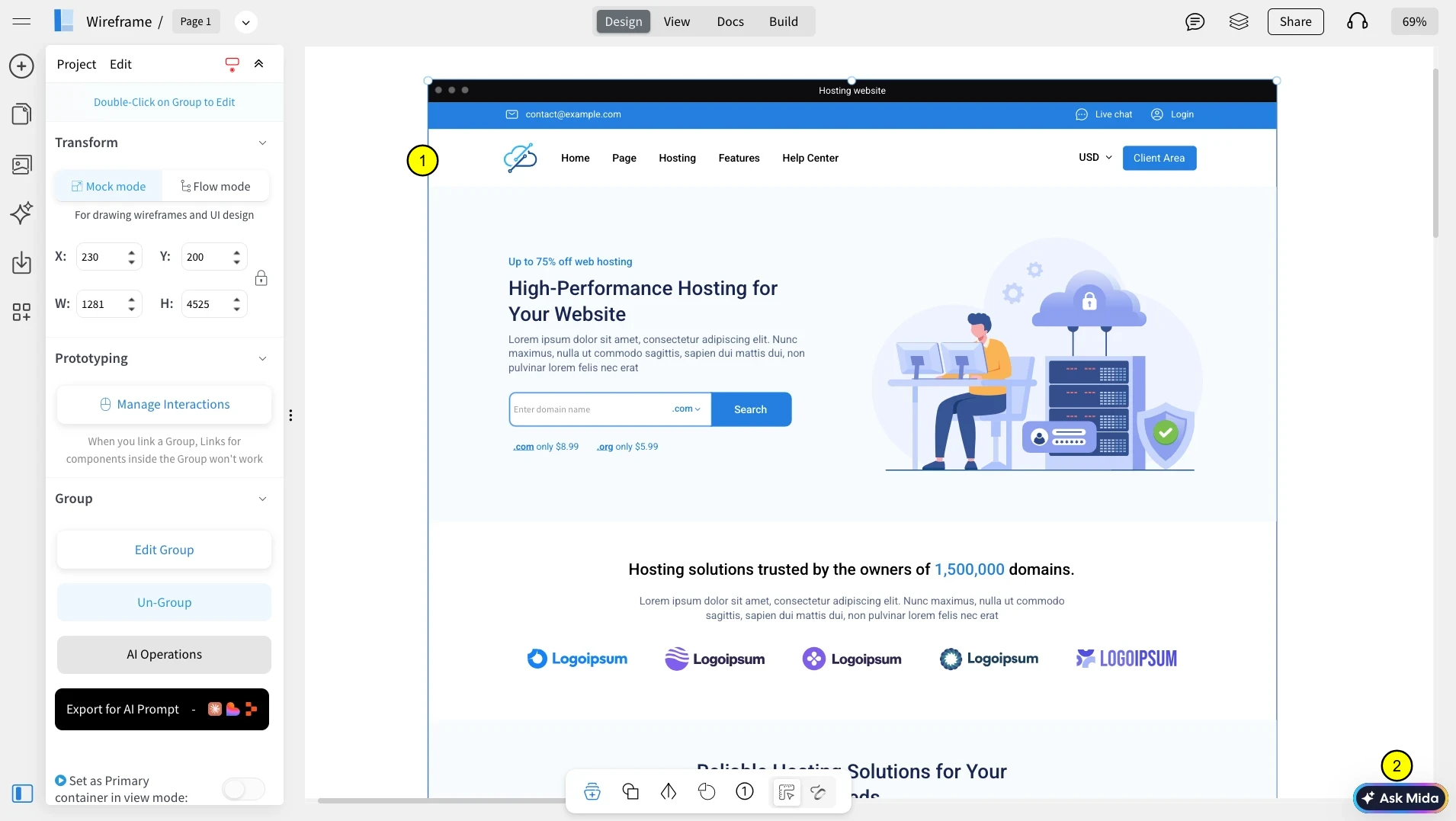
1 Alternatively, you click on the Wireframe followed by Ask MIDA.
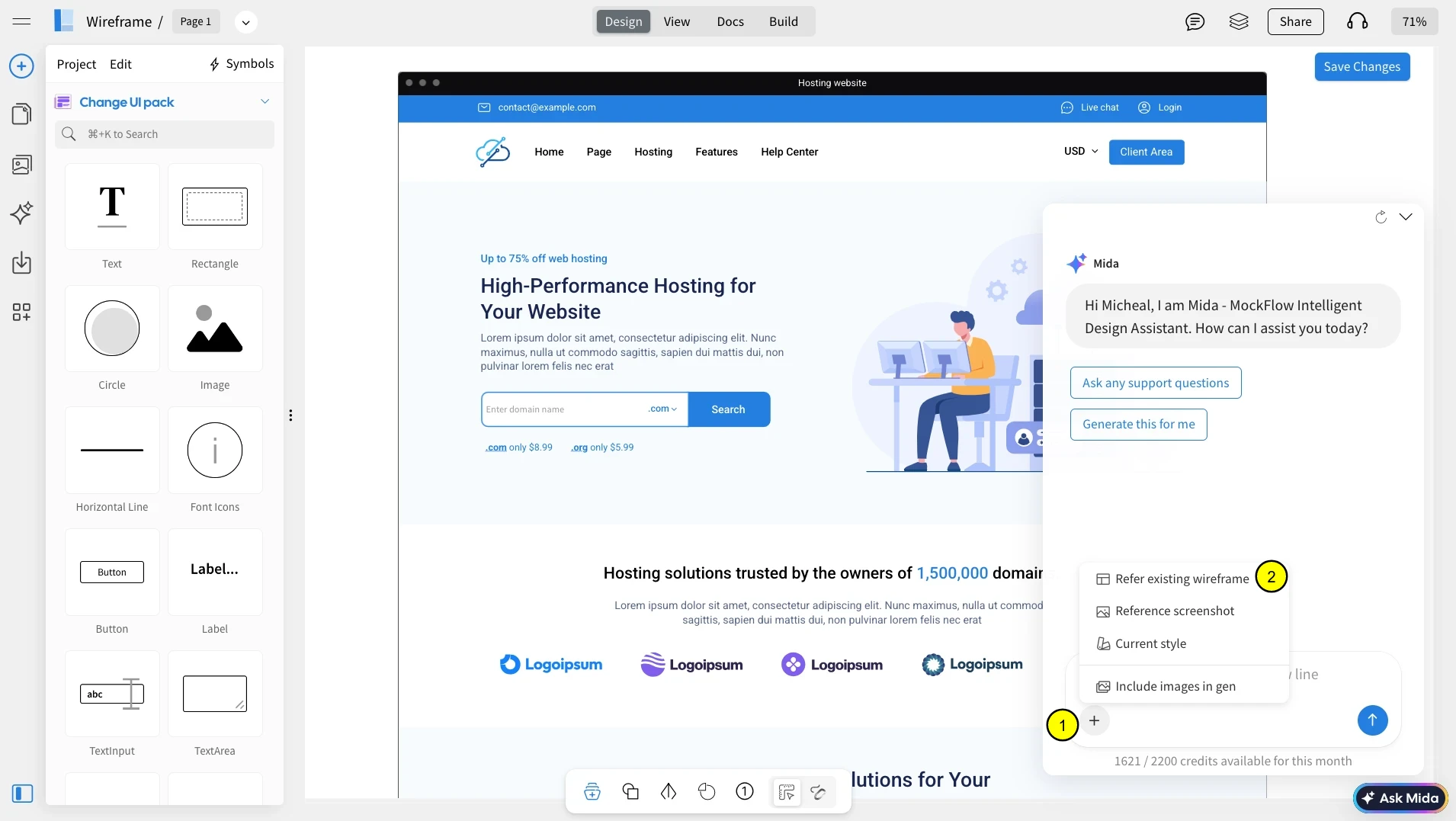
2In MIDA, click the plus icon and choose Refer existing wireframe to select a screen as your style reference. There are also other options such as uploading a reference screenshot or take only style inputs from selection.
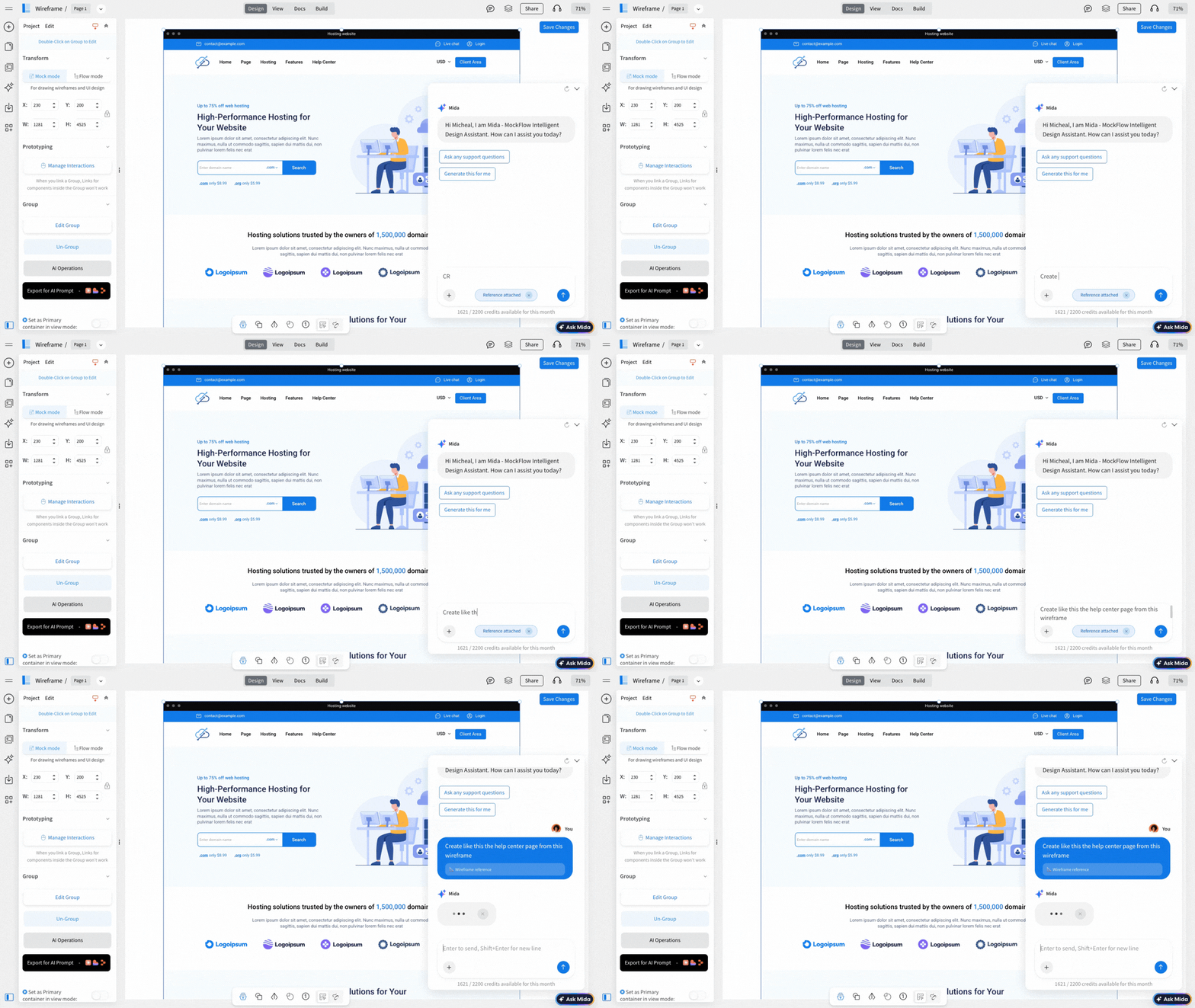
3Enter a prompt mentioning “Create Like This” and describe the new screen you want based on the selected wireframe, then click Generate. MIDA will create a new wireframe with a consistent style and structure.
For a quick walkthrough, watch the video below to see how Create Like This works in MockFlow WireframePro.


